
Email and notifications
Who your emails come from, what Tally Sign sends, choosing which document updates you get, and turning the void email on or off.
4 sections · 3 screenshots · 1 clip
Step by step · 4 steps
Choose which emails you get
Where: Tally Sign → Settings → Profile
1. Open your profile
In Tally Sign, choose Settings at the bottom left, then Profile under Account. Scroll down to Email me when.
- Or choose Choose which updates you get at the bottom of any update email.
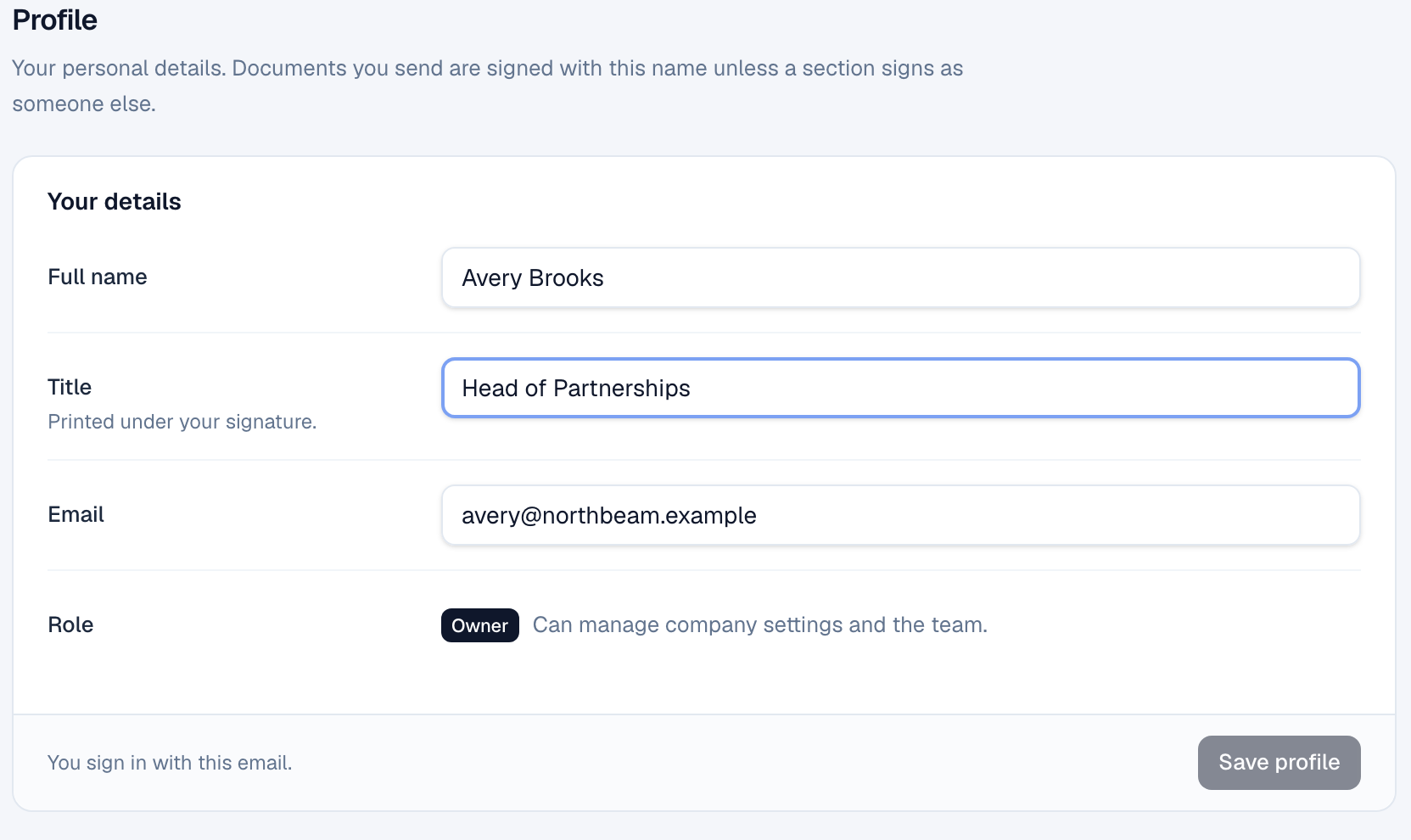
More detail: Open your profile
What Tally Sign emails, and from whom
Emails to your recipients come from your company name via Tally Sign, with your logo and brand color, and replies go to the teammate who sent the document. Settings → Email shows the address they're sent from. To send from your own domain instead, see Email and deliverability.
| Who gets it | |
|---|---|
| Signing requests, reminders and updated versions | Signers, when you send, remind or send an edited document again |
| Completed copy with the signed PDF | Everyone on the document, once everyone has signed |
| Questions, replies and changes | The other side of the conversation; see Negotiation |
| Voided notice | Signers who received a link, when a document is voided (can be turned off, below) |
| Team invites | The person you invite |
Your own account gets security emails that can't be turned off: a sign-in from a new browser, a changed password, and a changed sign-in email (sent to the old address). The owner also gets billing emails, such as the trial ending and a failed payment.
Choose which updates you get
Everyone on your team decides for themselves which document updates they're emailed about. They're all on to start.
- Open Settings → Profile, or choose Choose which updates you get at the bottom of any update email.
- Under Email me when, turn each one on or off: A customer opens a document, Someone signs, Someone declines to sign, A signer assigns it to someone else and Questions and change requests.
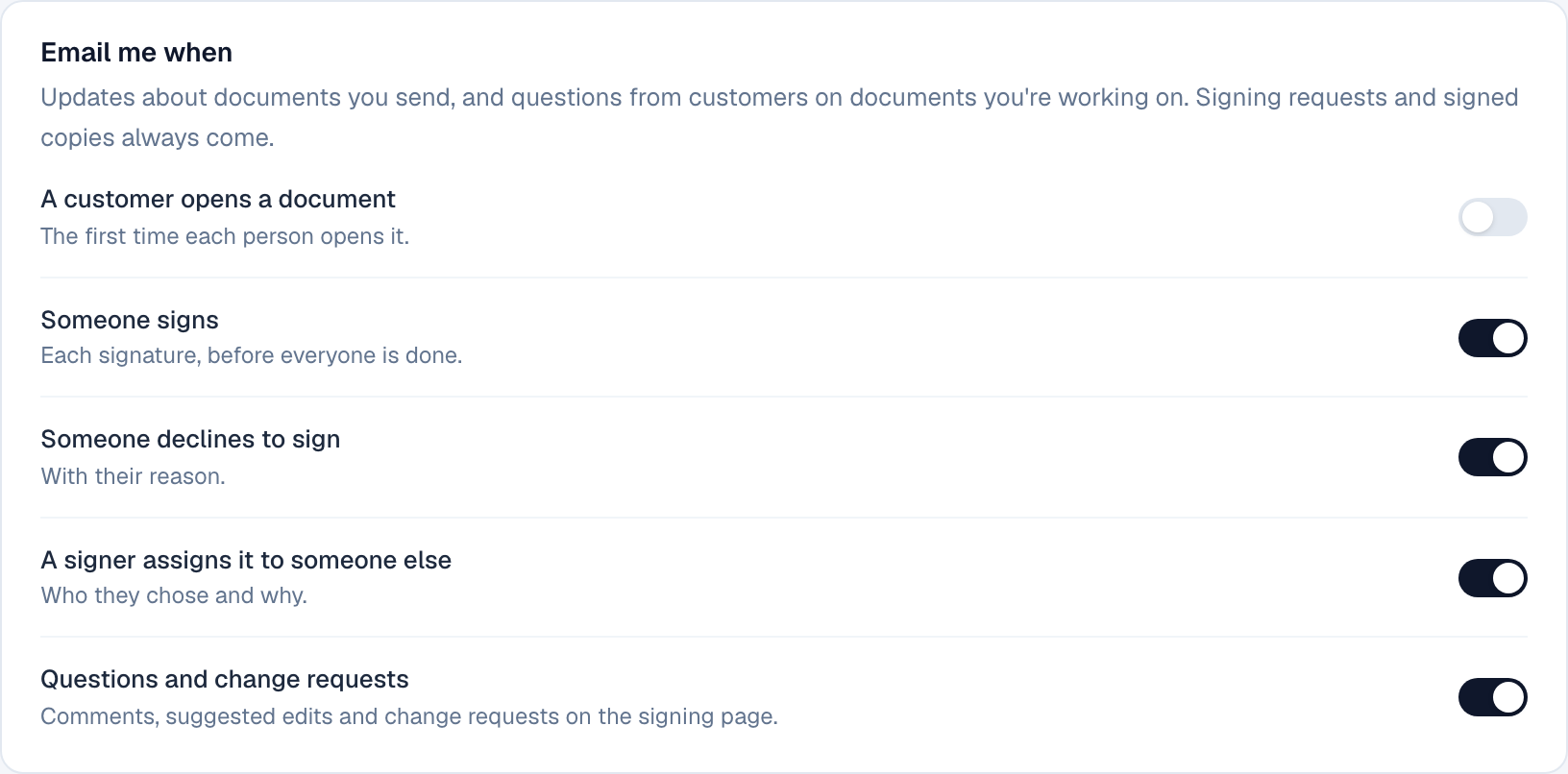
The first four are about documents you sent. Questions and change requests covers documents you sent or have replied on; when a customer writes several messages in a row, you get the first one, then one email with the rest 10 minutes later. Signing requests for your own signature, and the signed copy when everyone is done, always come. Turning an email off doesn't hide anything in the app: the document page still shows each view, signature and question as it happens.
Reply to the assistant by email
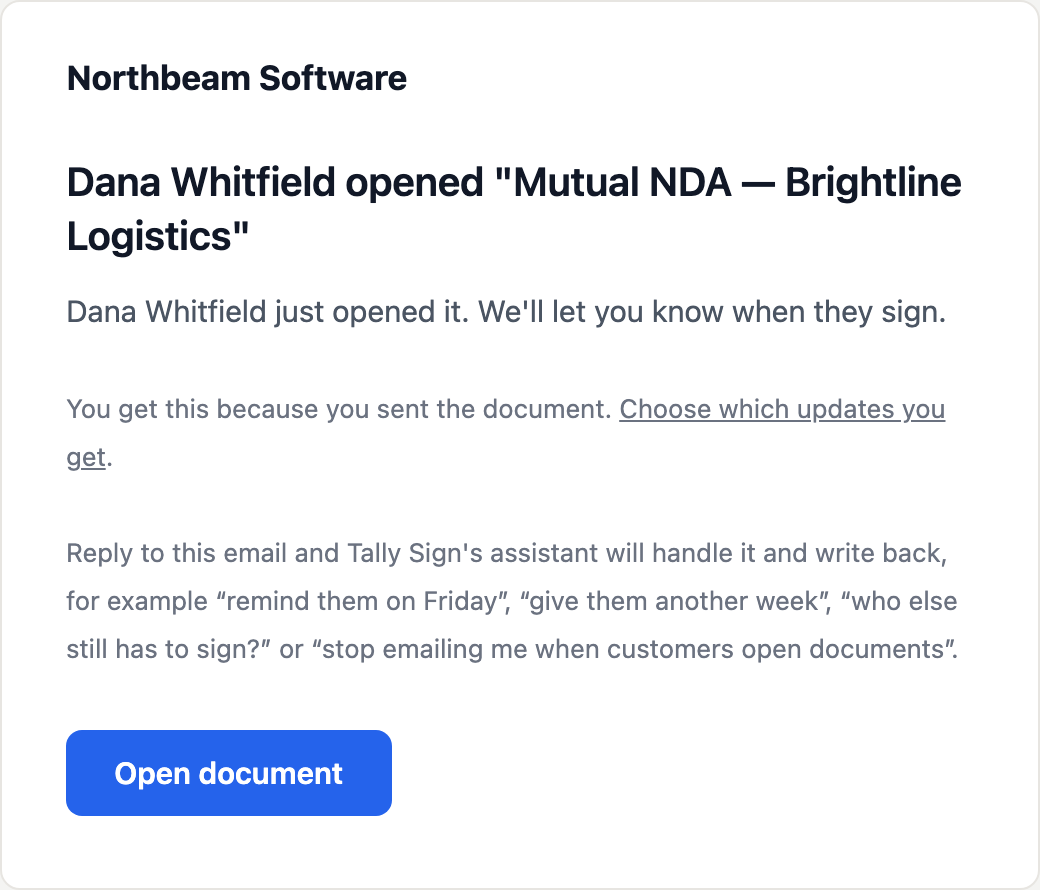
You can also answer an update email in your own words (remind Dana on Friday, give them another week, tell them we can do net 45) and Tally Sign's assistant does it and writes back in the same thread. See Work with the assistant by email.
Email signers when a document is voided
When you void a document, everyone who received a signing link is emailed that it no longer needs their signature, with your reason. It's on for new companies.
- Open Settings → Email.
- Under Notifications, turn Email signers when a document is voided on or off.
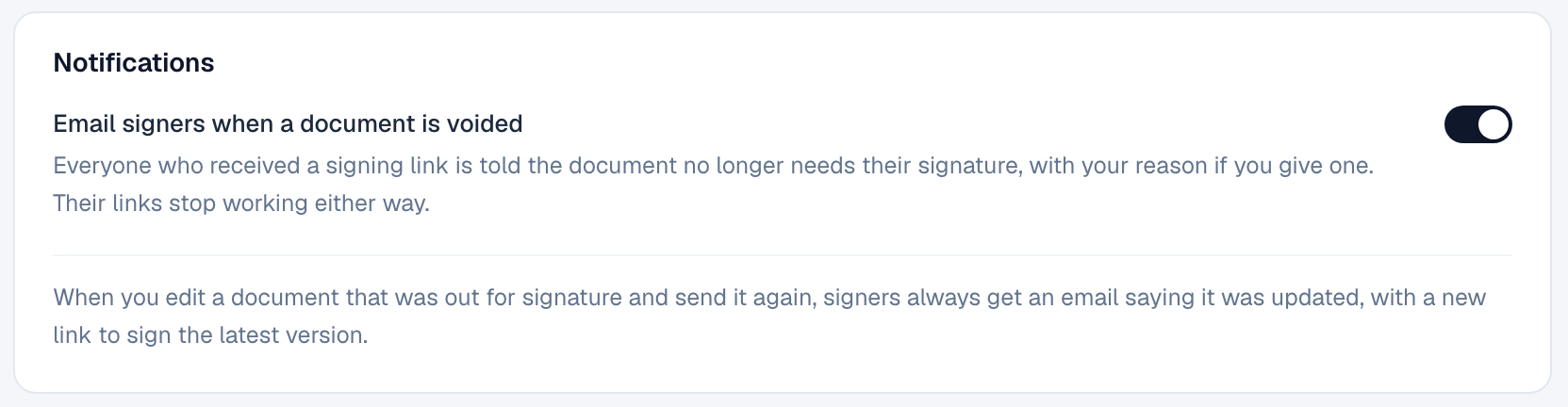
With it off, signing links still stop working when you void; signers just aren't told by email. Only owners and admins can change it. When you edit a document that was out for signature and send it again, signers always get an email with a link to the new version. See Void a document.
On the website: Pricing