
Bulk send a template to many people
Send the same template to a list of people from a CSV file, one document each, and follow every one to the signature.
6 sections · 6 screenshots · 4 clips
Bulk send turns a list into documents: one row per person, and each person gets their own copy of the template to sign, filled in from their row. Use it for an NDA to every contractor, or a policy that everyone has to acknowledge.
Step by step · 6 steps
Send one template to many people
Where: Tally Sign → Templates → ••• → Bulk send
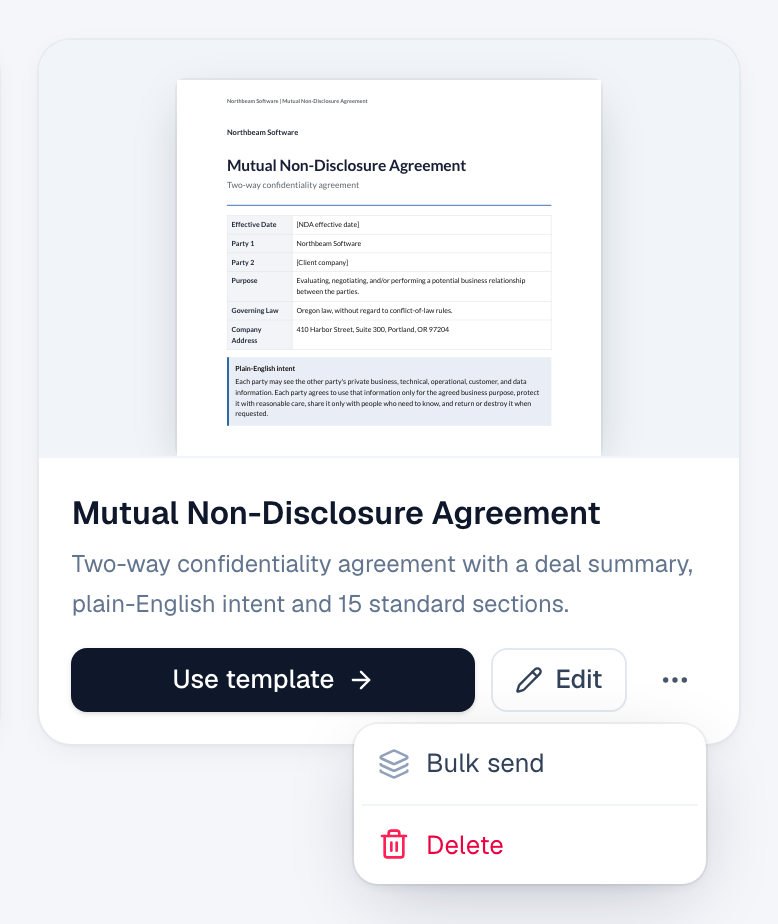
1. Open bulk send on the template
In Tally Sign, choose Templates in the menu on the left. On the template, choose •••, then Bulk send.
More detail: Open bulk send on the template
Add your list
- Open Templates, choose … on the template, then Bulk send. (In the template editor, it's in the … menu at the top.)
- Choose CSV template to download a file with the right columns: Name, Email, and every fill-in the template needs, such as the company or an effective date.
- Fill in one row per person and save the file as CSV. From Excel or Google Sheets, use Save as or Download → CSV.
- Drop the file on the page, or choose Choose a file. You can also choose Paste rows and paste straight from a spreadsheet, with the column names in the first row.
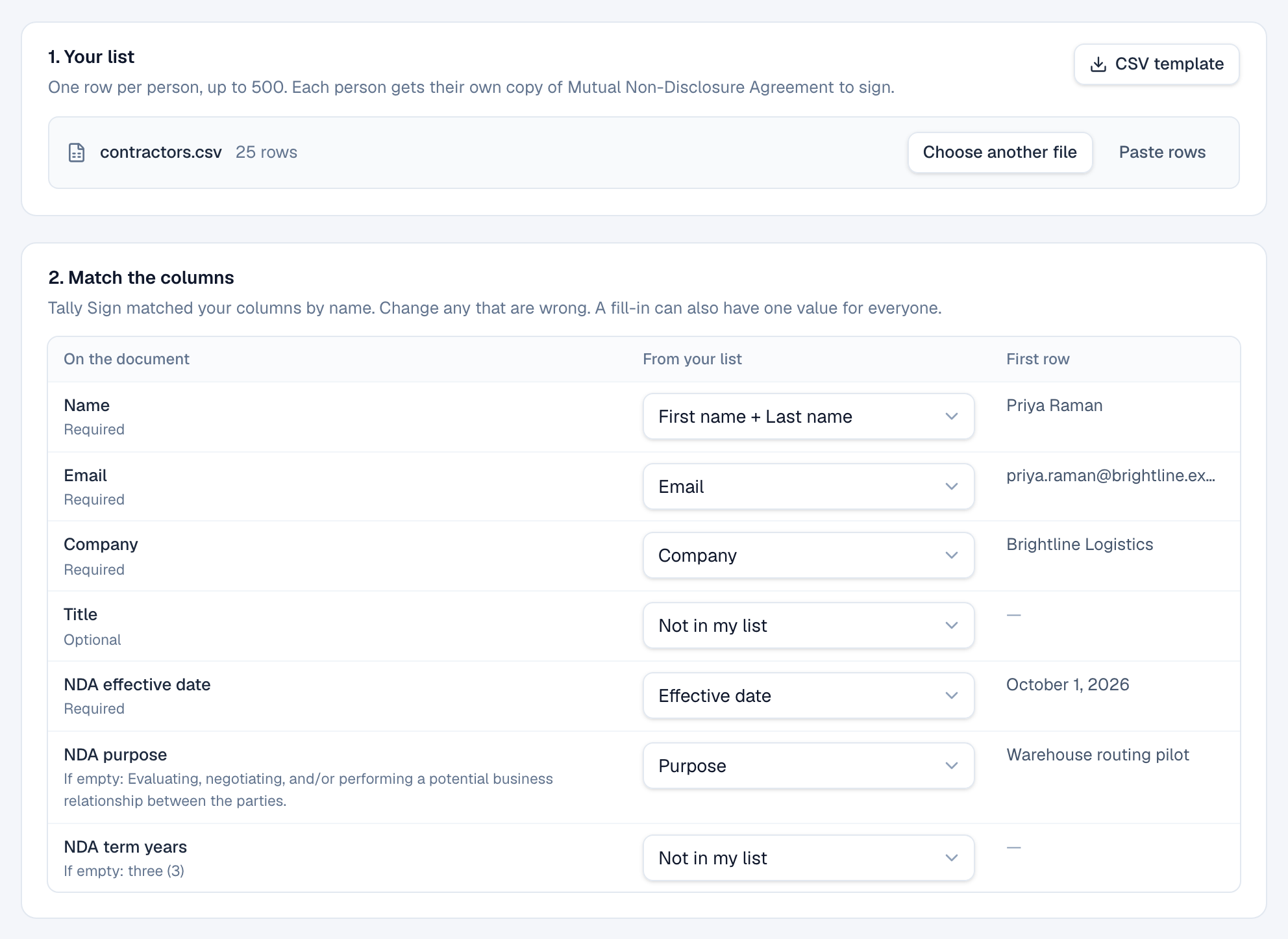
Match the columns
Once your list is loaded (see Add your list), Match the columns appears below it on the bulk send page. Tally Sign matches your columns to the document by their names, so a column called Email or E-mail address fills the email, and First name and Last name together make the name. Check each line and pick another column if a match is wrong. First row shows what the first person gets.
- Required fields need a column (or one value for everyone). Anything still missing is highlighted.
- A fill-in that's the same for every person, like a start date, can use Same for everyone… instead of a column.
- Fill-ins the template already has a value for say If empty with that value. Rows that leave them empty use it.
Check every row
Check every row comes next on the bulk send page, below Match the columns. Before anything is sent, every row is checked: a missing name or email, an email address that isn't valid, the same email twice, and missing required fill-ins. Each problem is shown on its row.
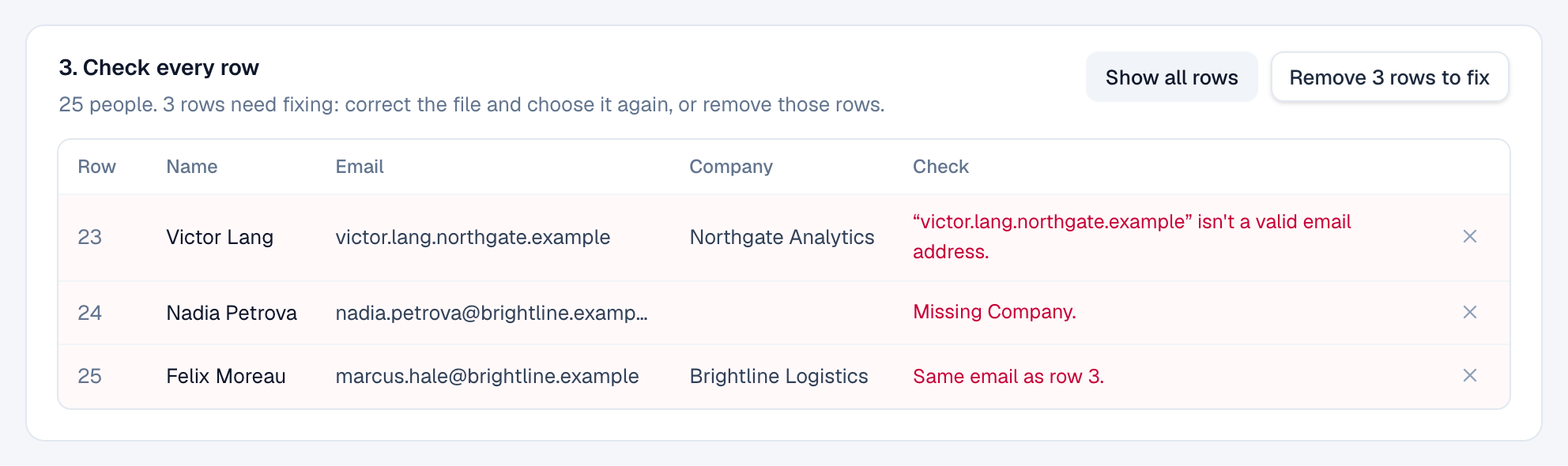
- Fix the file and choose it again with Choose another file.
- Or choose Remove 3 rows to fix (or the × on a row) to send to everyone else now. Put them back undoes it.
Send stays off until every row is ready.
Send
Send is the last part of the bulk send page, below Check every row. Also on every document lists everyone else on the template. Usually that's your company's signer, filled in with you. Change the name and email to have someone else countersign.
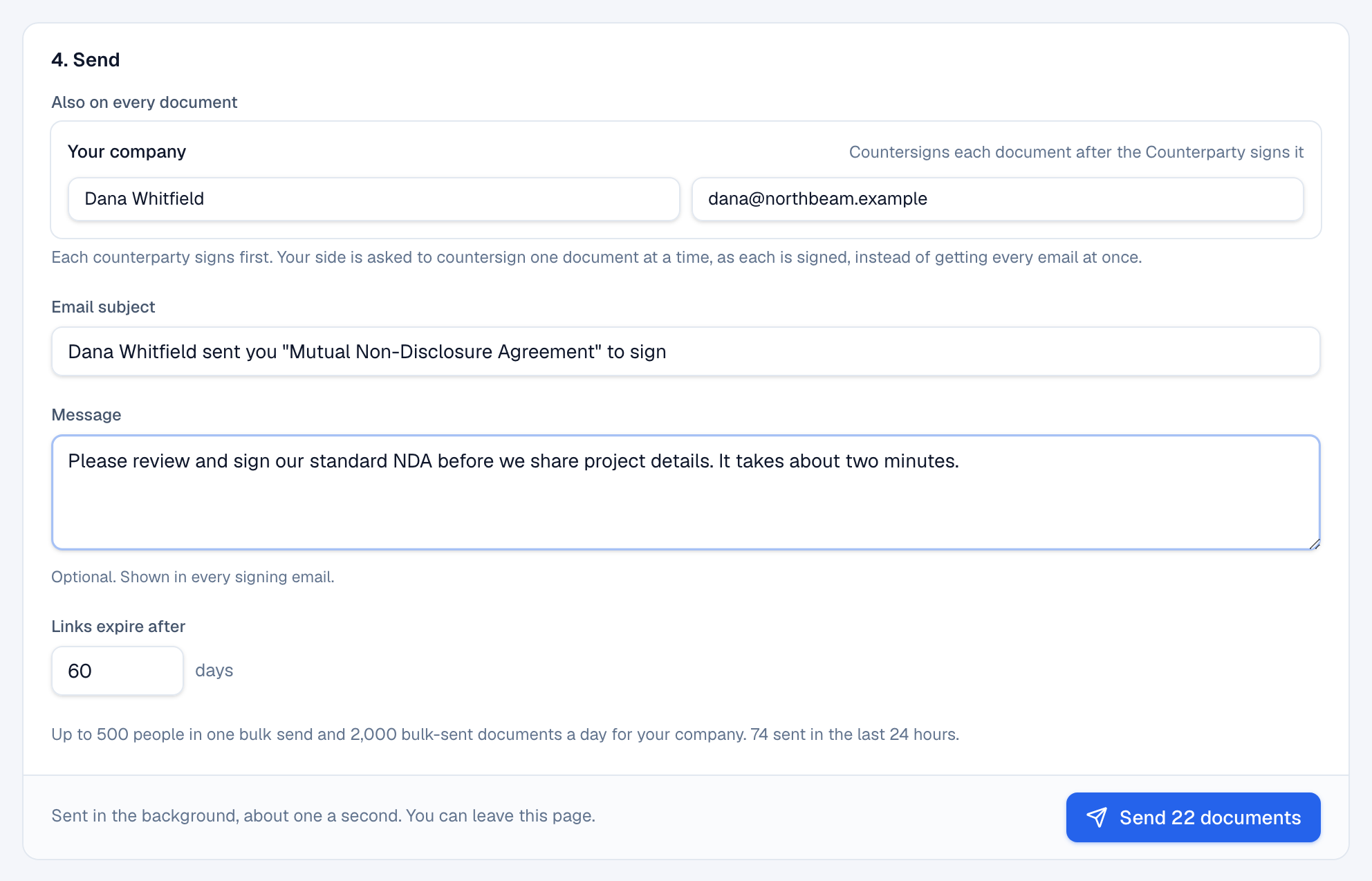
- Check Also on every document. Any other signer or copy on the template needs a name and email here too.
- Check the Email subject and add a Message if you like. It's shown in every signing email.
- Change Links expire after if 60 days is too long or short.
- Choose Send 22 documents (the button shows your count).
Follow the progress
After you choose Send, the bulk send's page opens. Documents go out in the background, about one a second, so 500 take around nine minutes. You can close the page; sending carries on.

- Result is Sent, Waiting, Failed (with the reason) or Canceled.
- Signing follows the document: Awaiting signature, Viewed, Signed, waiting on others or Completed.
- Open goes to that person's document, where you can remind, copy the signing link or void it like any other document.
- Results CSV downloads every row with its result, note and a link to its document.
- Stop sending cancels the rows that haven't gone out yet. Documents already sent stay out for signature.
- Retry failed tries the failed rows again. A row whose document already went out only has its email sent again, so nobody gets a second document.
If the email service is slow or briefly unavailable, affected rows wait and try again on their own; they show Waiting with the reason until then.
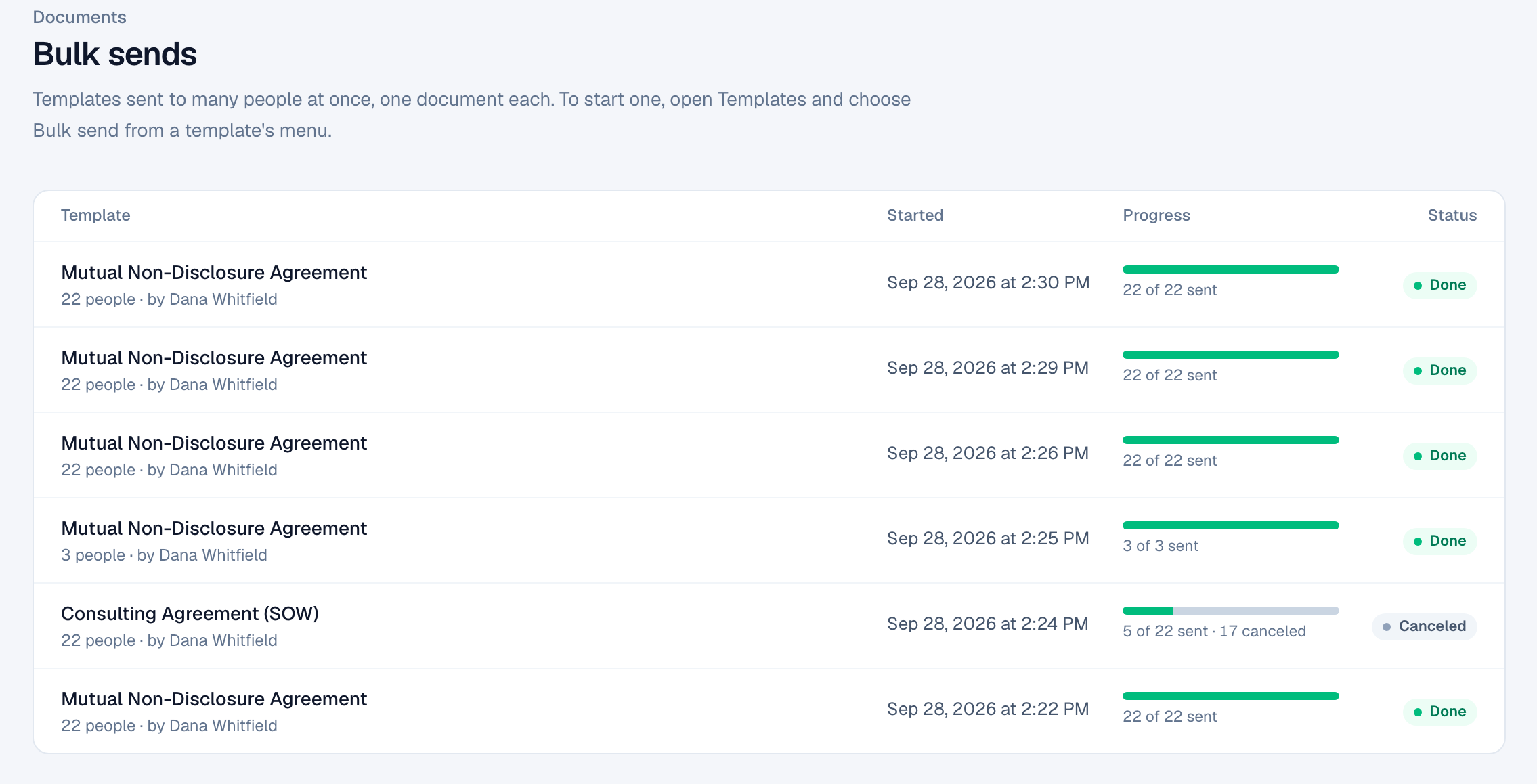
Every bulk send stays in Documents → Bulk sends, with its progress and status. Each document also appears in Documents as usual, titled with the template and the person's name.
Limits and who can bulk send
| Limit | Amount |
|---|---|
| People in one bulk send | 500 |
| Bulk-sent documents per company | 2,000 in any 24 hours |
| Sending pace | About one document a second |
Documents are unlimited on every plan. These limits come from the fair-use terms, which don't allow using Tally Sign for bulk mail, and help keep signing emails out of spam folders. If your company needs more, email support@tallysign.com.
Anyone in your company who can send documents can bulk send. Sending stops if your account is paused for billing, or if the person who started the bulk send is removed from the team; the rows that didn't go out show why.
On the website: No CRM needed·Pricing