
After signing: field updates, Files and notifications
Update fields on the record, save the signed PDF to Files and notify the sender, automatically.
5 sections · 3 screenshots · 2 clips
Step by step · 4 steps
Update the record after signing
Where: Tally Sign → Templates
1. Open the template
In Tally Sign, choose Templates in the menu on the left, then Edit on the template. To start a new one, choose New template.
More detail: Open the template
Field updates
Open the template in the editor (Templates → Edit on the template) and choose the Salesforce tab on the right. Under After sending, After signing and If declined, each stage can update fields on the record:
- After sending, for example set Quote Status to Presented.
- After signing, for example set Status to Accepted.
- If declined, for example set Status to Denied.
Choose Update a field on the quote (the label names the template's object) to add one. Only fields the Salesforce user Tally Sign connects as can edit are offered. Type a fixed value, or choose the { } button in the value box for one Tally Sign fills in: Date sent, Link to the document, Date signed after signing, and Decline reason or Date declined if declined. The value box shows it by name, for example Decline reason; choose it to pick another or Type a value instead. Date fields offer only dates that exist at that stage, for example The date it was declined under If declined.
After signing can also write what the signer entered, under Filled in by the signer, for example Client · Payment terms into a picklist, Client · Service start date into a date field, or Client · Monthly shipments into a number field. Only fields with a label are offered. Numbers go to Salesforce as plain numbers, picked dates as dates, choices as chosen and checkboxes as checked or unchecked. A file upload writes the file's name; the file itself stays with the document in Tally Sign. A field that was hidden by its condition leaves the Salesforce field empty.

Save the signed PDF to Files
In the template's Salesforce tab on the right of the editor, under After signing, turn on Save the signed PDF to the quote (the label names the template's object). The PDF, with its certificate of completion, is added to the record's Files as soon as everyone has signed. Your own PDF or Word files sent from a record, and templates whose after-signing steps were never set, save the signed PDF and notify the sender too.
Notify the sender
In the template's Salesforce tab on the right of the editor, turn on Notify the sender under After sending, After signing or If declined to send a Salesforce bell notification when the document is sent, completed or declined. It links to the record. On completion it names everyone who signed, your company's signer too (or just the one person, when only one signs), and says when an order or contract was created.
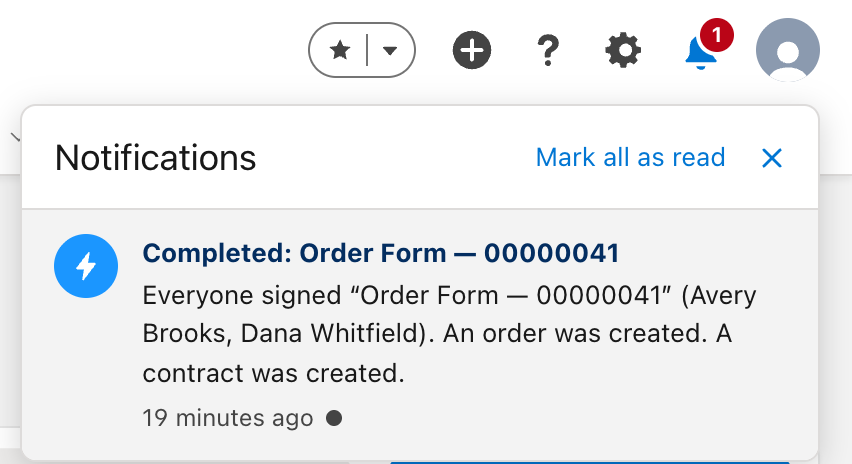
For documents sent from Salesforce, the sender also gets a bell when the customer asks a question, replies, suggests an edit or asks for a change, for example Dana asked for a change: Order Form — 00000041 with what they wrote. It's at most one every 10 minutes per document, so a burst of questions is one notification. Turning off Questions and change requests in Settings → Profile (under Email me when) turns these off too.
Log it in the Activity timeline
Log it in the Activity timeline, in the template's Salesforce tab on the right of the editor, under After sending, After signing or If declined, adds a completed task to the record's Activity, for example Tally Sign: Completed – Order Form — 00000041. It's assigned to the sender, linked to the customer's contact, and lists who signed with a link to the document. If the record's object has no activities, the task goes on the related opportunity or account.
It's on after sending and after signing for every template, older ones included, and for your own PDF or Word files sent from a record. Turn it off on a template to stop it. For declines, turn it on.
Where results are logged
Every step is written to the envelope's activity, visible on the record in Salesforce (its Tally Sign tab → Activity) and on the Envelope record.
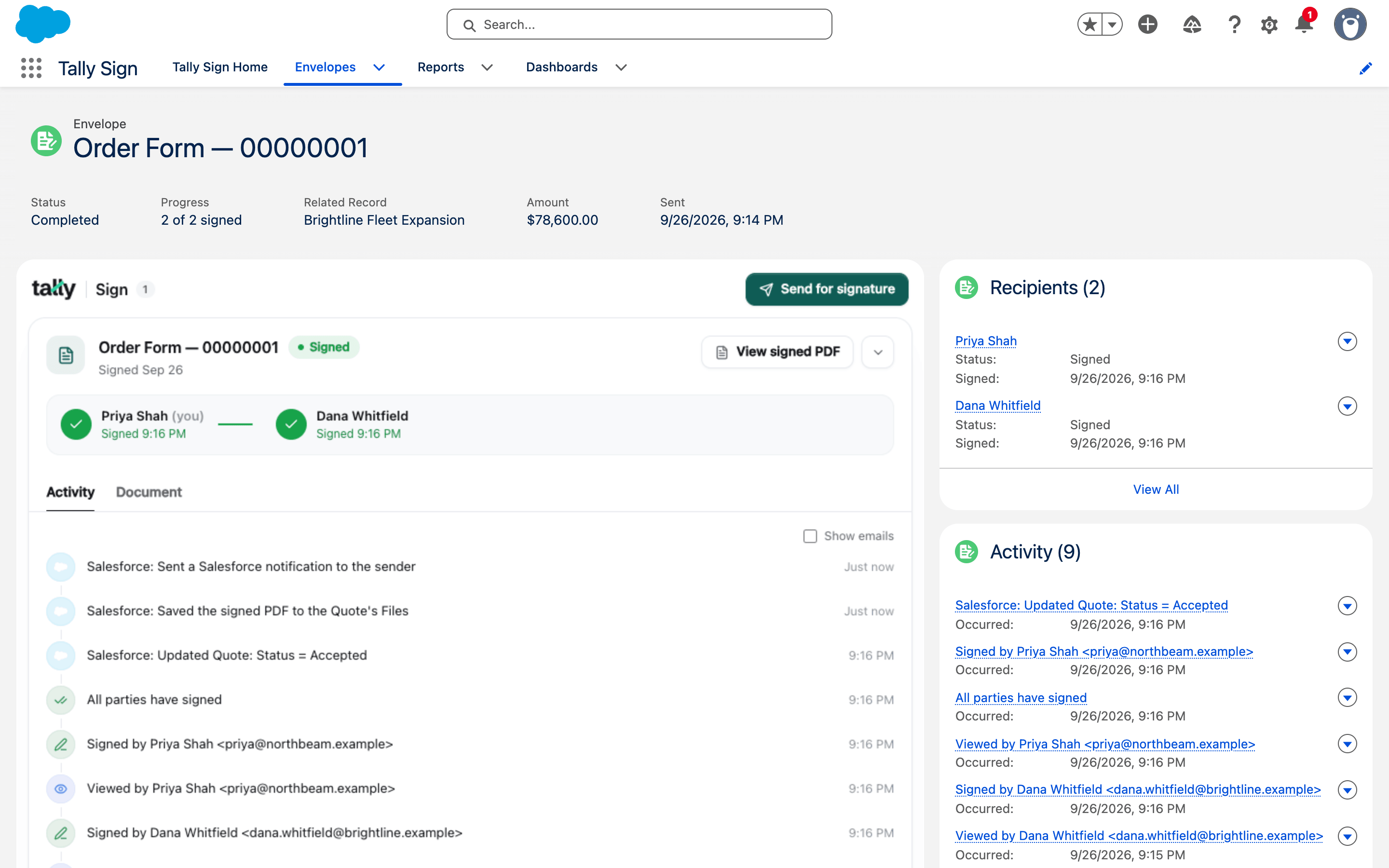
On the website: Any object·Pricing