
Negotiate from inside Salesforce
Reply to questions, leave internal notes and accept or reject redlines without leaving the record.
2 sections · 9 screenshots · 2 clips
Step by step · 4 steps
Answer a customer's question or change request in Salesforce
Where: Salesforce → the record → Tally Sign tab → Document
1. Open the document on the record
In Salesforce, open the record and choose its Tally Sign tab, then the Document tab. Its count shows what's waiting on you. Changes and Chat sit beside the page.
- When the customer asks something or suggests an edit, you also get a bell notification; choosing it opens the record.
More detail: Open the document on the record
On this page
Reply and leave notes
Customers negotiate on the signing page. Here the customer asked a question, suggested an edit to the terms and requested a change to the order summary.

You see it all on the record. In the Tally Sign tab, the Document tab counts what's waiting on you: open changes, plus one when a question is waiting for a reply. Changes and Chat sit beside the page, and Chat is marked when the customer is waiting on a reply. Suggested edits are marked on the page.
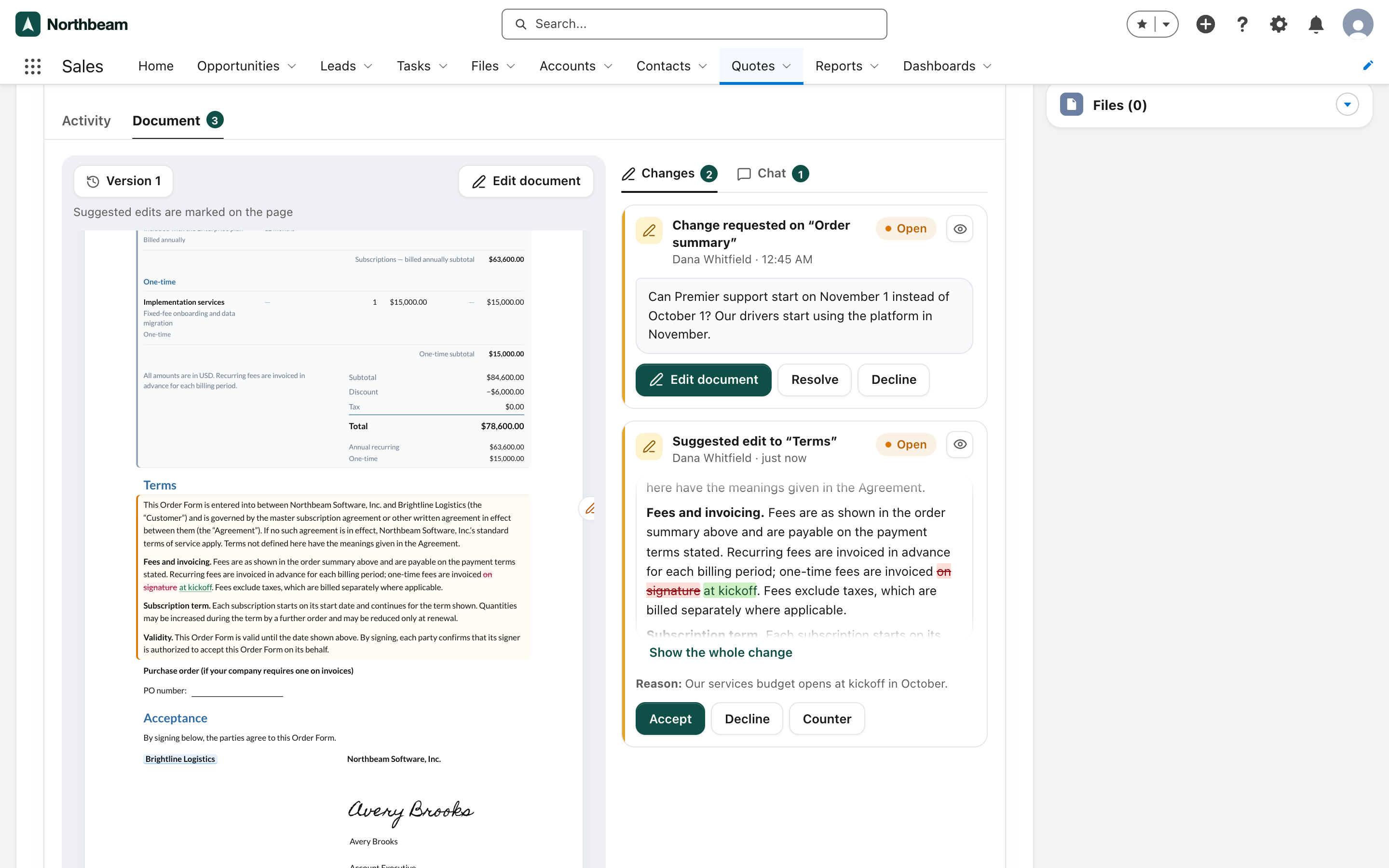
- On the record in Salesforce, open the Tally Sign tab, then the Document tab, and choose Chat.
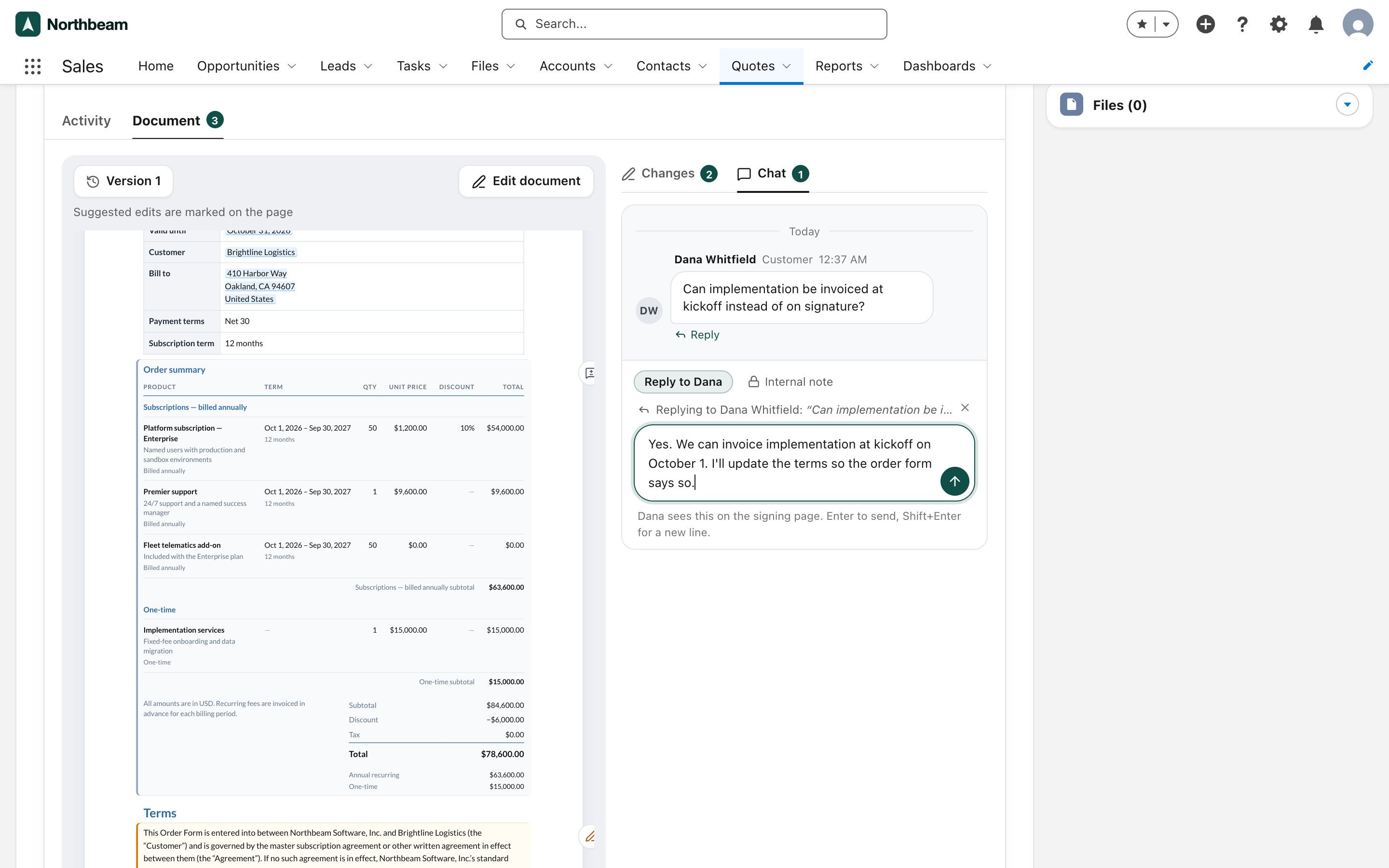
- To answer one of Dana's messages, choose Reply in thread under it (or its replies count, such as 2 replies). The message opens as its own thread: type your answer and press Enter. The arrow at the top goes back to the conversation.
- To start a new topic, type in the box at the bottom with Reply to Dana selected and press Enter.
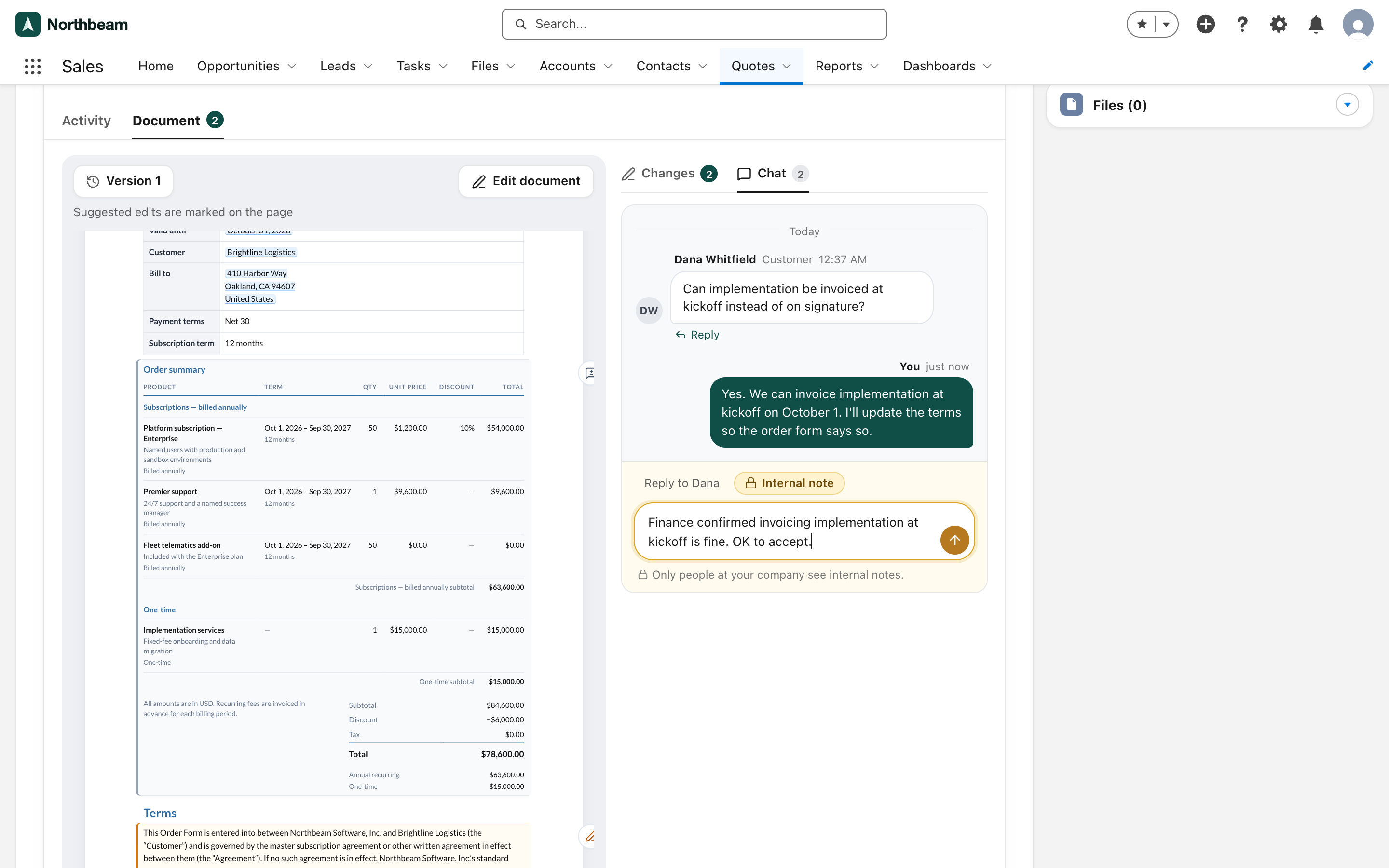
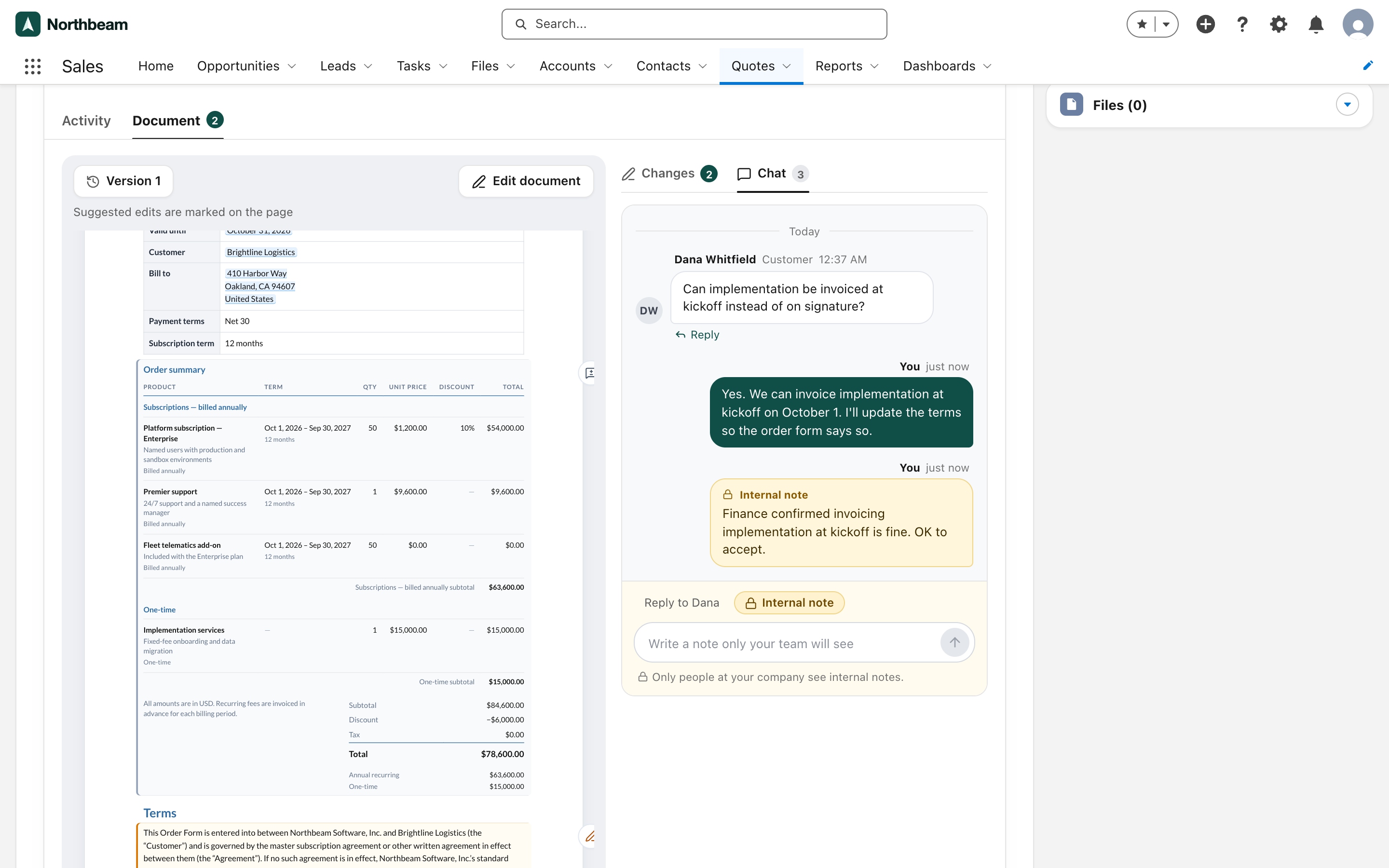
- To talk to your team only, choose Internal note first. The composer turns yellow.
Type @ to mention someone: Dana and the others on the document, or a teammate (an internal note lists only your team). They get an email that you mentioned them. The smiley in the box adds an emoji to your message. The smiley under a message adds a reaction; choose a reaction again to take yours back. Dana sees threads and reactions on the signing page too.
Messages from reviewers and people copied are labeled Reviewer or CC in Chat, and a reviewer's suggested edits carry a Reviewer badge in Changes. Their comments ring the sender's bell like any customer's, and anyone a customer invites to review is on the record's Reviewers and copies list (the sender's bell rings for that too).
Replying to the customer needs a seat. Anyone who can open the record can leave internal notes. Internal notes never reach the customer. They don't run automations that email signers, send reminders or send documents, whatever the automation's settings.
Once the signing link has expired, replies and decisions wait: the customer can't open the page. Choose Edit and resend to send a fresh link first. Internal notes still work.
Accept, reject or counter
On the record in Salesforce, open the Tally Sign tab, then the Document tab, and choose Changes. Deciding changes needs a seat.
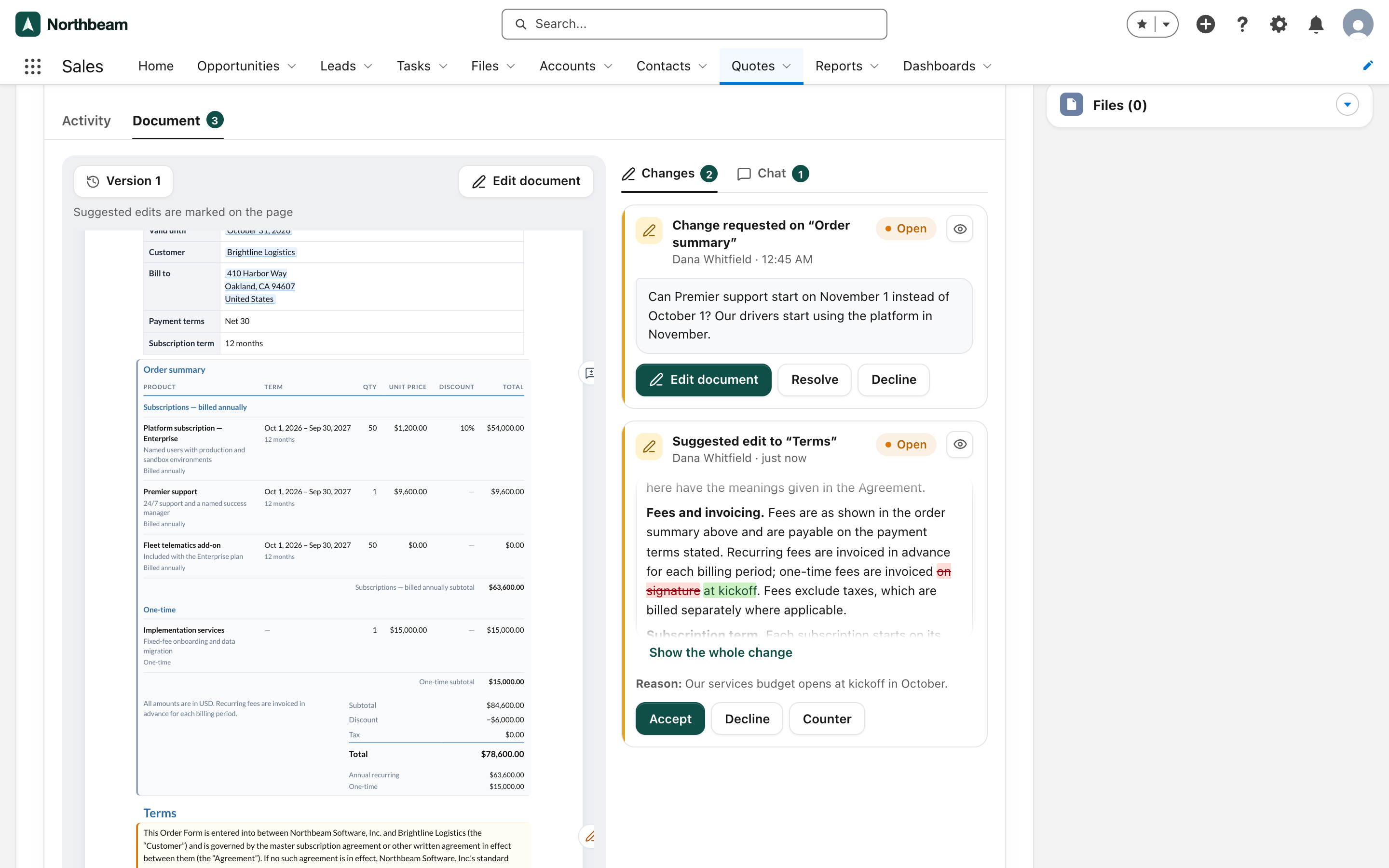
| Card | Actions |
|---|---|
| Suggested edit | Accept, Decline, Counter (edit the wording and publish your version; the customer is told it differs from theirs) |
| Change request | Edit document (make the change in a new version), Resolve (after you've made the change), Decline |
The eye button beside a card's status shows that section on the page. A long section opens at the change itself; choose Show the whole change to read all of it.
- For a change request, choose Edit document, then Unlock and edit, make the change and send the next version. The request is marked resolved when it's sent, and the customer is told.
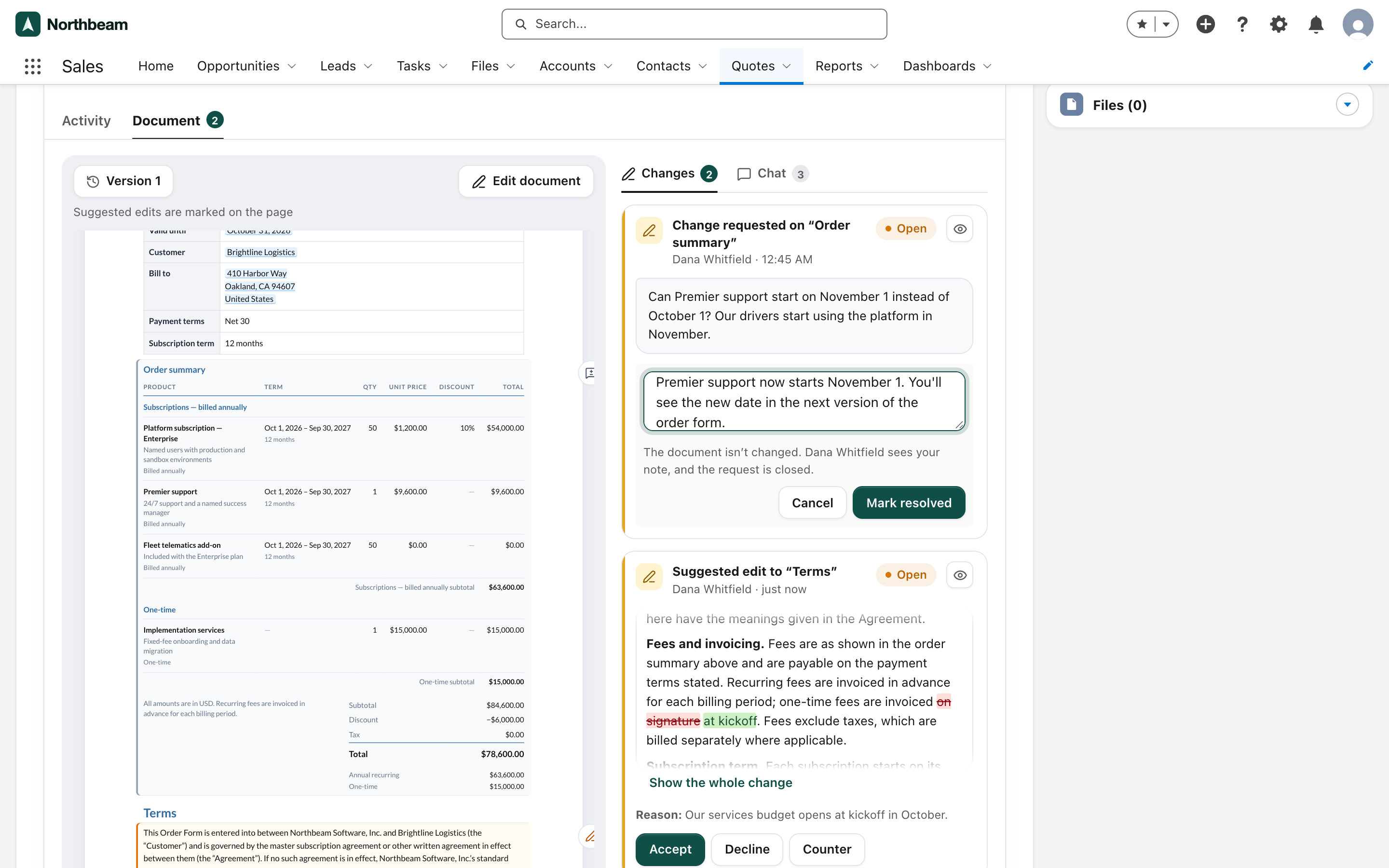
- Or, if the change is already made, choose Resolve, add a note for the customer and choose Resolve request. The document isn't changed: the customer sees your note and the request is closed.
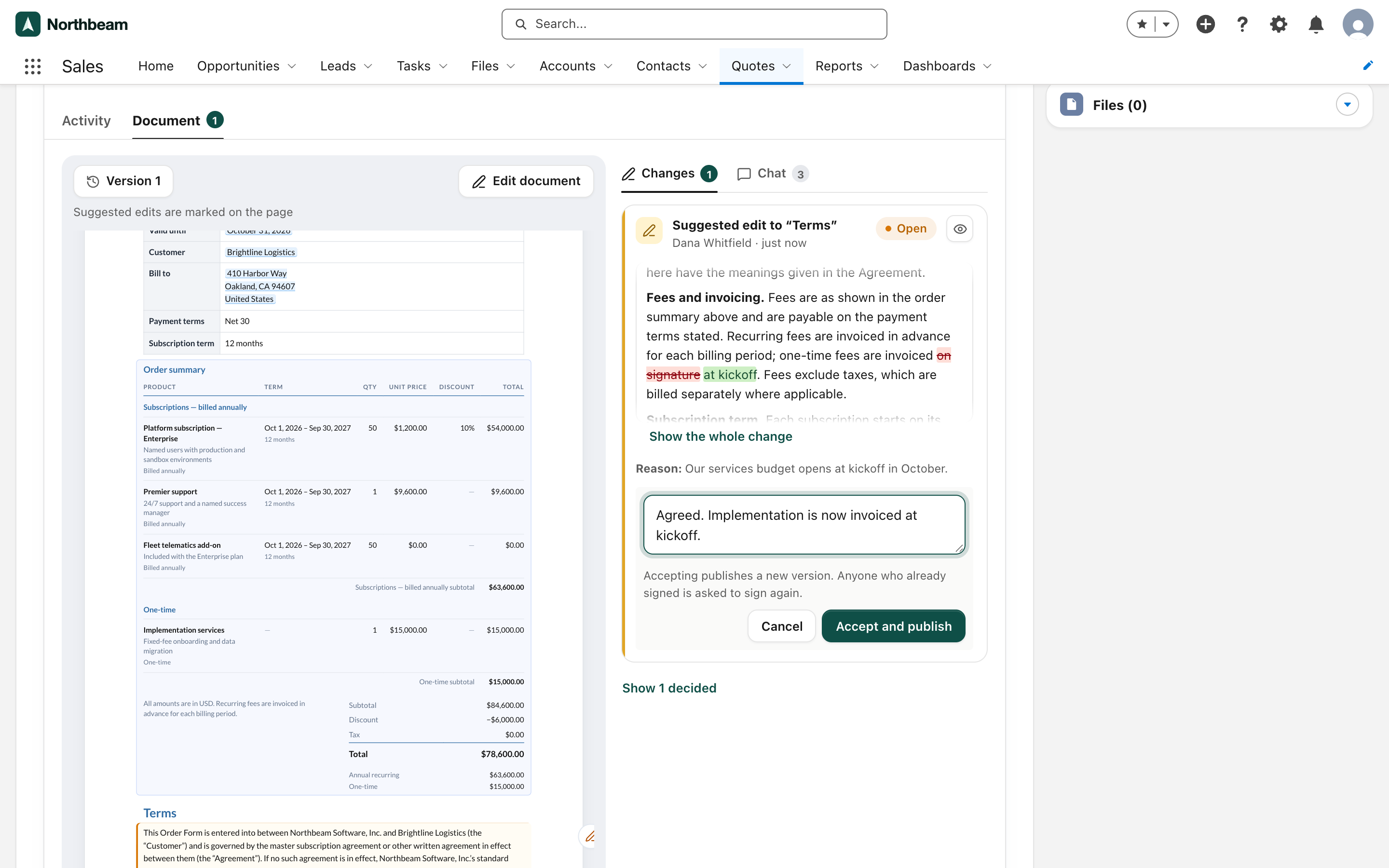
- For a suggested edit, choose Accept, add an optional note and choose Accept and publish.
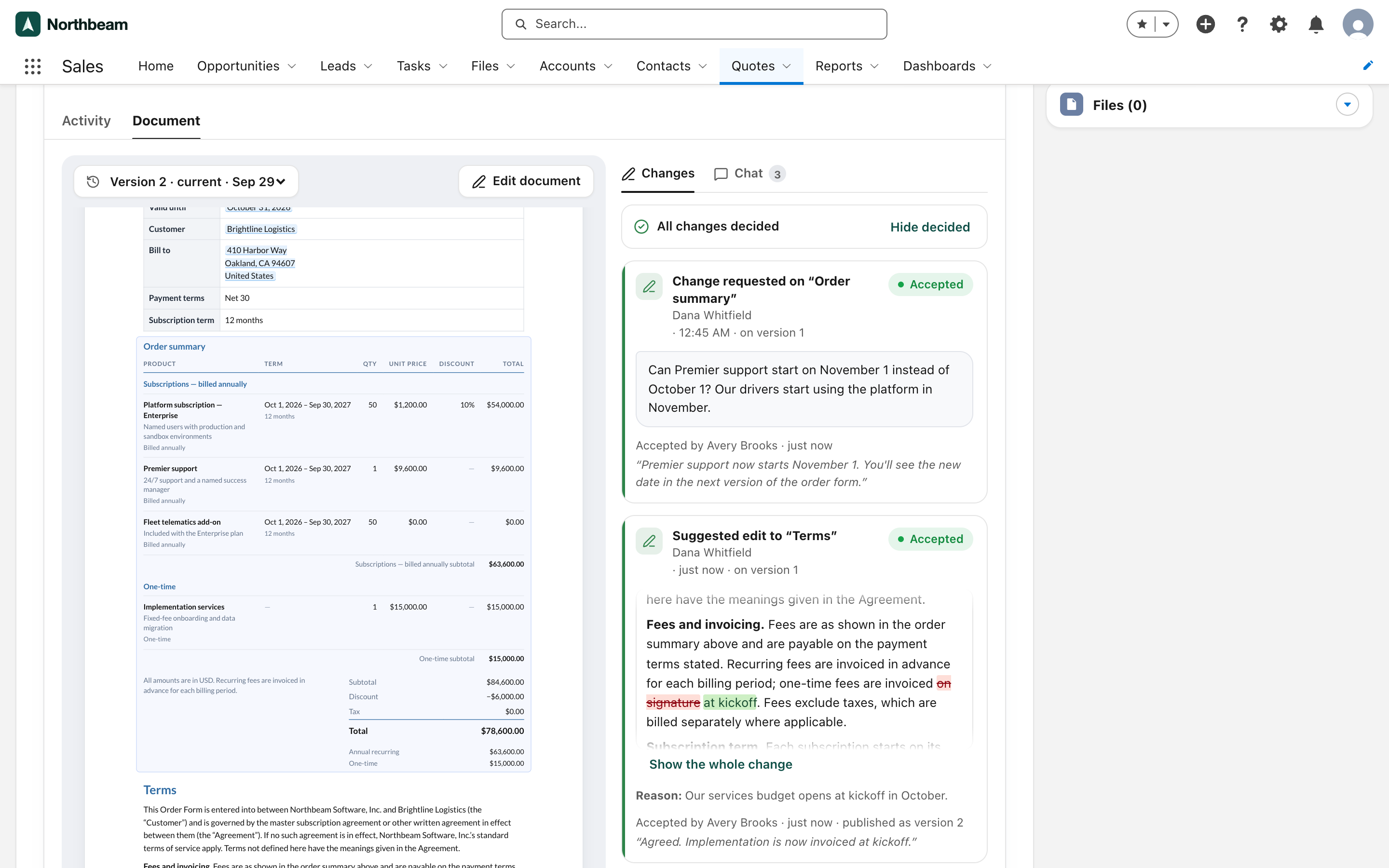
A countered edit is labeled Countered, and a change request you resolved is labeled Resolved. Decided changes are folded away; choose Show … decided to see them. With every change decided and a customer question still unanswered, Changes says who's waiting, with Open chat. Other open changes stay open while you edit and carry over to the next version, so you can still decide them. A suggested edit to a section you rewrote is closed, and the customer is told why.
On the website: Any object·Pricing