
Signed → Order → Contract
What runs after signing, what the quote needs beforehand and what to check if a step fails.
3 sections · 6 screenshots · 1 clip
Step by step · 4 steps
The quote was signed but no order was created
Where: Salesforce → the quote → Tally Sign tab → Activity
1. See why on the quote
In Salesforce, open the quote and its Tally Sign tab. The failed step is under Activity, for example Salesforce: couldn't create the order — We couldn't create the order because the prices aren't updated. Click Reprice All and try again. The message comes straight from Salesforce.
- On the Envelope record, Last Error holds any problem that isn't fixed yet, and Lifecycle Log lists every step with its time.
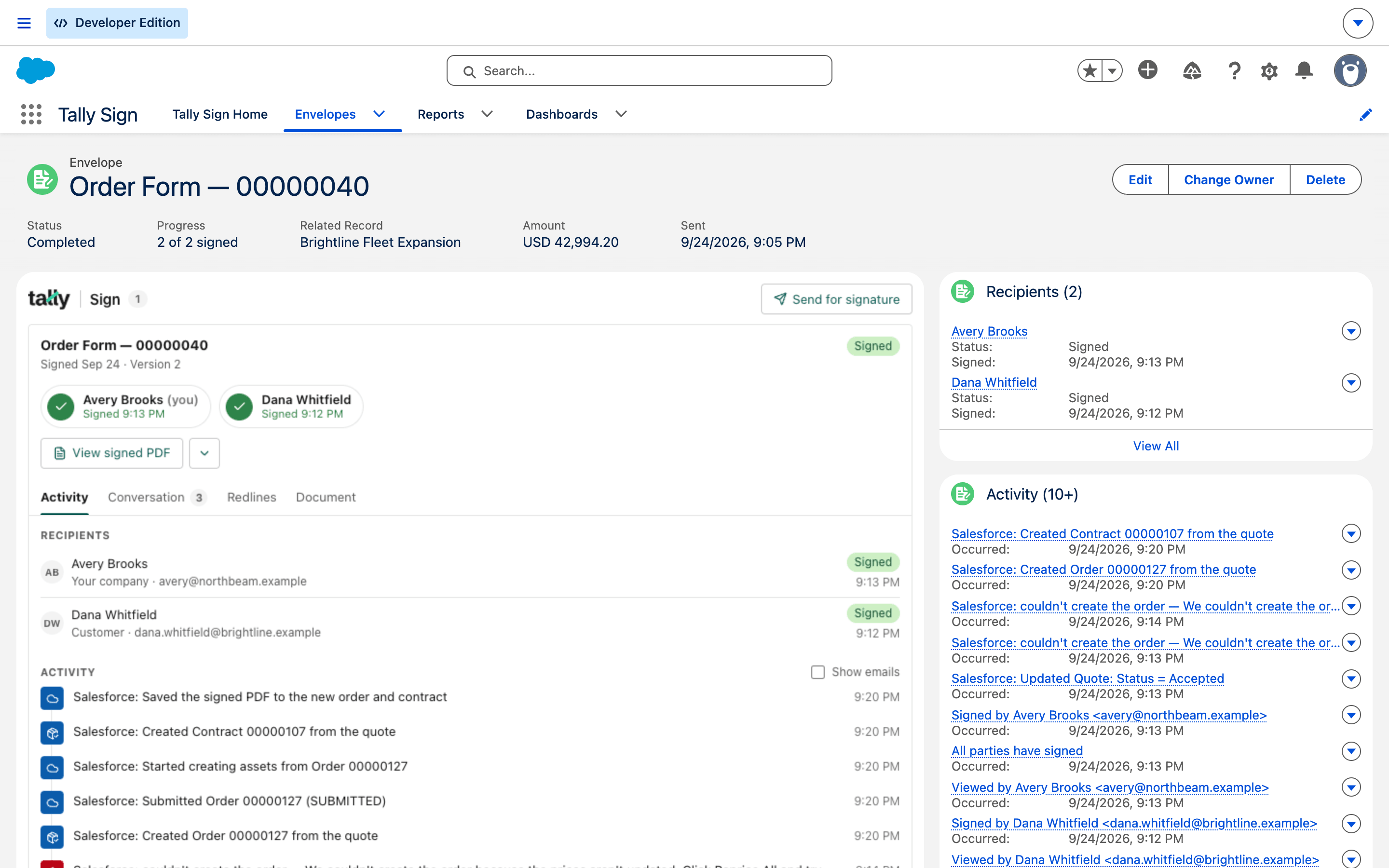
More detail: See why on the quote
What runs
When the last person signs, Tally Sign runs the steps you turned on, in order:
- The quote's Status is set to Accepted.
- The signed PDF is saved to the quote's Files.
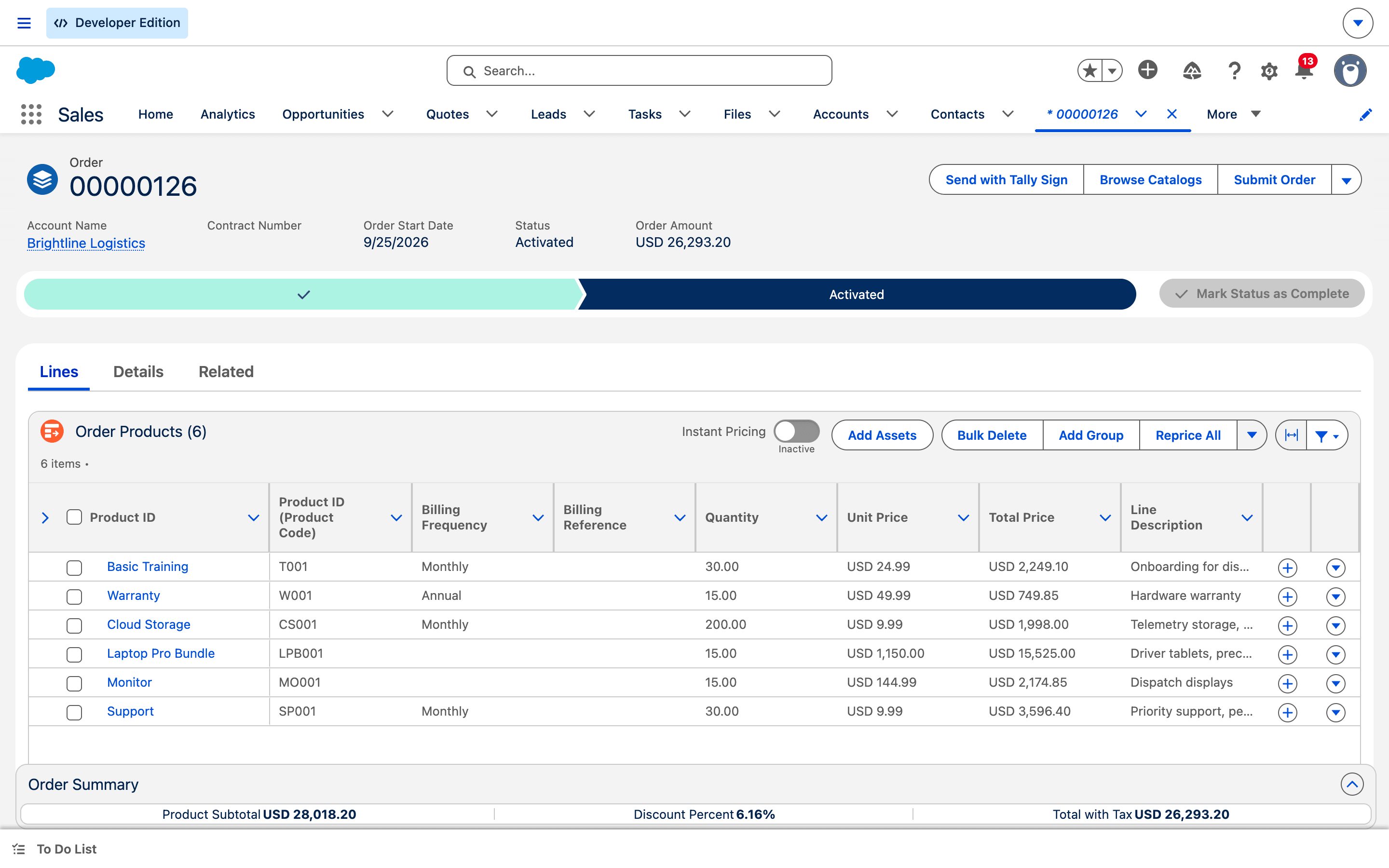
- An order is created from the quote.
- The order is submitted and activated.
- Assets are created or updated from the order.
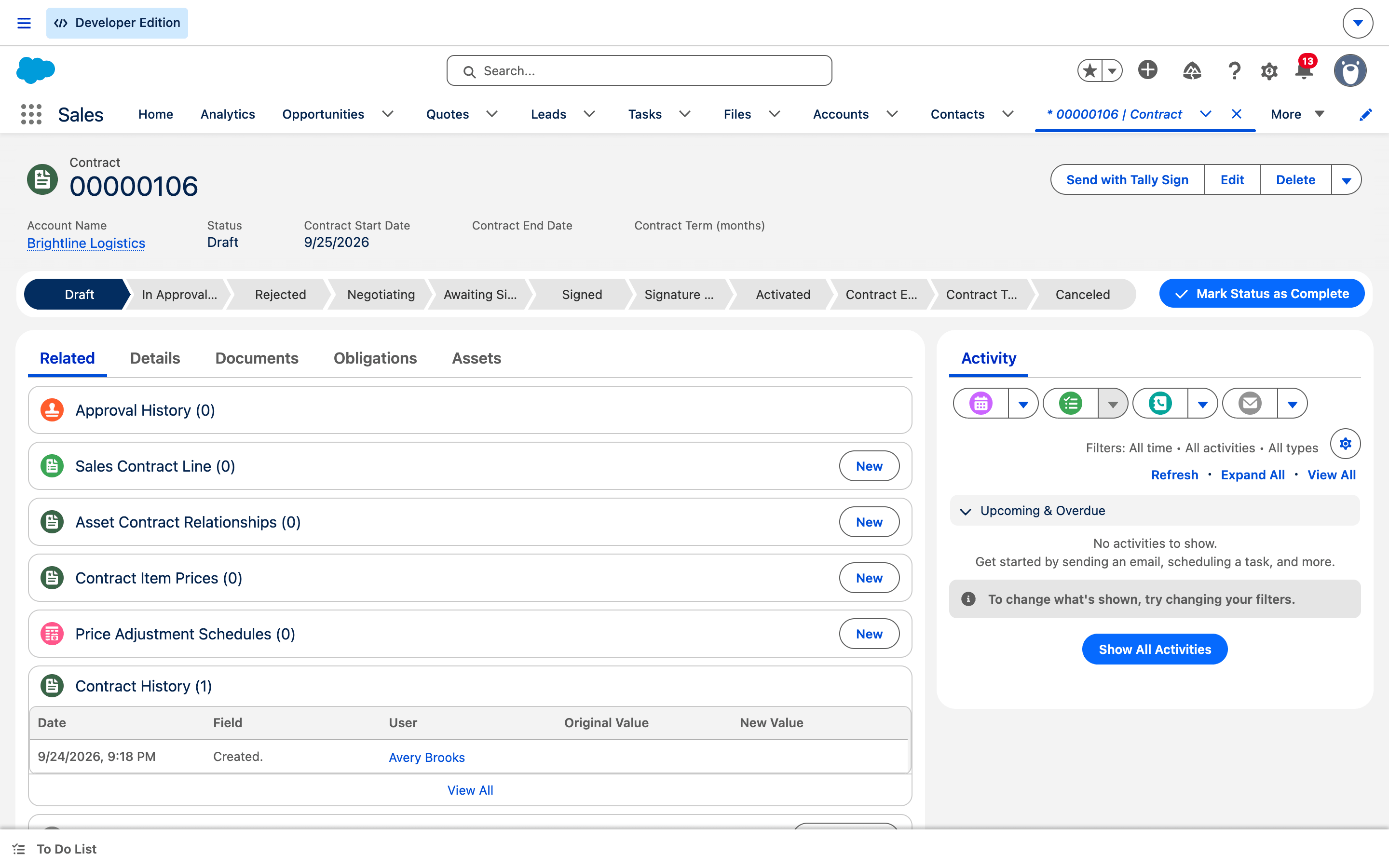
- A contract is created.
- The signed PDF is saved to the new order and contract.
- The sender gets a bell notification.
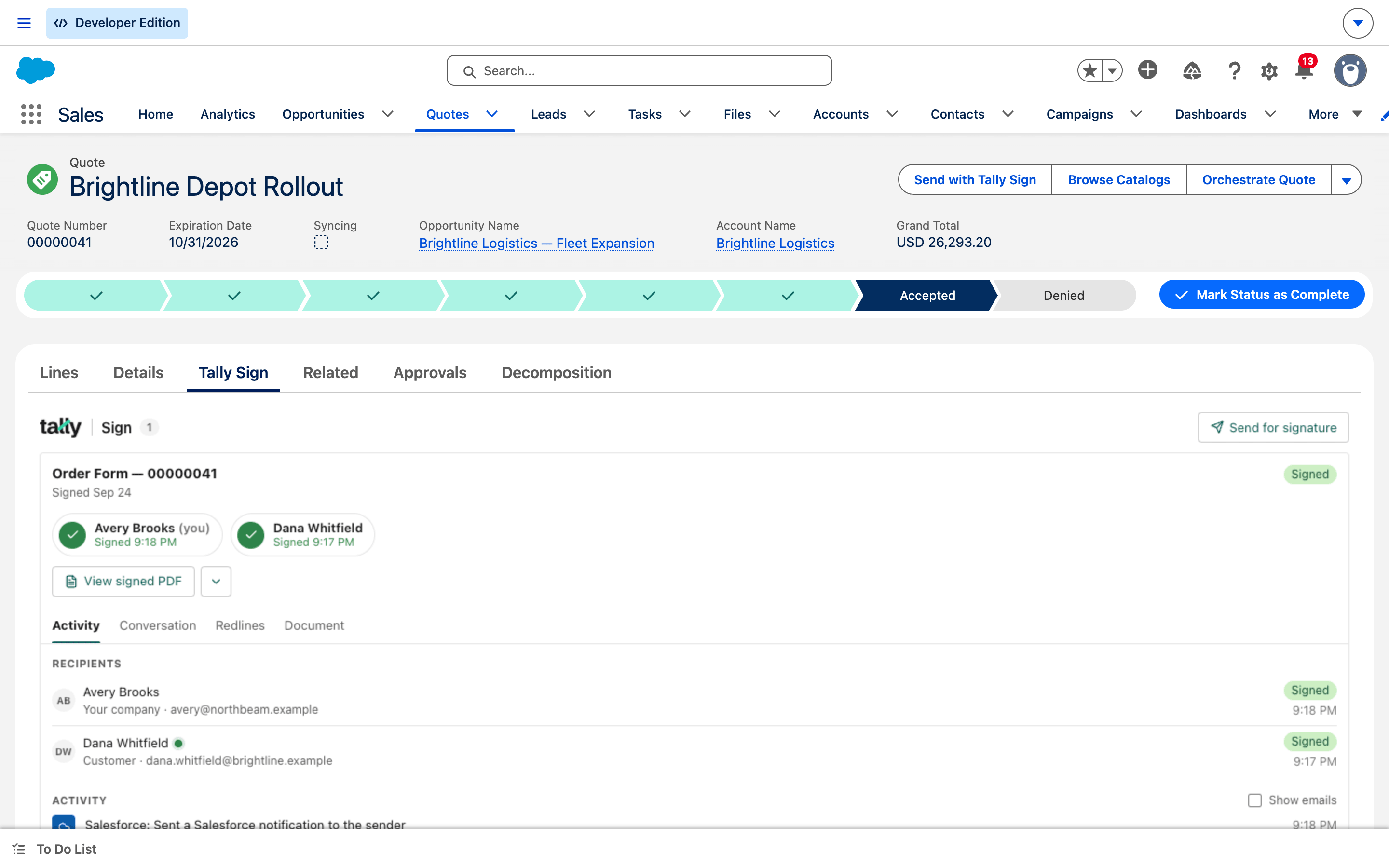
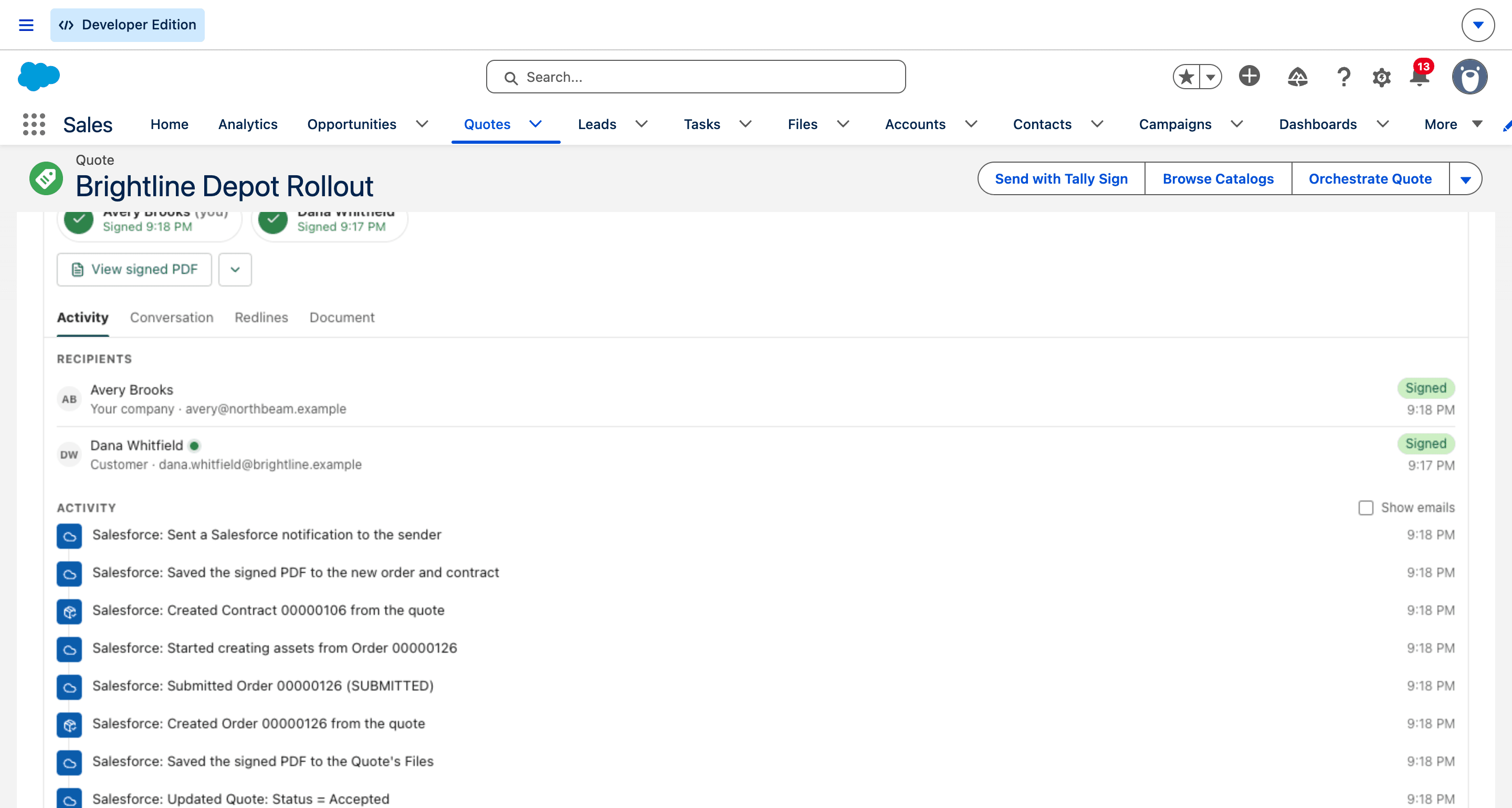
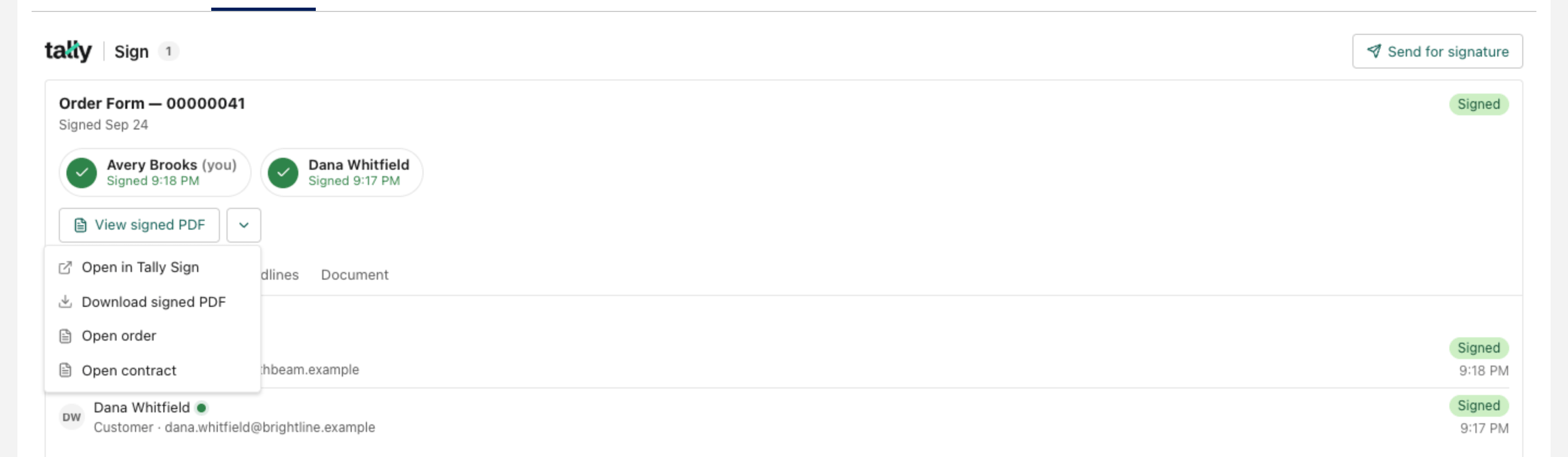
To open the new records, go to the quote in Salesforce and its Tally Sign tab. The … menu next to View signed PDF has Open order and Open contract.
Before you send: what the quote needs
- The Quote Status picklist has an Accepted value.
- The quote has a Bill To Contact and billing and shipping addresses. Revenue Cloud copies them to the order.
- Prices are up to date. If the quote shows The prices aren't up to date, choose Reprice All before sending.
- Every quote line has a start proration period (Period Boundary). Lines without it can't be repriced.
- Orders are enabled, and the user Tally Sign connects as can create and activate orders and contracts.
- For Create a contract, turn on the steps before it; each step needs the one before.
If a step fails
A failed step shows on the quote in Salesforce, in its Tally Sign tab under Activity, for example: Salesforce: couldn't create the order — We couldn't create the order because the prices aren't updated. Click Reprice All and try again.
- Read the message. It comes straight from Salesforce.
- Fix the cause on the quote, for example choose Reprice All.
- Wait for the next retry, or choose Retry in Settings → Salesforce under Salesforce updates that need attention. Steps that already worked aren't repeated.
| Retry | When |
|---|---|
| 1st | 1 minute after the failure |
| 2nd | 5 minutes later |
| 3rd | 30 minutes later |
| 4th | 2 hours later |
| 5th | 6 hours later |
| 6th | 12 hours later |
| 7th to 9th | Once a day |
On the website: Revenue Cloud Advanced·Pricing