
The quote-to-cash setup wizard
Eight steps from connecting Revenue Cloud to your first signed order form.
9 sections · 11 screenshots · 2 clips
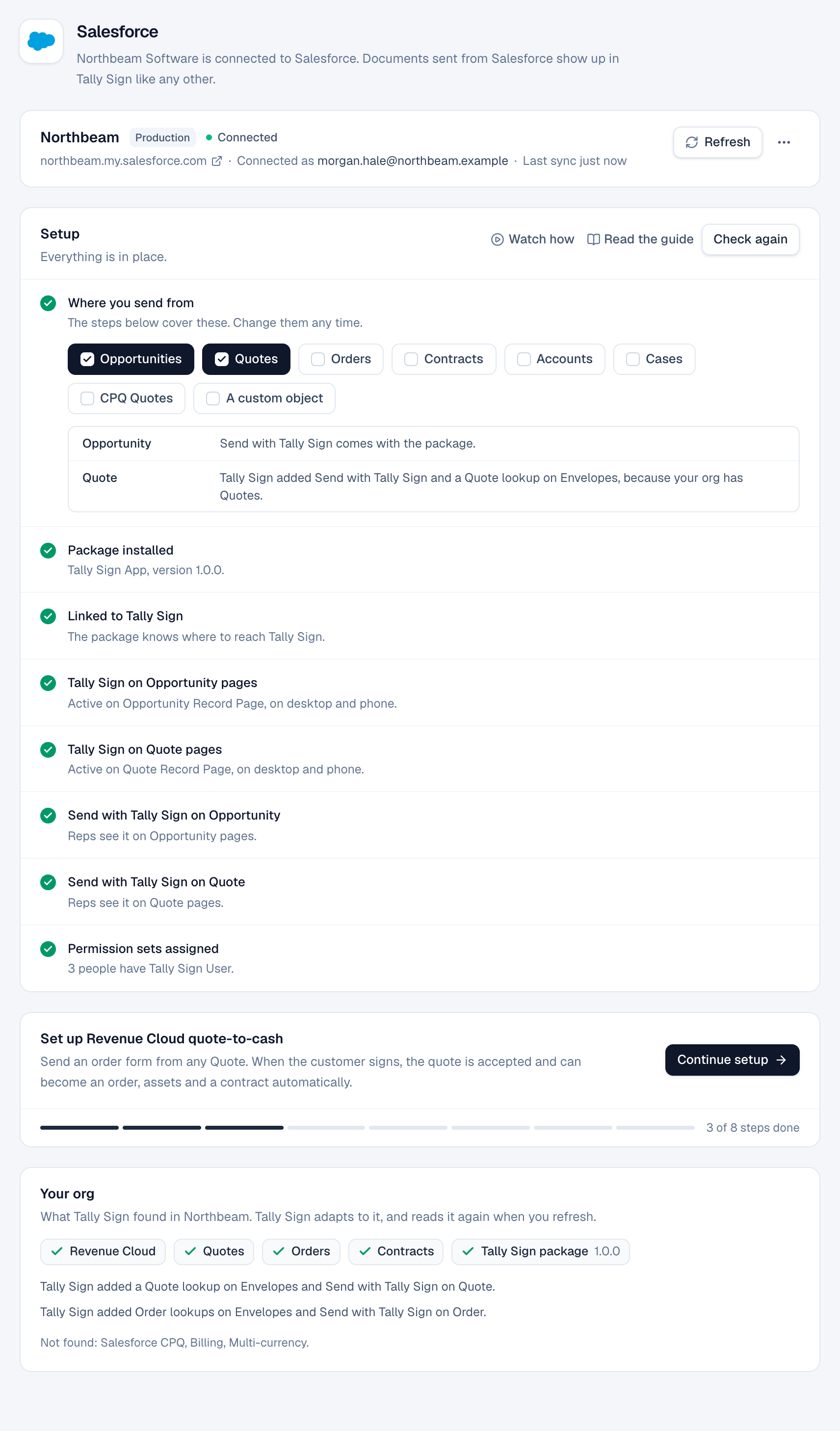
When Tally Sign finds Revenue Cloud in your org, Settings → Salesforce shows Set up Revenue Cloud quote-to-cash. The wizard walks through everything an order form needs. You can leave at any step and continue later; the progress bar remembers where you were.
Step by step · 6 steps
Set up quote to cash (accepted quote → order → contract)
Where: Tally Sign → Settings → Salesforce
1. Open the quote-to-cash wizard
In Tally Sign, choose Settings at the bottom left, then Salesforce under Integrations. In Set up Revenue Cloud quote-to-cash, choose Start setup (or Continue setup).
- The card shows once Salesforce is connected and Tally Sign finds Revenue Cloud in your org. What we found lists what the setup will use.
- Choose any step in the list on the left to go straight to it.
More detail: Open the quote-to-cash wizard
Start the wizard
- Open Settings → Salesforce.
- In Set up Revenue Cloud quote-to-cash, choose Start setup (or Continue setup, or Review setup once it's finished).
- Work through the steps in order, or choose any step in the list of steps to go straight to it.
1. What we found
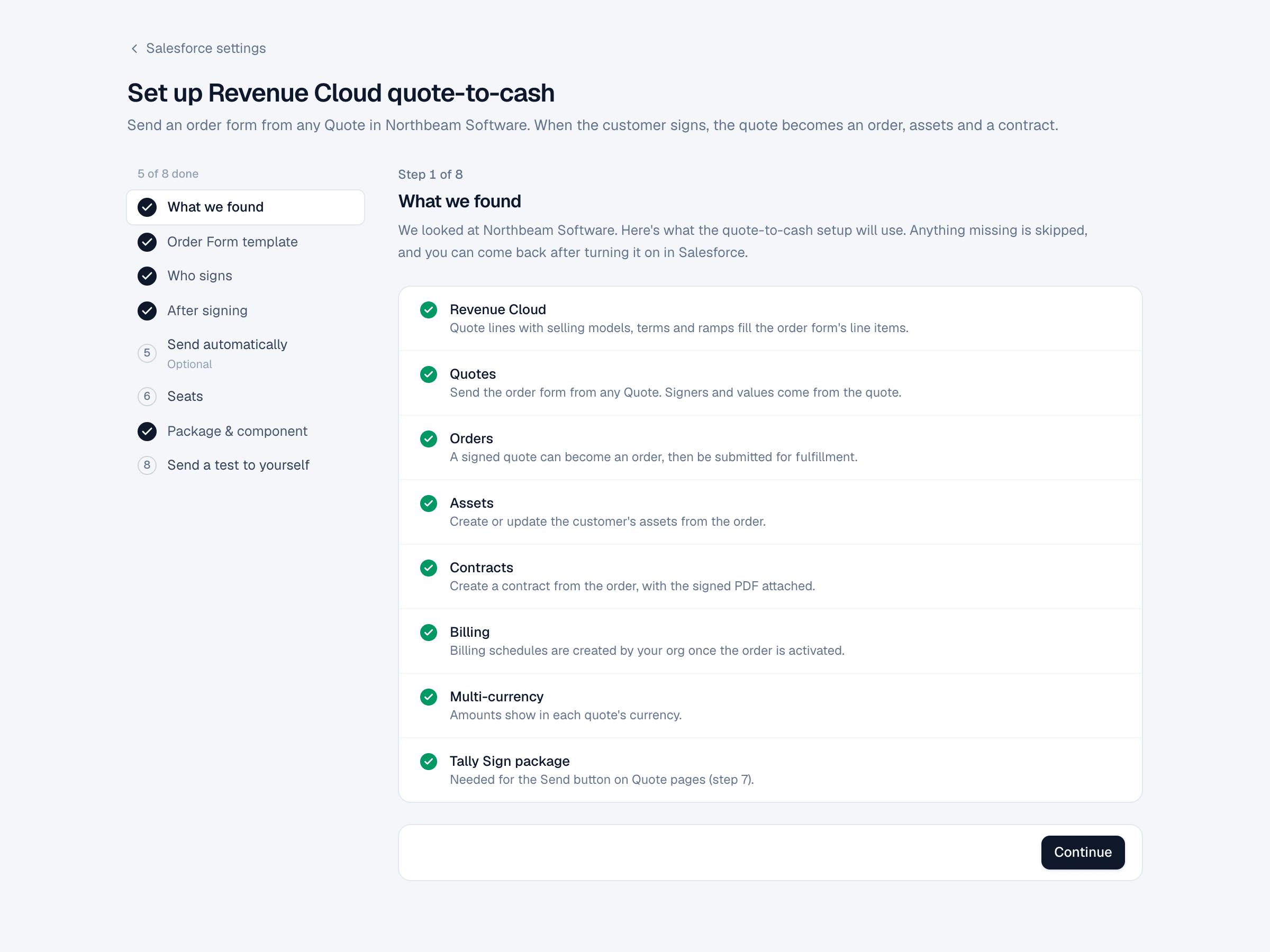
Open the wizard from Settings → Salesforce (Set up Revenue Cloud quote-to-cash) and choose What we found in the list of steps.
A checklist of what the setup will use: Revenue Cloud, Quotes, Orders, Assets, Contracts, Billing, Multi-currency and the Tally Sign package. Anything missing is skipped. Turn it on in Salesforce and come back.
2. Order Form template
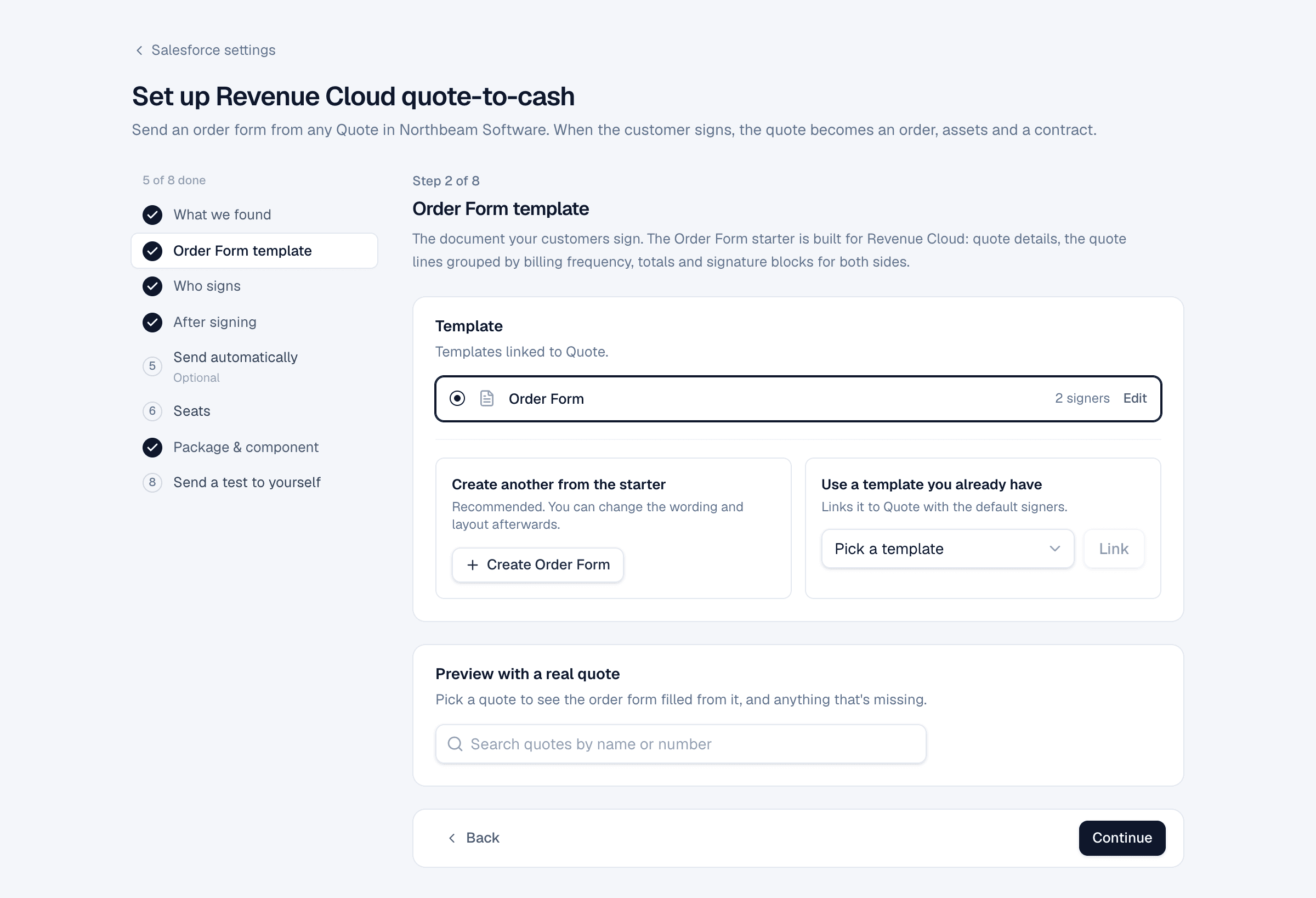
Open the wizard from Settings → Salesforce (Set up Revenue Cloud quote-to-cash) and choose Order Form template in the list of steps.
Pick the document your customers sign. Create Order Form makes one from the Order Form starter: quote details, quote lines grouped by billing frequency, totals and signature blocks for both sides. Or link a template you already have with Use a template you already have.
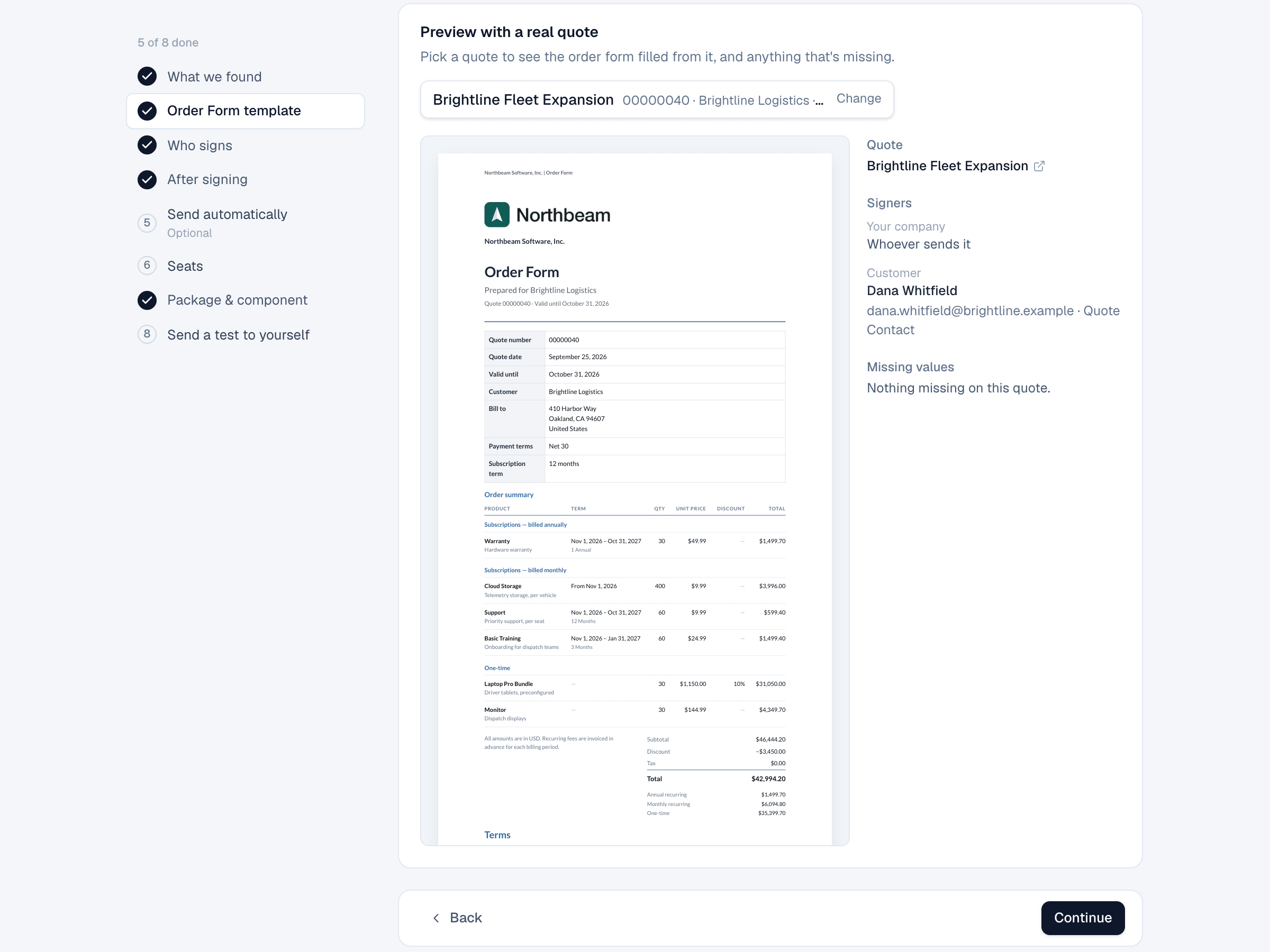
Under Preview with a real quote, search for a quote. The order form fills from it, and the side panel lists the signers found and any missing values.
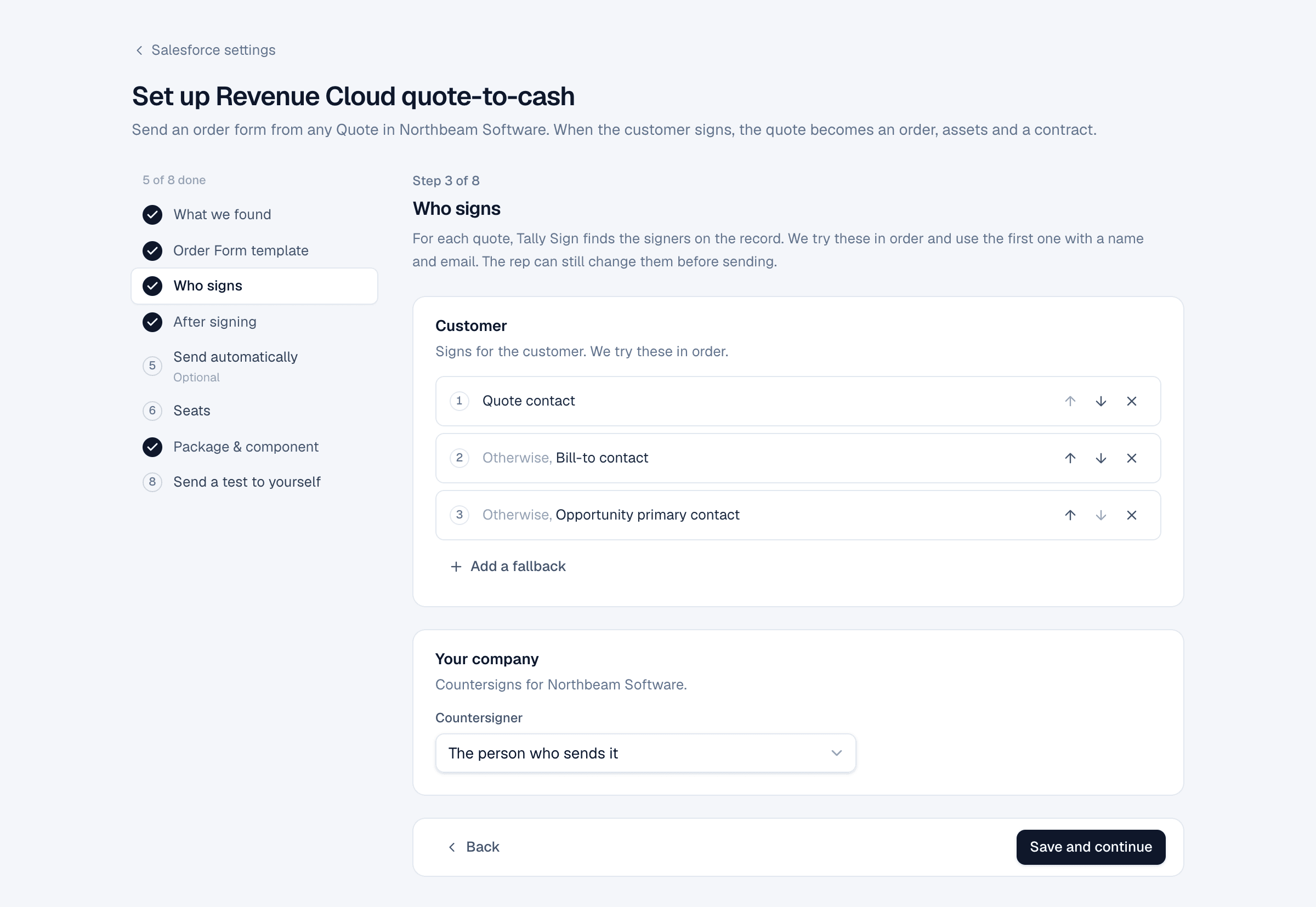
3. Who signs
Open the wizard from Settings → Salesforce (Set up Revenue Cloud quote-to-cash) and choose Who signs in the list of steps.
Choose where to find the customer signer, in order. The default is Quote contact, otherwise Bill-to contact, otherwise Opportunity primary contact. Then choose who countersigns for your company: The person who sends it, Quote owner, Quote owner's manager or A specific person.
4. After signing
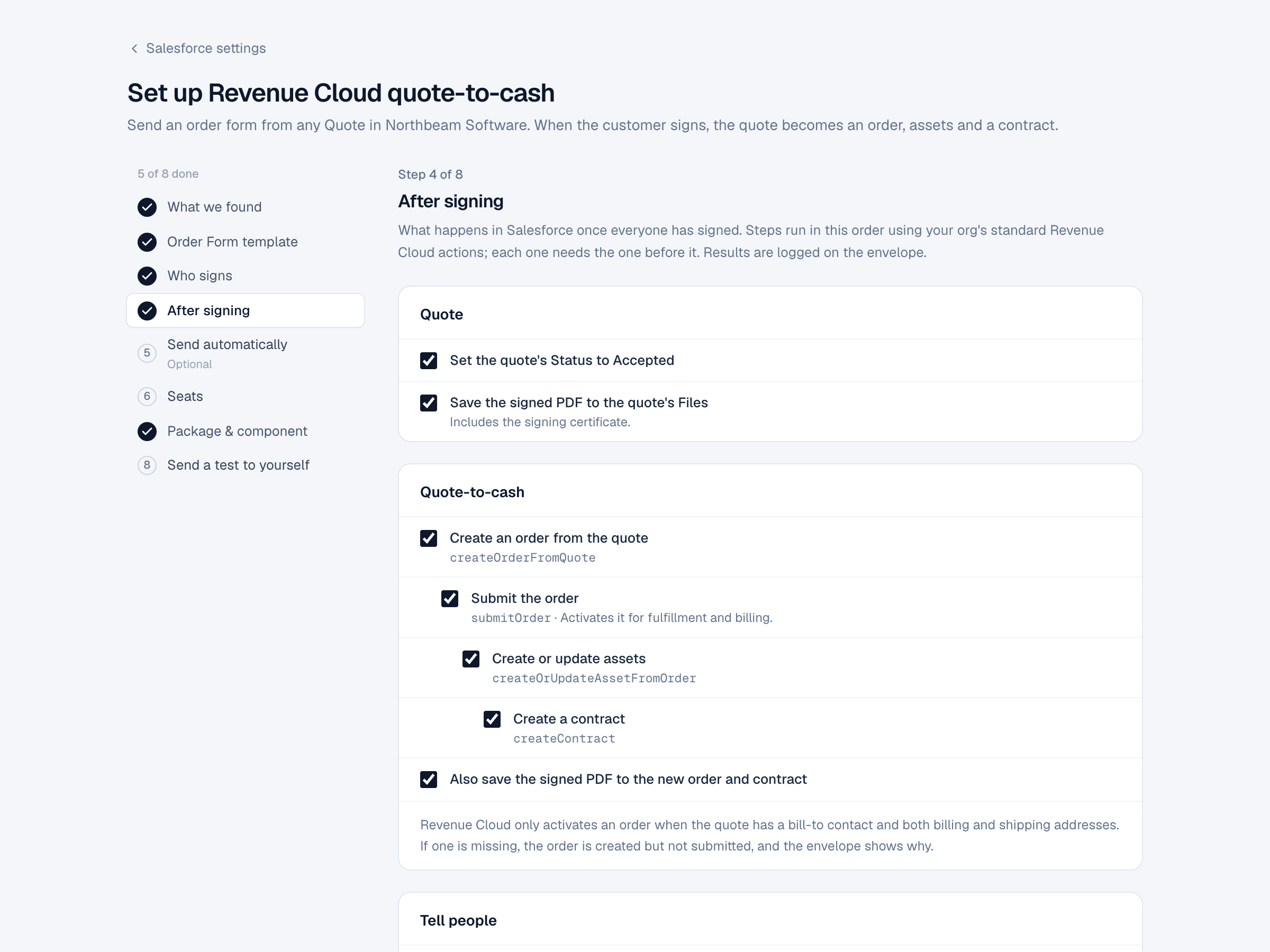
Open the wizard from Settings → Salesforce (Set up Revenue Cloud quote-to-cash) and choose After signing in the list of steps.
Choose what happens in Salesforce once everyone has signed. Steps run in this order and each needs the one before it:
| Option | Salesforce action |
|---|---|
| Set the quote's Status to Accepted | Field update |
| Save the signed PDF to the quote's Files | File upload, with the certificate |
| Create an order from the quote | createOrderFromQuote |
| Submit the order | submitOrder. Activates it for fulfillment and billing |
| Create or update assets | createOrUpdateAssetFromOrder |
| Create a contract | createContract |
| Also save the signed PDF to the new order and contract | File upload |
| Notify the sender in Salesforce | Bell notification |
5. Send automatically (optional)
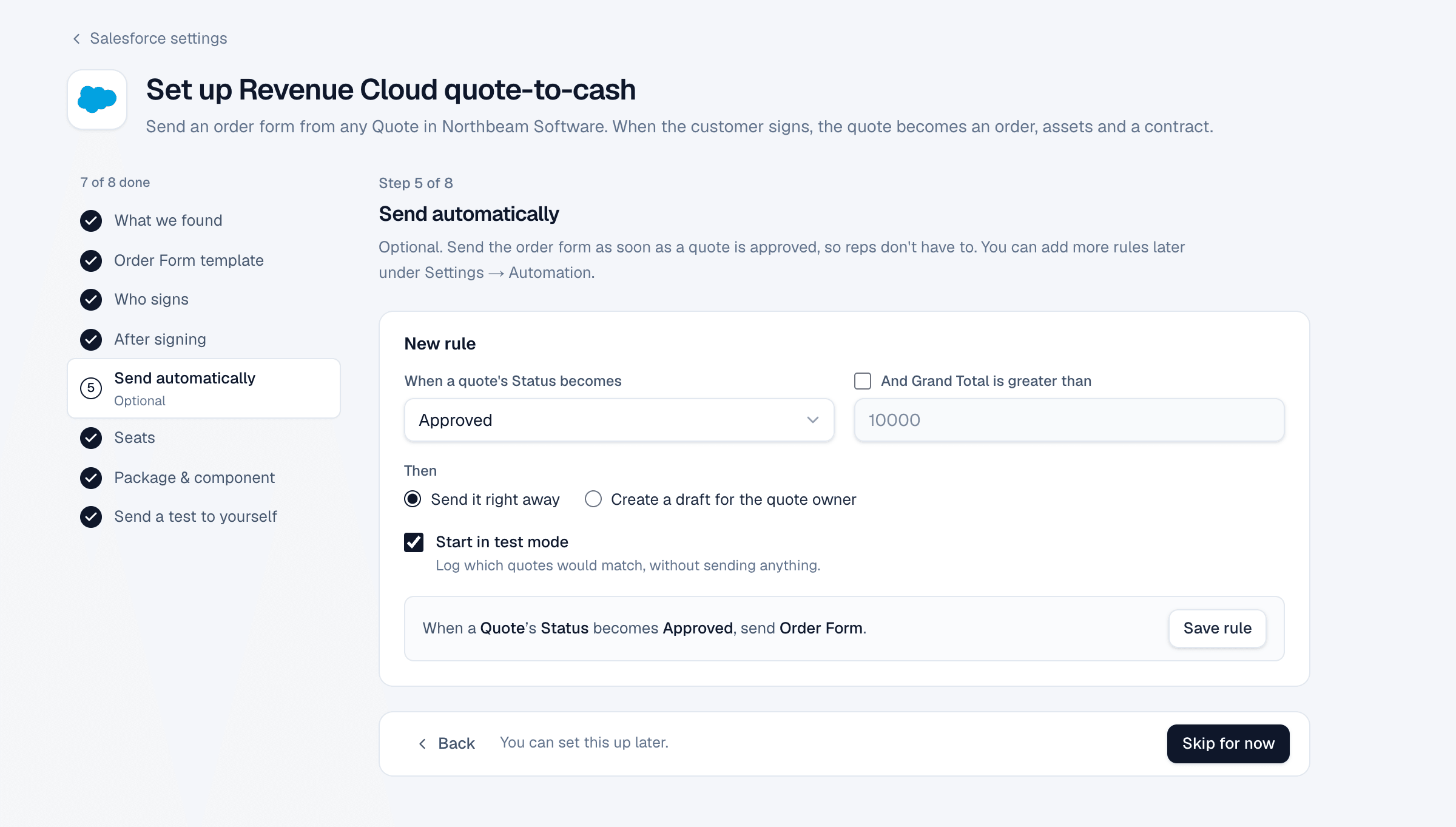
Open the wizard from Settings → Salesforce (Set up Revenue Cloud quote-to-cash) and choose Send automatically in the list of steps.
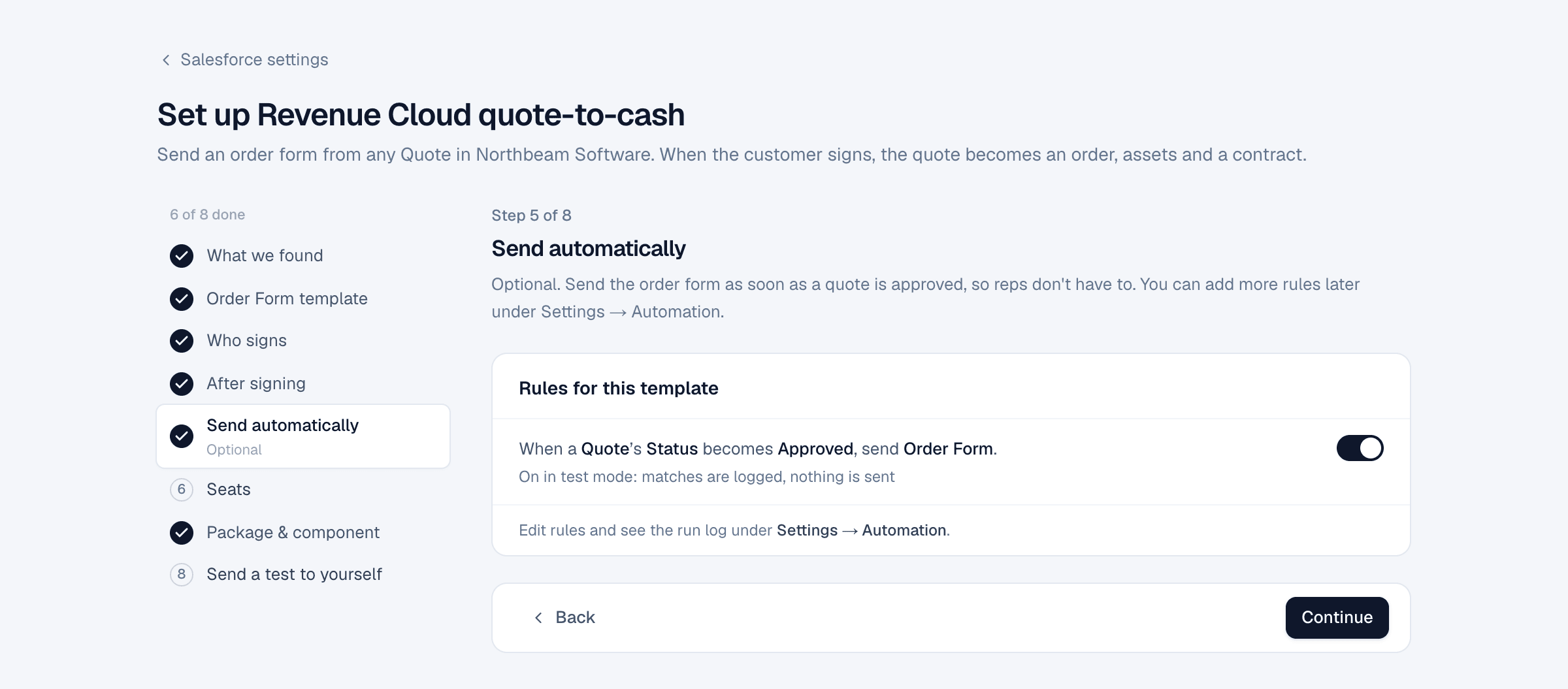
Create a rule that sends the order form when a quote's Status becomes Approved, optionally only above a Grand Total. Choose Send it right away or Create a draft for the quote owner. New rules start in test mode.
After Save rule, turn it on with the switch. Tally Sign deploys a Flow to your org, which takes up to a minute.
More in Automation rules.
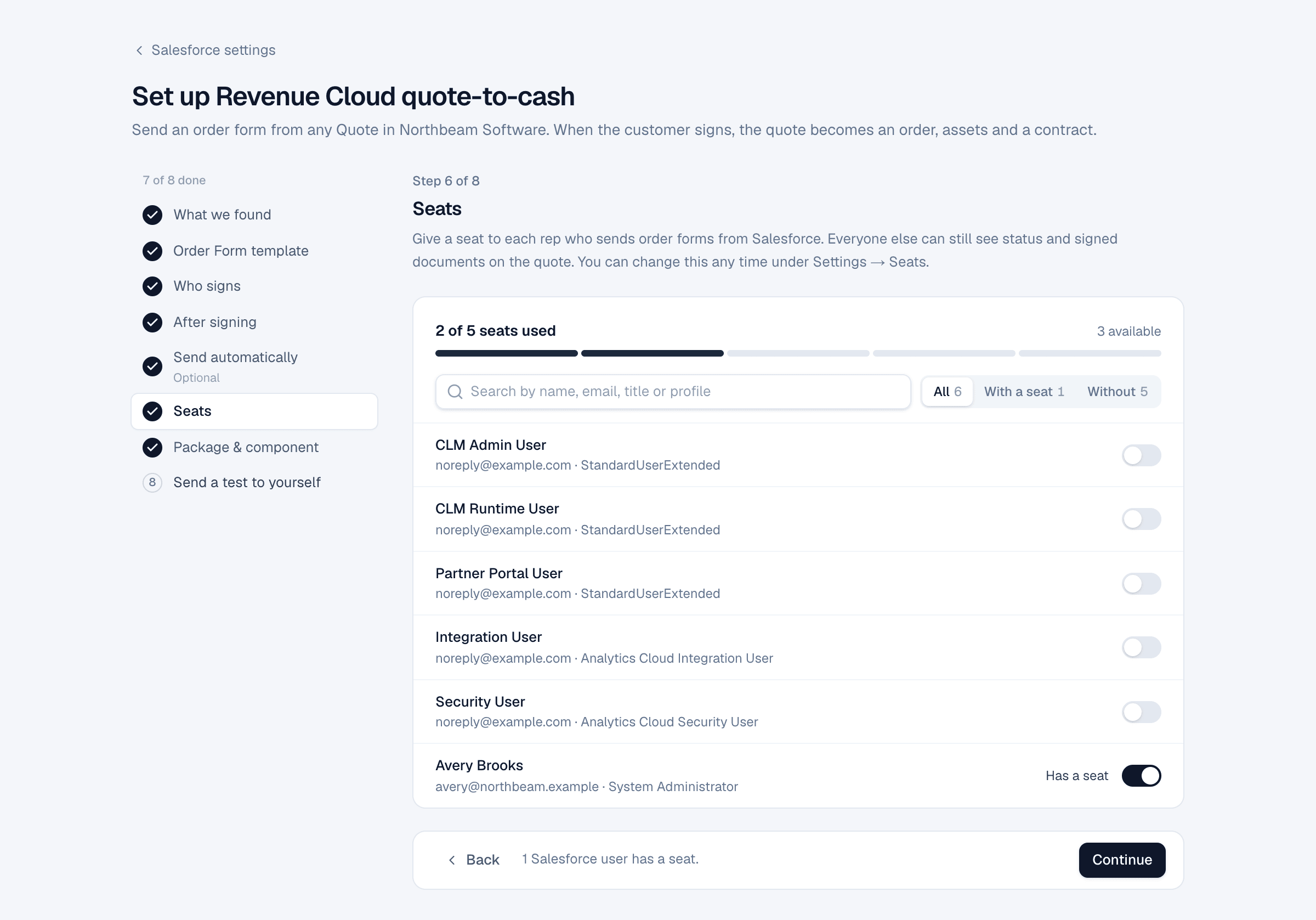
6. Seats
Open the wizard from Settings → Salesforce (Set up Revenue Cloud quote-to-cash) and choose Seats in the list of steps.
Give a seat to each rep who sends order forms from Salesforce. Everyone else can still see status and signed documents on the quote.
7. Package & component
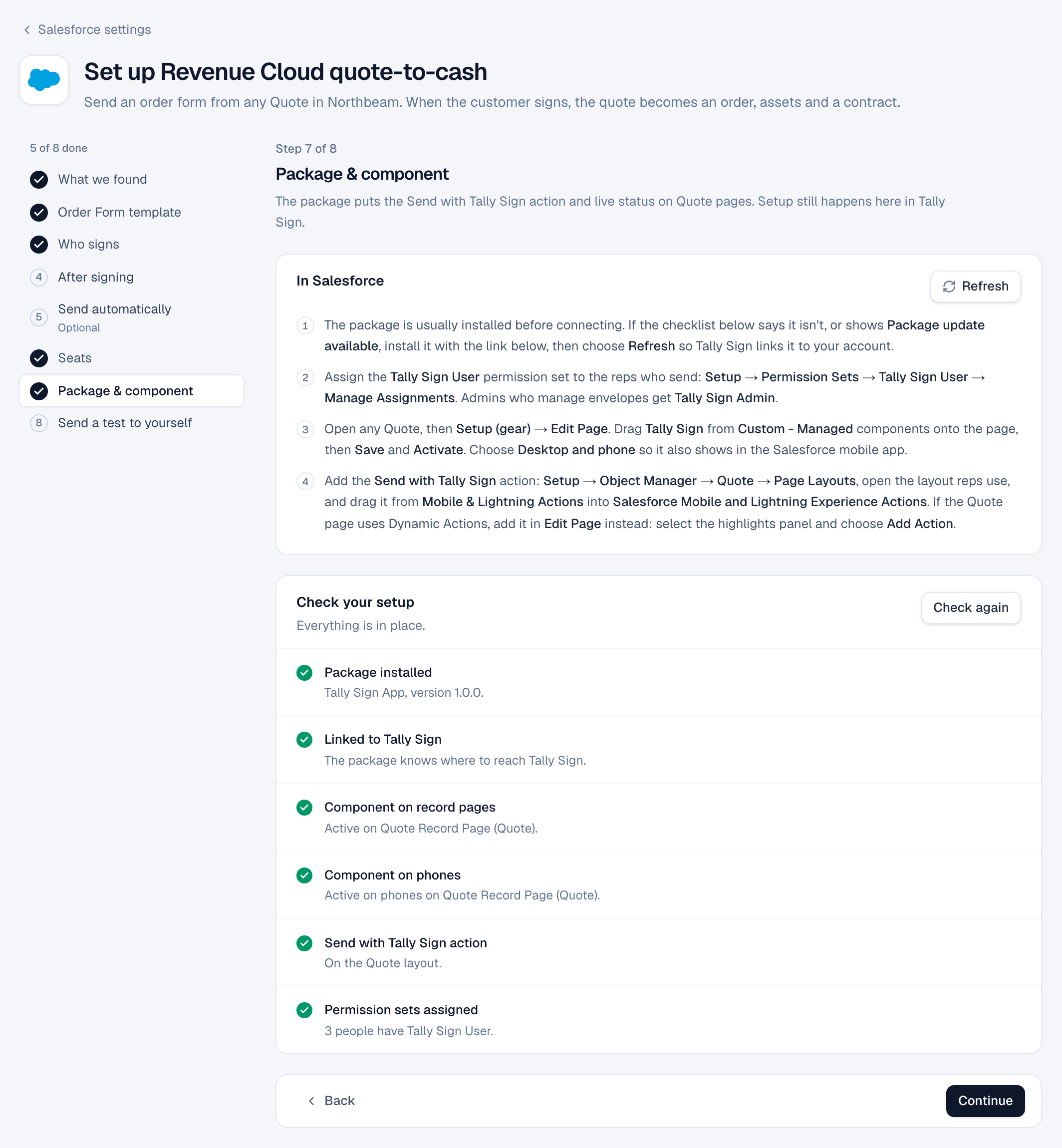
Open the wizard from Settings → Salesforce (Set up Revenue Cloud quote-to-cash) and choose Package & component in the list of steps.
The package is installed before you connect; if the checklist shows an update, install it and choose Refresh. Then assign Tally Sign User to the reps who send, put Tally Sign on the Quote record page (from Custom - Managed) and add the Send with Tally Sign action to the Quote page layout. Check again confirms each item. Details are in Add Tally Sign to Salesforce.
8. Send a test to yourself
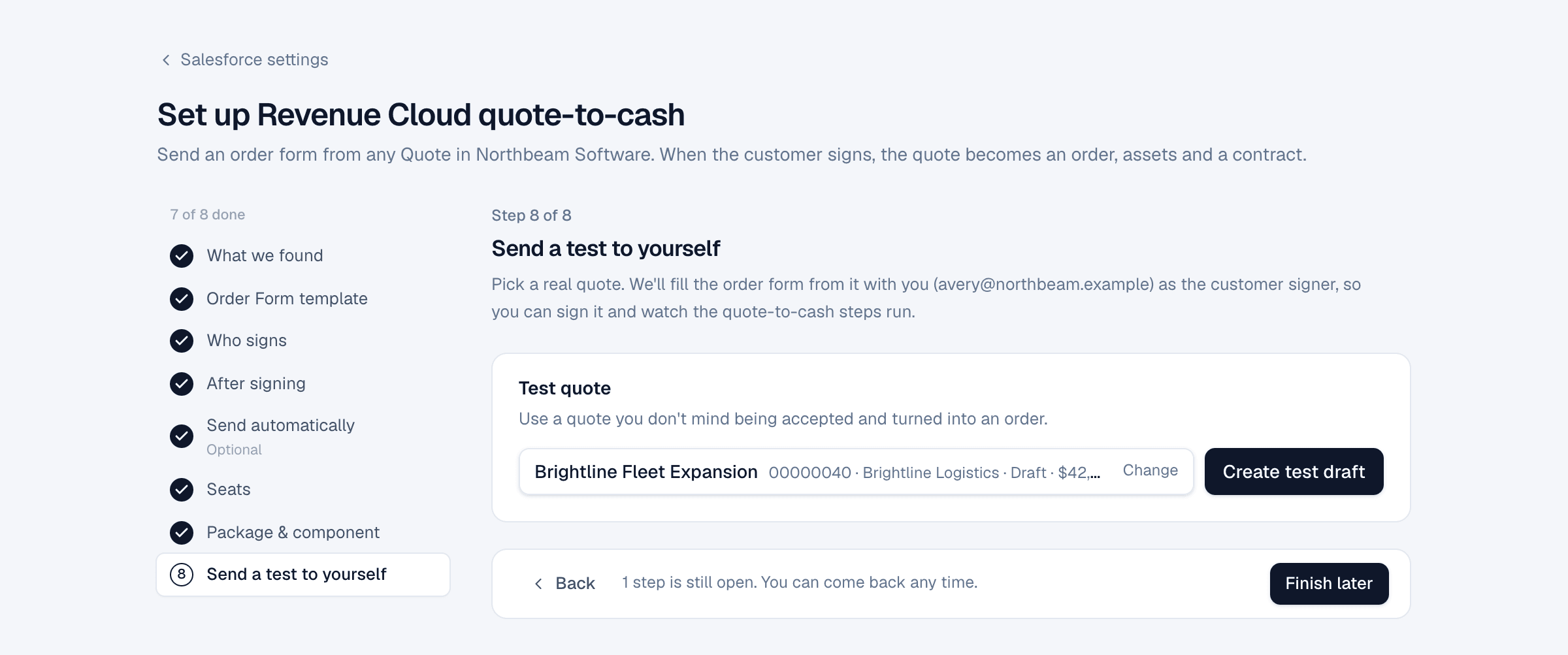
Open the wizard from Settings → Salesforce (Set up Revenue Cloud quote-to-cash) and choose Send a test to yourself in the list of steps.
Pick a quote you don't mind being accepted and turned into an order. Create test draft fills the order form with you as the customer signer, so you can sign it and watch every step run.
On the website: Revenue Cloud Advanced·Pricing