
Questions, replies and internal notes
How customers ask questions on the signing page, and how your team replies or talks privately.
5 sections · 8 screenshots · 4 clips
Customers rarely sign a contract without asking something first. In Tally Sign they ask on the document itself, pinned to the paragraph they mean, and you answer in the same place. Everything is kept with the document and summarized on the signing certificate.
Step by step · 4 steps
Your customer asked a question on the document
Where: Tally Sign → Documents → Awaiting signature
1. Open the document
You get an email for each new message. In Tally Sign, choose Documents in the menu on the left, then Awaiting signature, and open the document.
More detail: Open the document
The customer asks a question
On the signing page, the customer opens Questions & changes. The panel has two tabs: Conversation and Versions.

- The customer clicks a paragraph. A small toolbar appears with Comment and Suggest edit.
- They choose Comment, type the question and send it.
- The question appears in the conversation, marked with the section it's about.

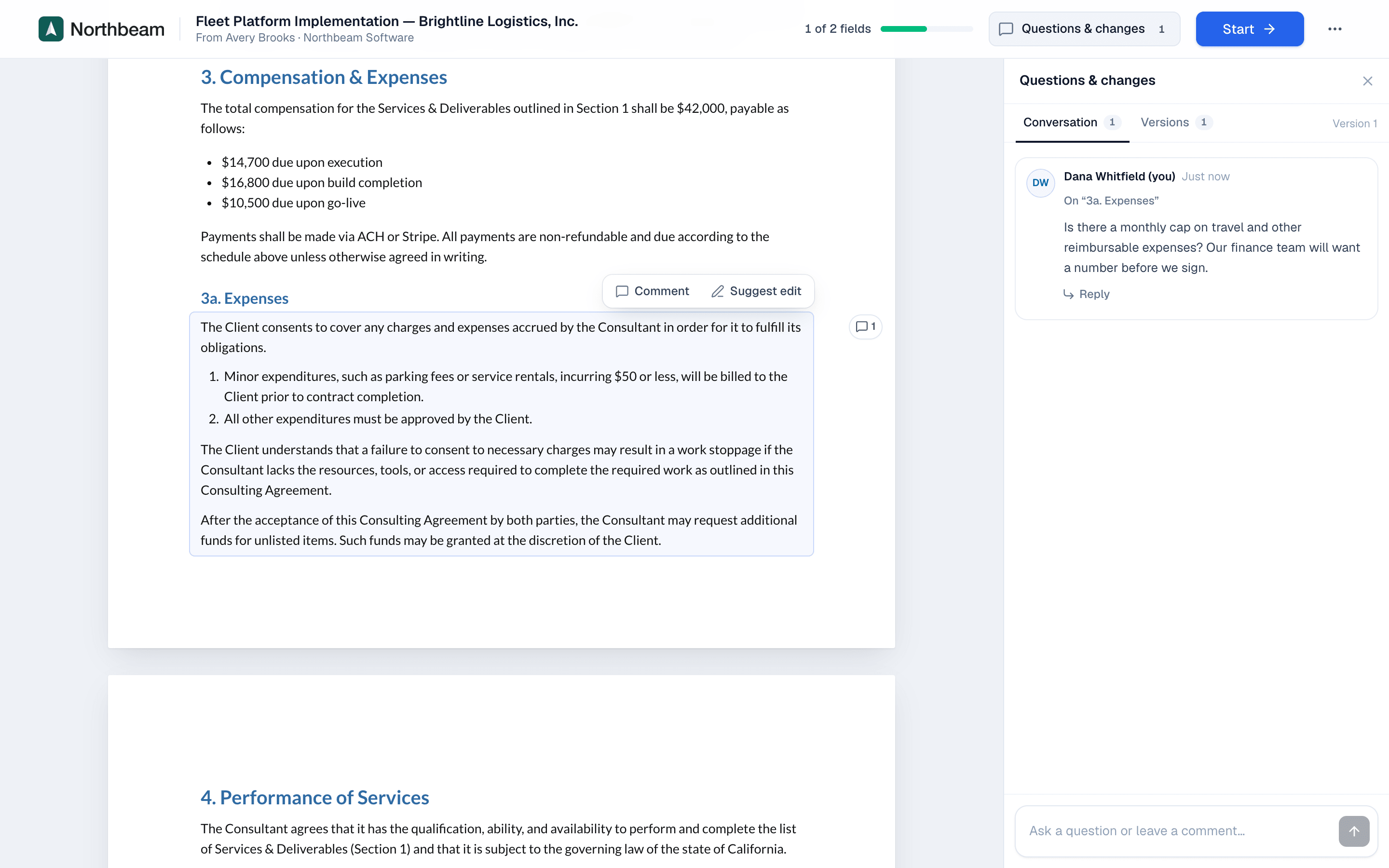
Comment and Suggest a change are also at the top of the panel: choosing one asks the customer to pick the paragraph, so they don't have to find the toolbar first. The first time someone opens their link, a short guided tour points at these controls (see What your customer sees).
Comments beside the document, like Word
On a computer with a wide screen (a laptop or bigger), the customer's signing page shows every question and suggestion in the margin beside the words it's about, the way Word and Google Docs show comments. The words someone commented on are highlighted, and a thin line ties each card to its line of text.
- Comment on exact words: select the words, choose Comment, and write right there in the margin. Enter posts it.
- Request a change the same way: in a table, pricing or another section that can't be edited directly, select the words and choose Request change. The request is written in the margin beside those words and keeps them, so you see exactly what it's about.
- Open a conversation: click its card, or the highlighted words. It moves level with the words, joined to them by a line, with the replies and a reply box.
- Long conversations stay short: a thread with many replies shows the question, then Show earlier replies, then the latest ones. Replies you haven't read sit under a blue New line.
- Busy paragraphs stay readable: where several conversations sit close together, their cards shrink to one line each so every card stays beside its words. Click one to open it.
- What's new: a blue dot marks conversations with replies you haven't read, and N new at the top of the margin takes you to the next one.
- Open · Mine · Closed: Mine shows only the conversations you're in; Closed has suggestions that were accepted, declined or withdrawn.
Reply to the customer
You get an email when a new message comes in. If the customer writes several in a row, the first is emailed straight away and the rest arrive together in one email 10 minutes later, so a busy conversation isn't a string of emails. Open the document from Documents and choose the Questions & changes tab.
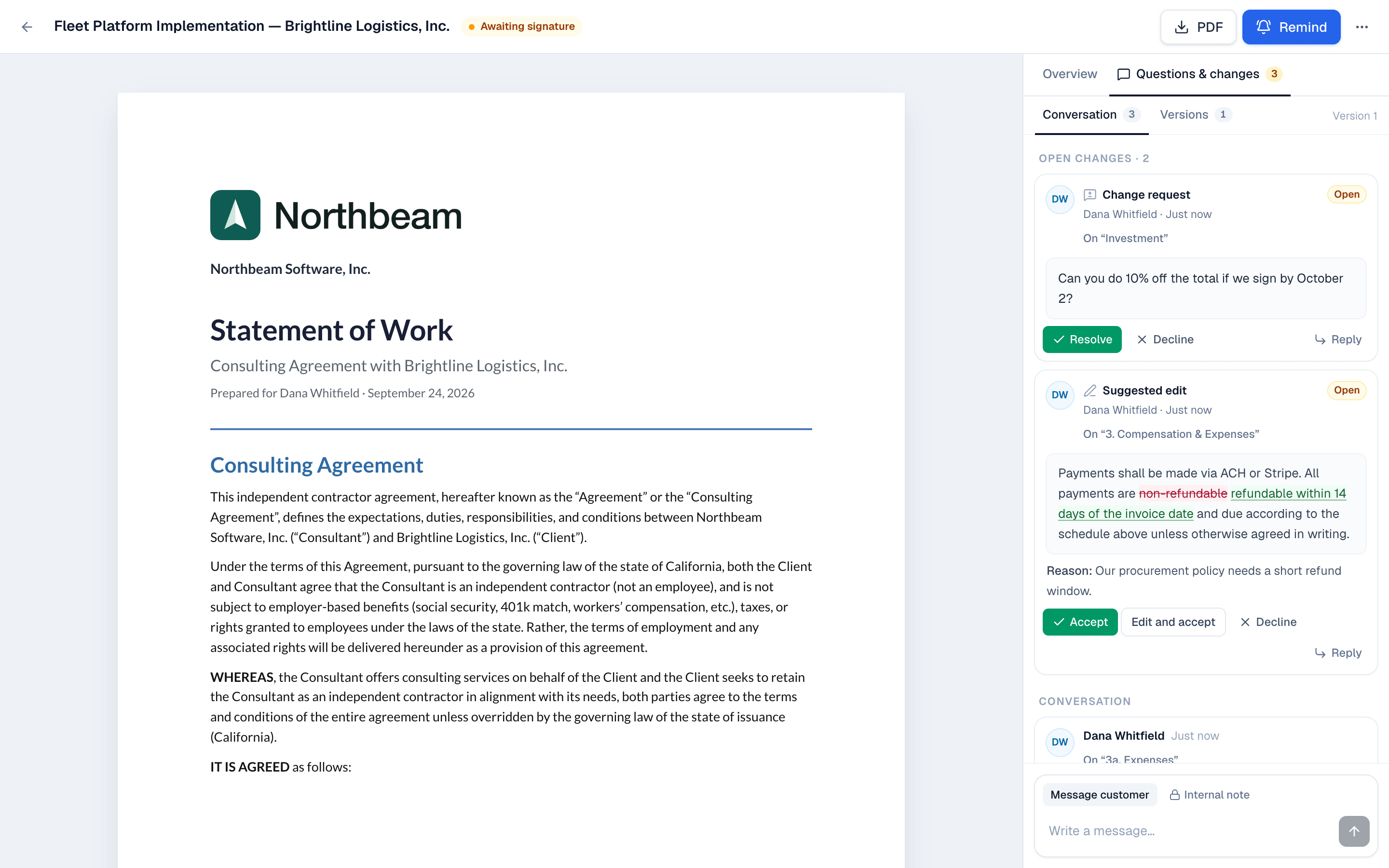
- Choose Reply in thread under the customer's message. If people have already replied, choose 2 replies (or however many there are) instead. The message opens as its own thread, with every reply under it.
- Type your answer and send it. Everyone in that thread gets an email, and everyone on the document can open the thread on their page.
- Choose the arrow next to Thread to go back to the whole conversation.
Threads, mentions, emoji and reactions
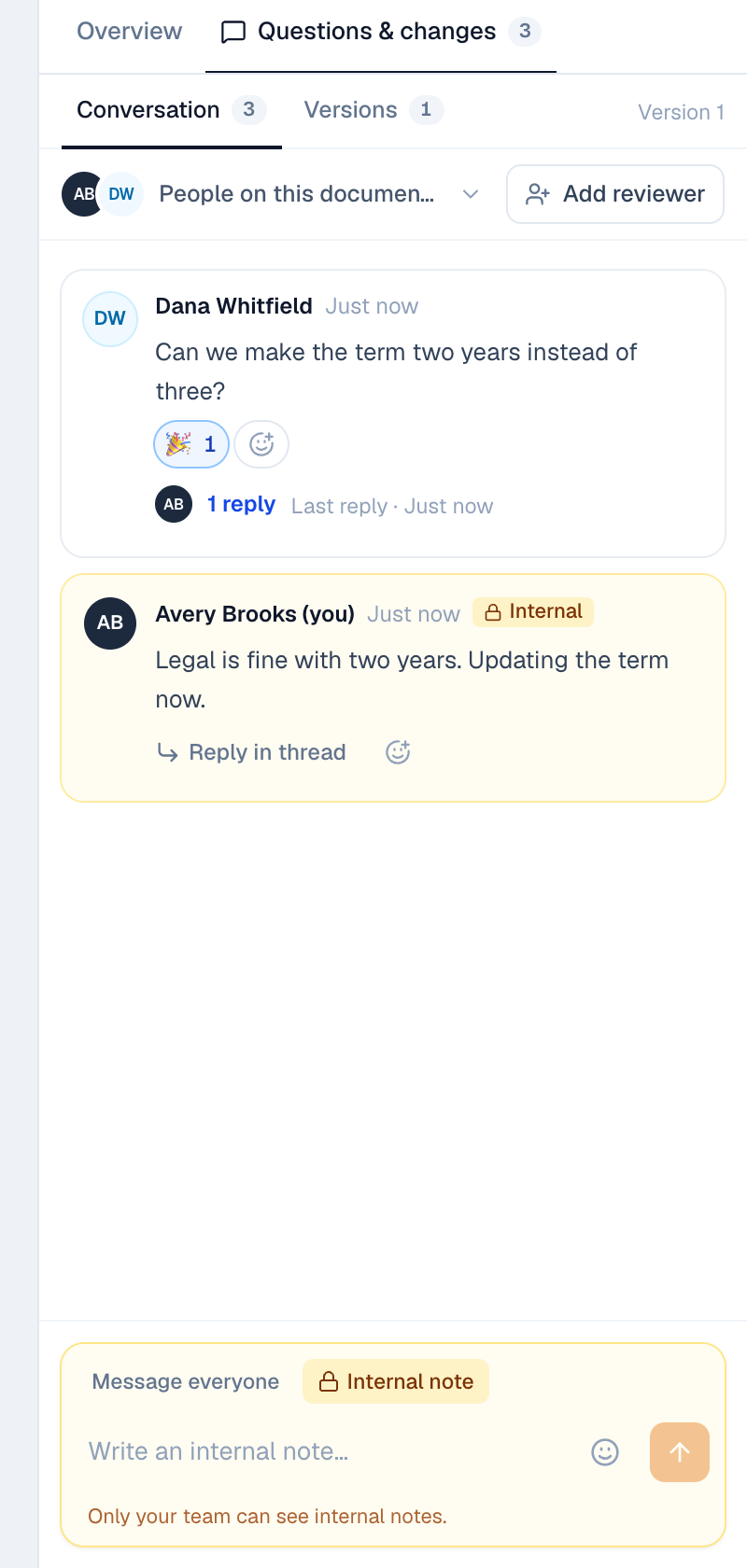
Every message in Questions & changes can become its own thread, like in Slack or Teams. The conversation stays short: each message shows how many replies it has, who replied and when the last reply was, and choosing that opens the thread.
- Threads: choose Reply in thread under any message, yours or the customer's. Internal notes have threads too, and their replies stay internal.
- Mentions: type
@in any message box and pick a name (keep typing to narrow the list, then press Enter or click). The person you mention gets an email that you mentioned them, even if they aren't in that thread, and the mention is highlighted for them. Customers and your team can mention anyone on the document and your teammates; an internal note can only mention your team, so customers are never mentioned in something they can't see. - Emoji in a message: choose the smiley in the message box and pick one. It goes where the cursor was.
- Reactions: choose the smiley under a message and pick an emoji. Choose a reaction someone else added to add yours too, and choose your own again to take it back. Point at a reaction to see who added it.
- Customers, reviewers and people copied can do all of this on their page too. Nobody gets an email about a reaction.
- Who's emailed about a reply: the people who wrote in that thread, customers and teammates alike, never the person replying. A new message from your team (the box at the bottom of the conversation) reaches everyone on the document. The link in the email opens straight on the thread.
- Nobody gets a flood of emails: a message waits about a minute and a half before it's emailed, so quick follow-ups go in the same email; each person gets at most one email per document every 10 minutes, with everything new in it; and someone who has the page open at that moment sees it there instead of getting an email.
Internal notes
Internal notes are for your team only. Customers never see them.
- Open the document from Documents and choose the Questions & changes tab.
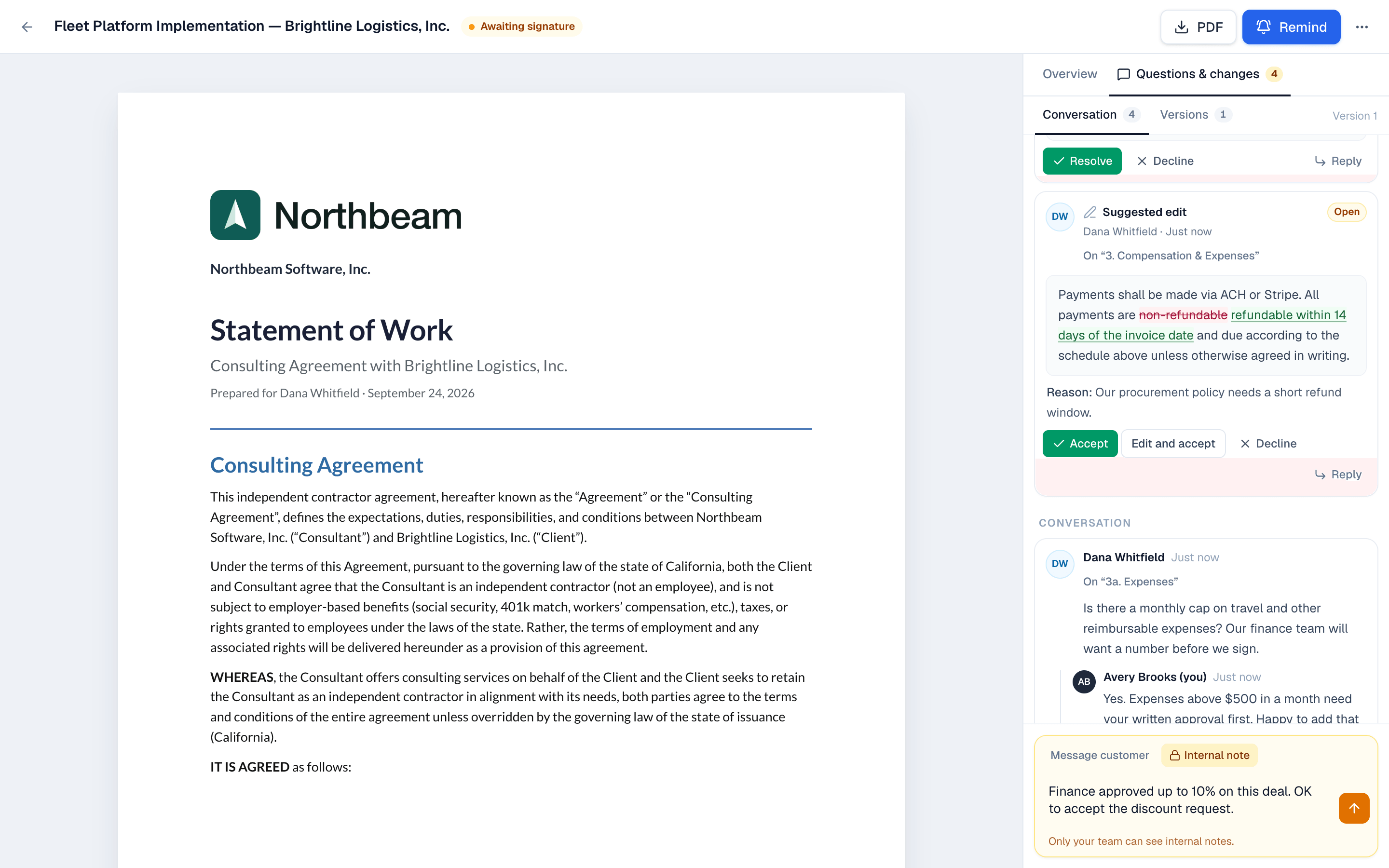
- At the bottom of the tab, switch the composer from Message everyone to Internal note. It turns yellow.
- Write the note and send it.
On the website: No CRM needed·Pricing