
Pricing table: ramps, groups, recurring and one-time charges, amendments
How the pricing table turns Revenue Cloud quote lines into a clear order summary.
5 sections · 4 screenshots · 5 clips
The Pricing table block lists products, terms and totals. On a template linked to Quote, it fills from the quote's lines when the document is created.
Step by step · 4 steps
Show an opportunity's products in a template
Where: Tally Sign → Templates
1. Open the template
Choose Templates in the menu on the left, then Edit on the template. To start a new one, choose New template.
More detail: Open the template
The pricing table block
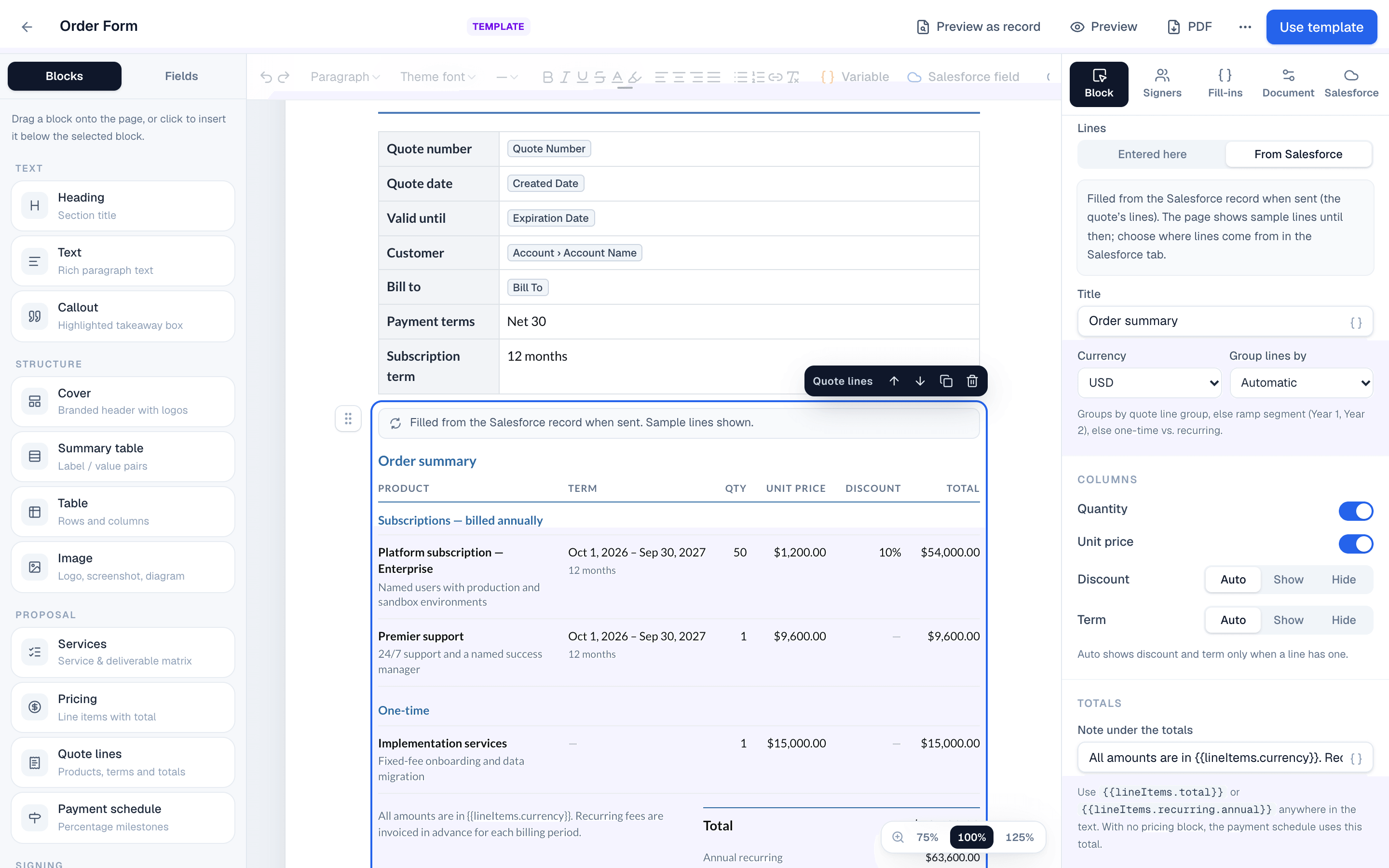
Open the template in the editor: choose Templates in the sidebar, then Edit on the template. Add the pricing table from Blocks → Pricing table on the left, or type / and choose it. Select it to see its settings in the Block tab on the right. Set Lines to From Salesforce so it fills from the quote. You can also drag it in already filling from the record: open the Salesforce tab on the left (next to Blocks and Fields) and drag the tile under Pricing table, for example Quote lines.
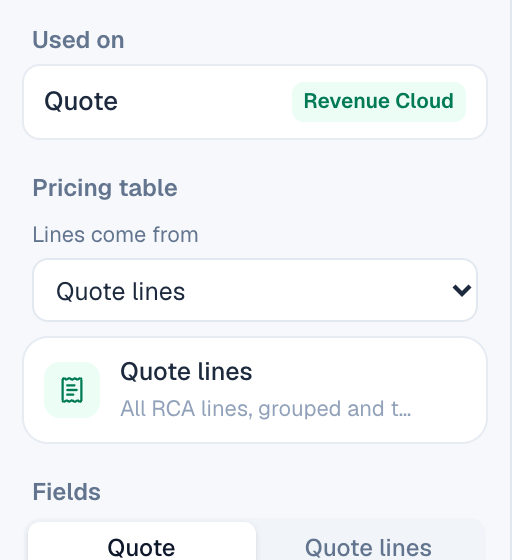
A template for an object without line items of its own, such as a case, an account or a custom object, takes its lines from one of the record's related lists. In the Salesforce tab on the left, under Pricing table, choose the list in Lines come from. Each record in it becomes a line named after it. Drag an amount, like Amount, onto the table and it becomes each line's total, so the table adds them up. Drag other fields, like Close Date or Stage, to add them as columns. Quotes, CPQ quotes, opportunities and orders always use their own lines; to show another of their related lists, such as an opportunity's child opportunities, add it as a related list table.
Recurring and one-time charges
Each line gets a frequency from its selling model and billing frequency:
| On the quote line | On the order form |
|---|---|
| Selling model One Time | One-time |
| Billing frequency Monthly, Quarterly, Semiannual, Annual | Subscriptions — billed monthly, and so on |
| Selling model Usage | Usage — billed as used |
| Blank | One-time |
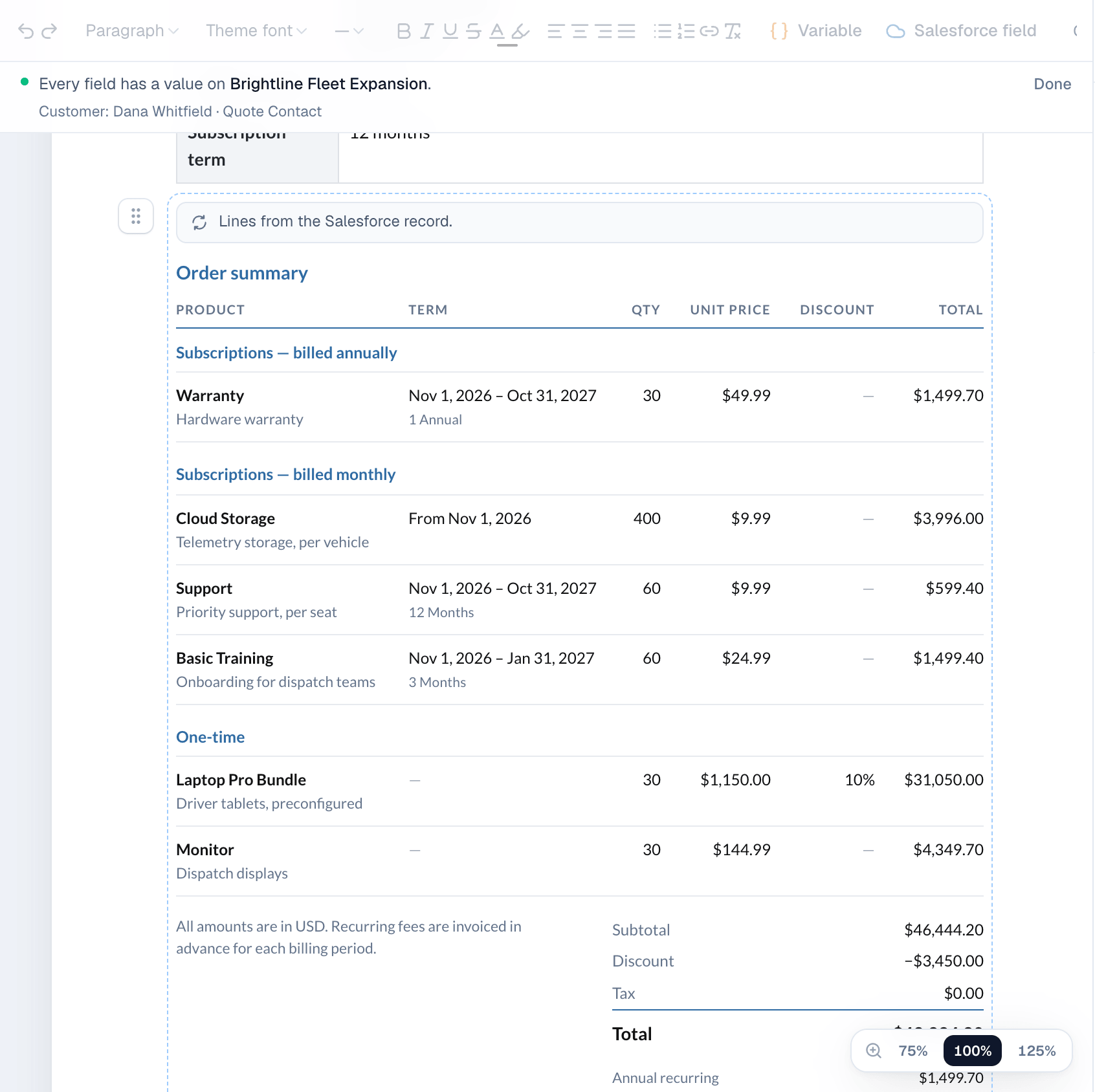
Start and end dates show as the line's term, for example Nov 1, 2026 – Oct 31, 2027. Evergreen lines show From Nov 1, 2026.
Groups and ramps
Select the pricing table in the template editor. In the Block tab on the right, Group lines by controls the sections of the table:
- Automatic: by quote line group if the quote has groups, otherwise by ramp segment (Year 1, Year 2), otherwise one-time vs. recurring.
- Quote line group: the groups from the quote.
- Ramp segment: one section per segment, for multi-year ramp deals.
- Billing frequency: recurring sections first, then one-time.
- No grouping: one list.
Each section shows a subtotal. Discount and term columns appear only when a line has them.
Amendments and renewals
Lines from amendment and renewal quotes keep their action: Add, Amend, Renew or Cancel. The action is shown next to the product so the customer sees what changes.
Totals
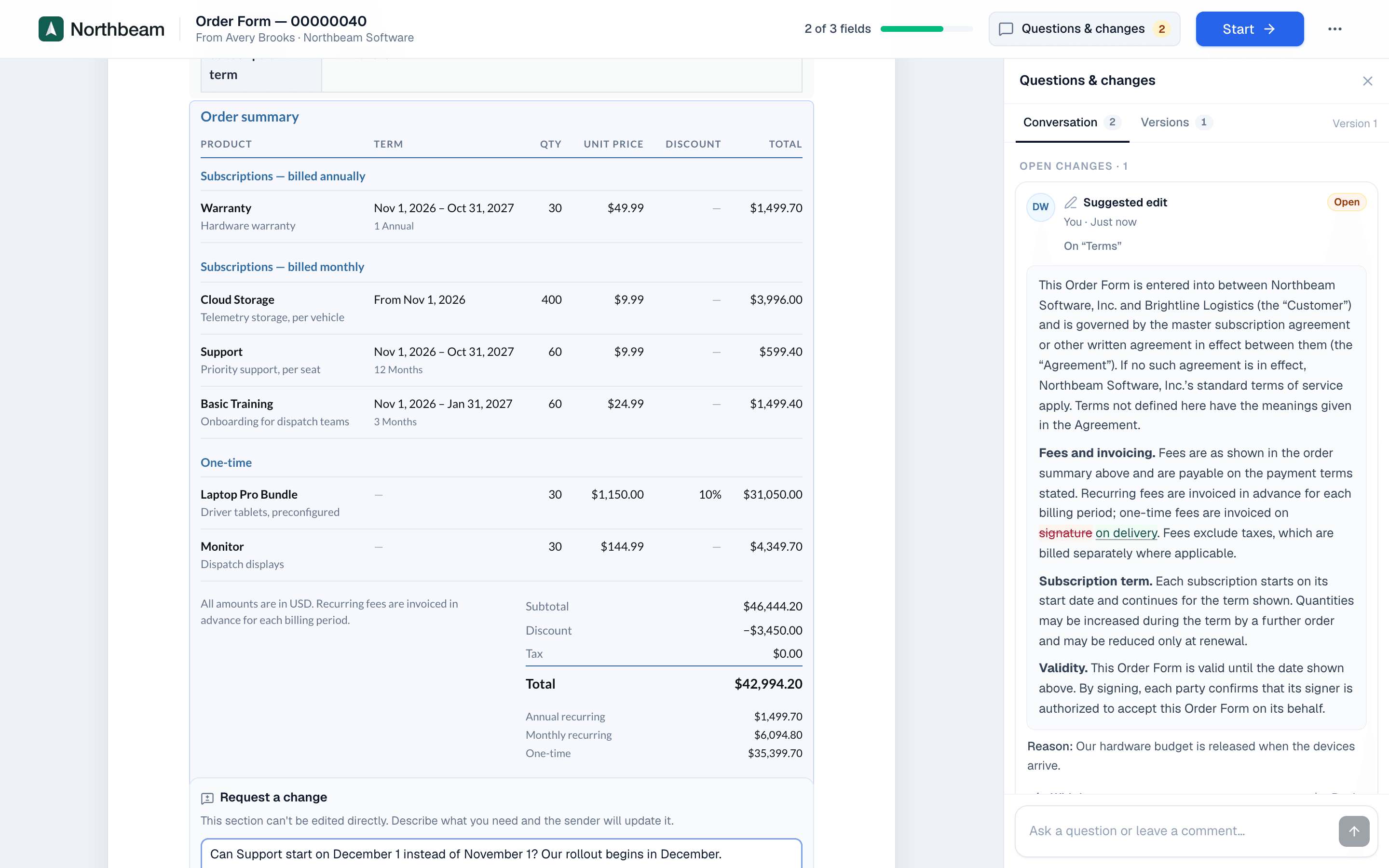
The totals come from the quote: Subtotal, Discount, Tax and Total (Grand Total). To add a note under the totals, select the pricing table in the editor and type it in Note under the totals in the Block tab, for example All amounts are in USD. Recurring fees are invoiced in advance for each billing period.
On the website: Revenue Cloud Advanced·Pricing