
Send from a Salesforce record
Send an order form or any template from a Quote, Opportunity, Order, Contract or Account.
2 sections · 5 screenshots · 2 clips
Step by step · 5 steps
Send from a Salesforce record
Where: Salesforce → a record, for example a quote
1. Choose Send with Tally Sign
In Salesforce, open the record, for example a quote, and choose Send with Tally Sign at the top right.
- You can also choose Send for signature in the record's Tally Sign tab.
More detail: Choose Send with Tally Sign
Send with Tally Sign
- Open the record, for example a Quote or an Opportunity.
- Choose Send with Tally Sign. You can also choose Send for signature in the record's Tally Sign tab.
- Under Document, choose the template. Templates linked to this object are listed first, and a long list has a search. The form starts on the template of a draft on this record, else the one last used on it, else the first for this object. After Use a different template or Void and send a different one, the list opens on its own and the template you replaced isn't picked for you. To send your own PDF or Word file instead, choose Or use your own file.
- Under Who signs, check each person. Each shows where it came from. Choose Change to pick someone else, or Choose when nobody was found. A copy (CC) or reviewer that nobody was found for can be skipped. To bring in someone who reviews without signing, or a copy, choose + Add reviewer or + Add CC under the list and pick a contact (or enter a name and email); Remove takes them off again. With two or more signers, turn on Sign in order to email them one after another, top to bottom. The arrows next to each signer's role move them up or down, for example so the customer signs before your company.
- If anything is listed under Fill in the details, fill it in. This only changes the document, not Salesforce.
- Under Message, check the Subject and, if you like, choose Add a personal note.
- Choose Send for signature. To change the document first, choose Edit document, or Edit on the preview, or click the document itself: it's saved as a draft and opens in the editor. If you already have a draft of the chosen template, the same button opens that draft so you pick up where you left off; choose Start over next to the draft for a fresh copy filled from the record.
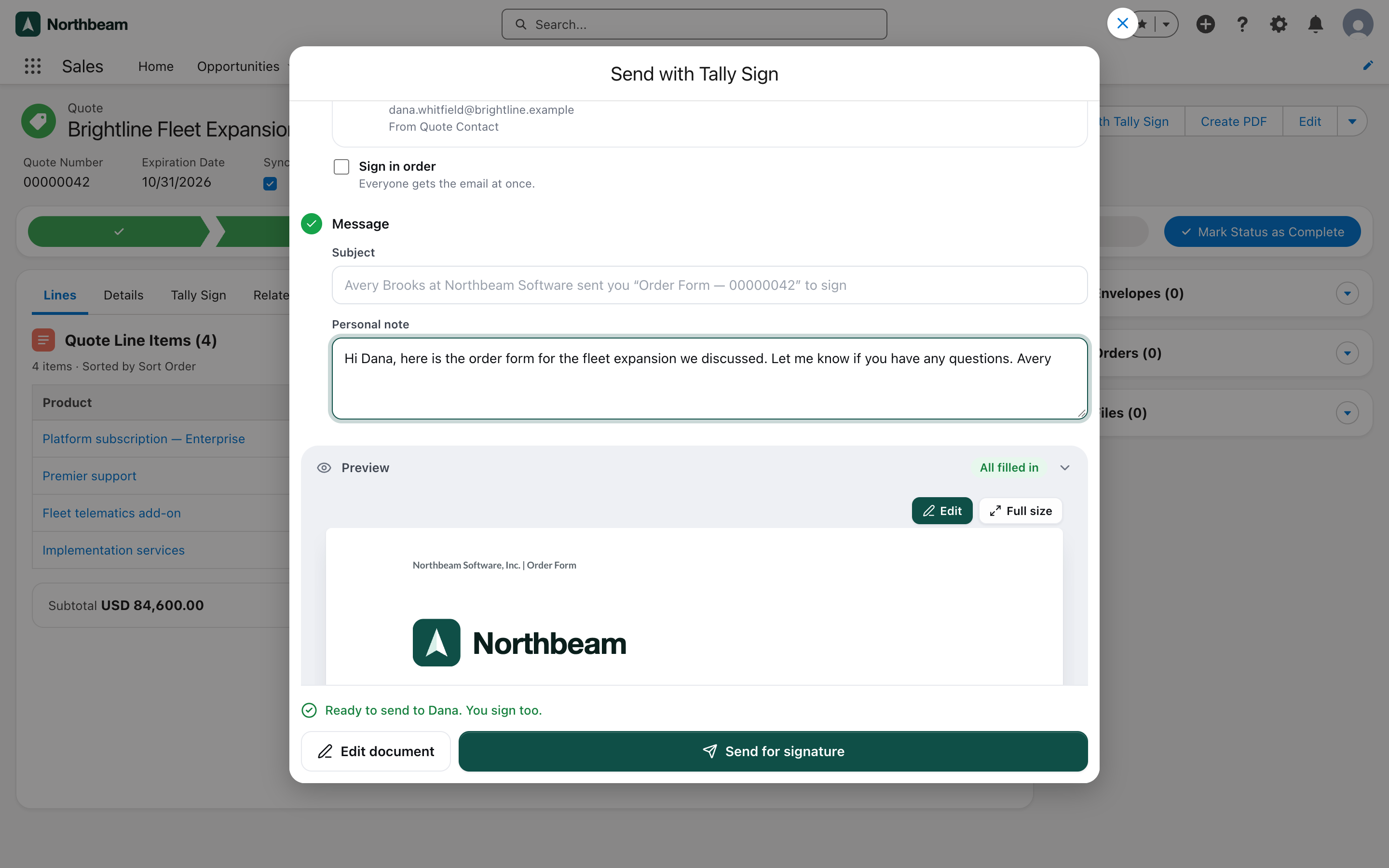
The status next to Send for signature reads Ready to send only when the send will go through. Otherwise it says everything that's left, for example 1 detail to fill in · no lines on the Opportunity. Anything the form can't fix, such as a quote with no lines or a field hidden from you in Salesforce, is listed at the top under This can't be sent yet, with what to do next. If the same template is already out for signature on this record, the form says so: sending creates another copy. A card at the top lists what's already on the record: a draft to pick up (with when it was made) and any other document sent in the last few minutes, with who it went to.
The Preview marks where each person signs. Choose Full size on it to read the document at 100%. In Send with Tally Sign, Escape closes the window; if you've entered anything, press it twice.
Once sent, the envelope appears in the record's Tally Sign tab and in its Envelopes list. With the default Order Form setup, the quote's status changes to Presented.
The Tally Sign tab on the record
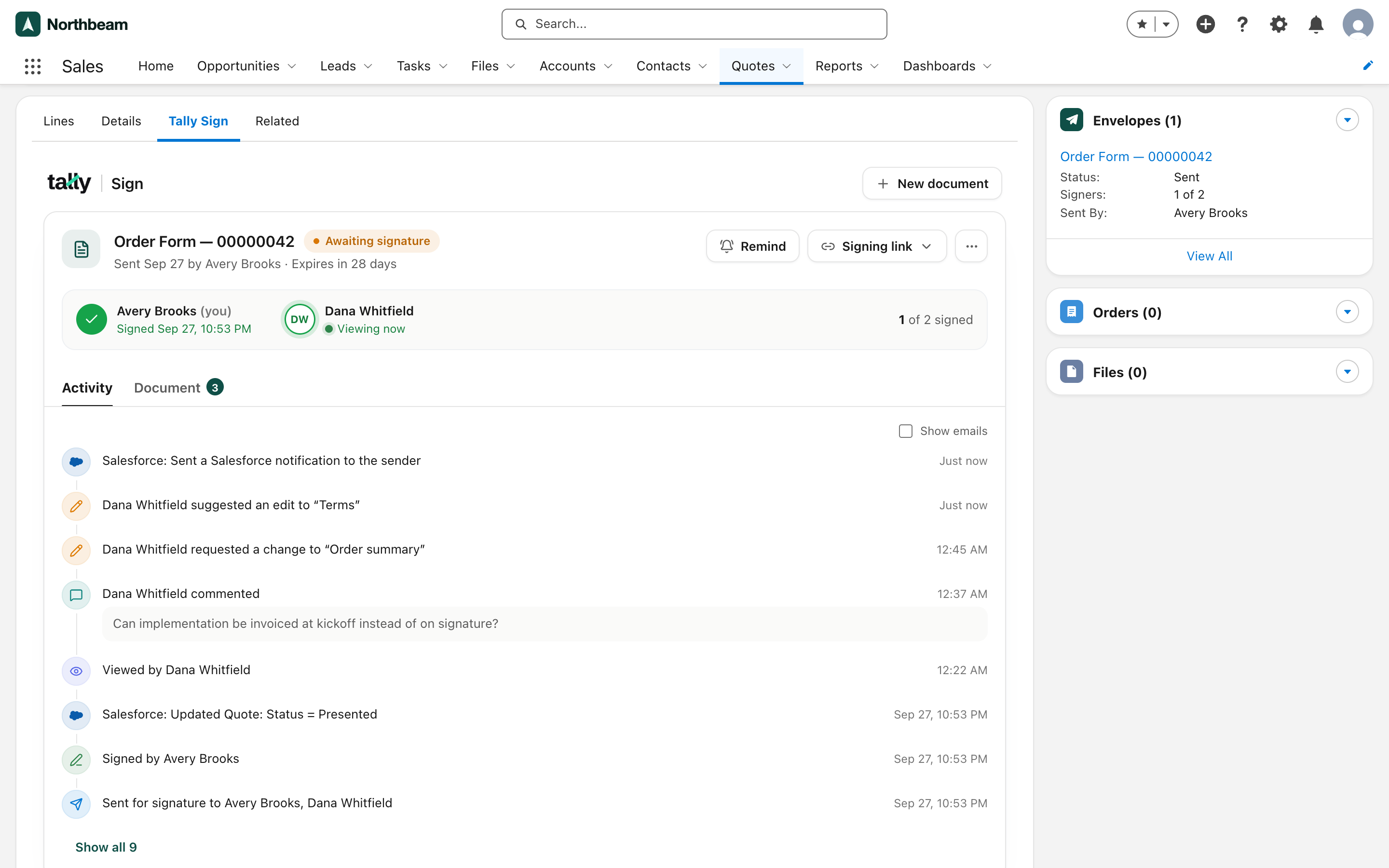
Open the record in Salesforce and choose its Tally Sign tab, the one you added with the component (see Add the component to record pages). The tab shows every document sent from the record. For each one:
- A signer row with each person's progress, for example Opened 9:06 PM, or Viewing now while they have the signing page open and are reading it (it goes once they close the page). When people sign in order, the ones not emailed yet show Gets it after the person before them.
- Remind re-sends the email to people who haven't signed, including your company's signer when that's someone else, such as the owner's manager. Each person is reminded at most once an hour: the signer row shows reminded with the time, and the button reads Reminded until then.
- Signing link copies a person's link, or lets you Sign in person on this device.
- Reviewers and copies, under the signers, lists everyone on the document who doesn't sign, with who added them and when they opened it. While it's out, Add brings in a reviewer or a CC (a contact from the record, or a name and email), and each person's … menu has Copy their link, Remind (reviewers) and Remove. They're emailed their own link right away.
- Edit and send opens a draft in the editor. View signed PDF opens a completed one.
- The … menu next to them has Open in Tally Sign (with a seat), Preview PDF or Download signed PDF, and Open order and Open contract once they're created. For drafts it also has Update from record, Use a different template and Delete draft; for documents out for signature, Edit document, Void and send a different one and Void document. Voiding says who is emailed your reason, or that nobody is when your company turned void notices off.
- Update from record pulls field values, lines and signers from the record again, and says what changed. A field emptied in Salesforce is emptied in the draft too, so it's flagged before sending. Signers you chose stay, and so do values you changed for this document (a value you typed into an empty field gives way once the record has one). Lines switched to Entered here stay yours, and their total adds up from the lines you edit. Switching them back to From Salesforce pulls the record's lines again and drops your edits.
- A draft that can't be sent yet says why above the page, for example fields that are empty in Salesforce, or This Opportunity has no lines in Salesforce yet. Fix it on the record, then choose Update from record.
- With several documents on the record, the one that needs you first (a customer waiting on a reply, or changes to review) is open when the tab loads. The others are folded into rows that say where each stands, for example Sent 12:16 AM · Morgan viewing now. The open document stays open while signers come and go, and one you've just sent opens on top.
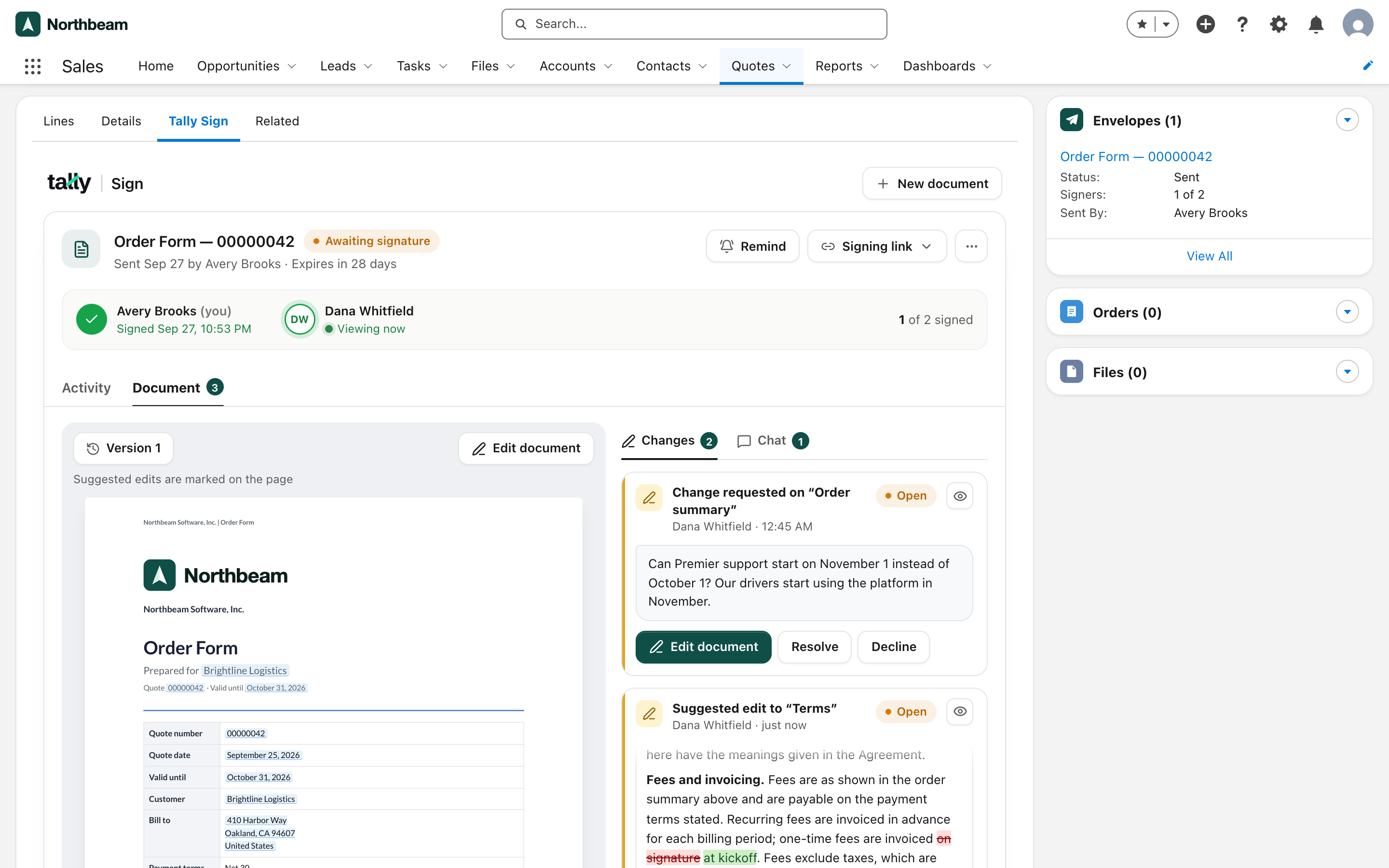
- Two tabs: Activity lists the people and every event. Document shows the current page, with Changes (suggested edits and change requests) and Chat beside it. The page marks where each person still signs, and Full size opens it at 100% for reading in a narrow sidebar.
If the signing link expires before everyone signs, the document says so. Choose Edit and resend to send a fresh link with a new expiry date.
On the website: Any object·Pricing