
Build a template in the editor
Edit wording in place, have the assistant design it, add blocks, place fill-ins and decide who signs.
14 sections · 31 screenshots · 17 clips
A template holds your wording, layout and signature blocks. Every new document starts as a copy of it. New companies start with no templates: build one on the page, have the assistant draft it, or start from the PDF or Word file you use today. Companies that connect Salesforce also get Order Form templates that fill from their quotes and opportunities.
Step by step · 4 steps
Build a template with the assistant
Where: Tally Sign → Templates
1. Start a template
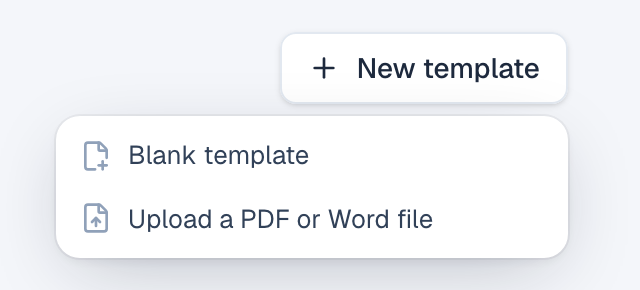
Choose Templates in the menu on the left, then New template → Blank template. The editor opens. To redesign a template you already have, choose Edit on it instead.
More detail: Start a template
On this page
- Open a template
- Edit and add blocks
- Design it with the assistant
- Place and resize fields
- Initials and other field types
- Choices, numbers, dates and files
- Check what they type
- Show a field only when another has a value
- Start from a PDF or Word file
- Salesforce fields and fill-ins on a PDF
- Change a PDF's wording
- Fill-ins
- Who signs
- Let anyone sign it from one link
Open a template
- Choose Templates in the sidebar.
- On a template card, choose Edit to change the template itself, or Use template to start a new document from it.
- To start from a blank page, choose New template.
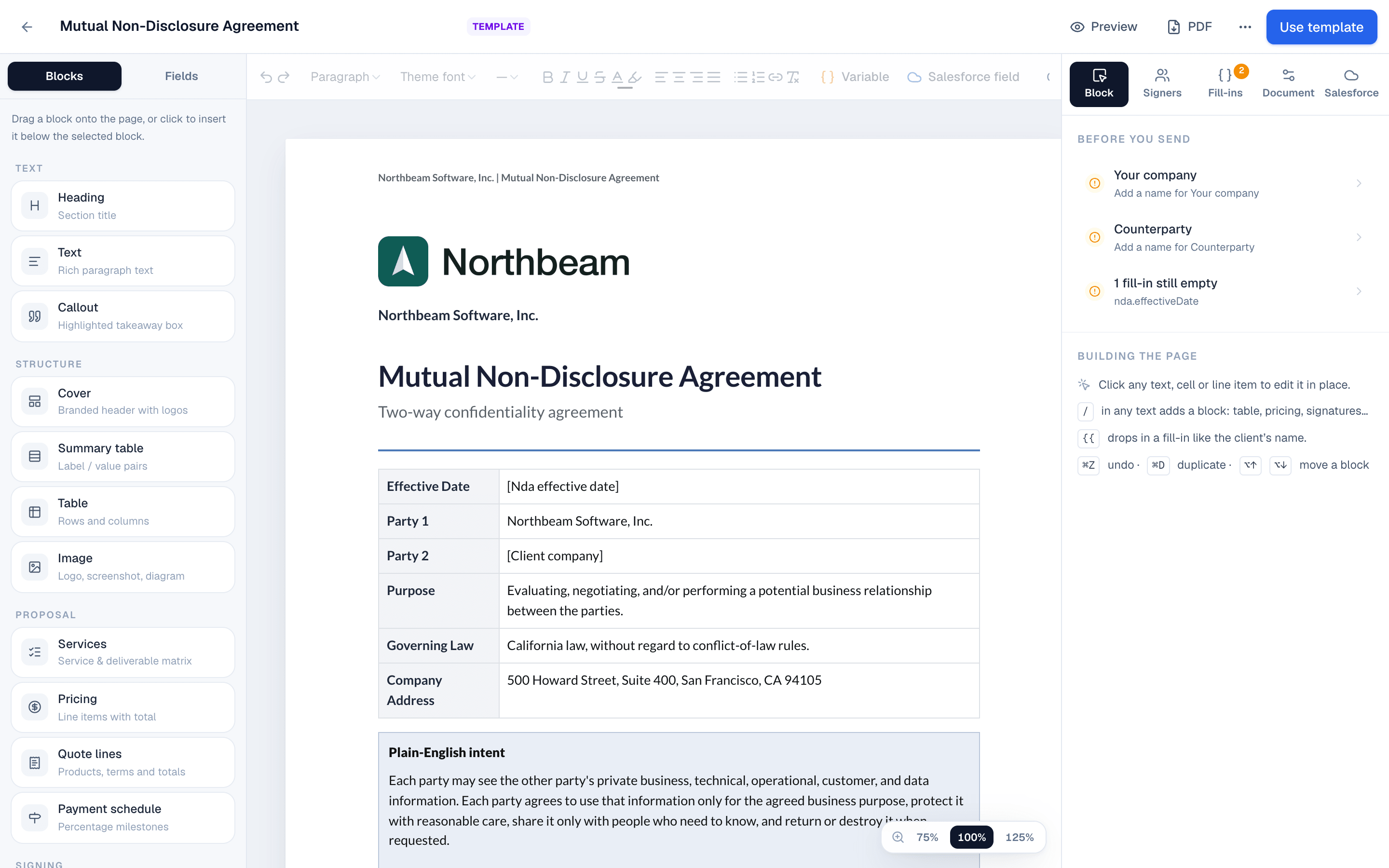
The editor has three columns:
- Blocks and Fields on the left, plus Salesforce once Salesforce is connected. Drag a block onto the page, or click it to insert it below the selected block.
- The page in the middle. Click any text, cell or line item to edit it in place.
- The inspector on the right, with the Block, Signers, Fill-ins and Document tabs. On templates, a Salesforce tab appears there too once Salesforce is connected.
Edit and add blocks
Open the template in the editor: choose Templates in the sidebar, then Edit on the template. A draft opens the same way from Documents.
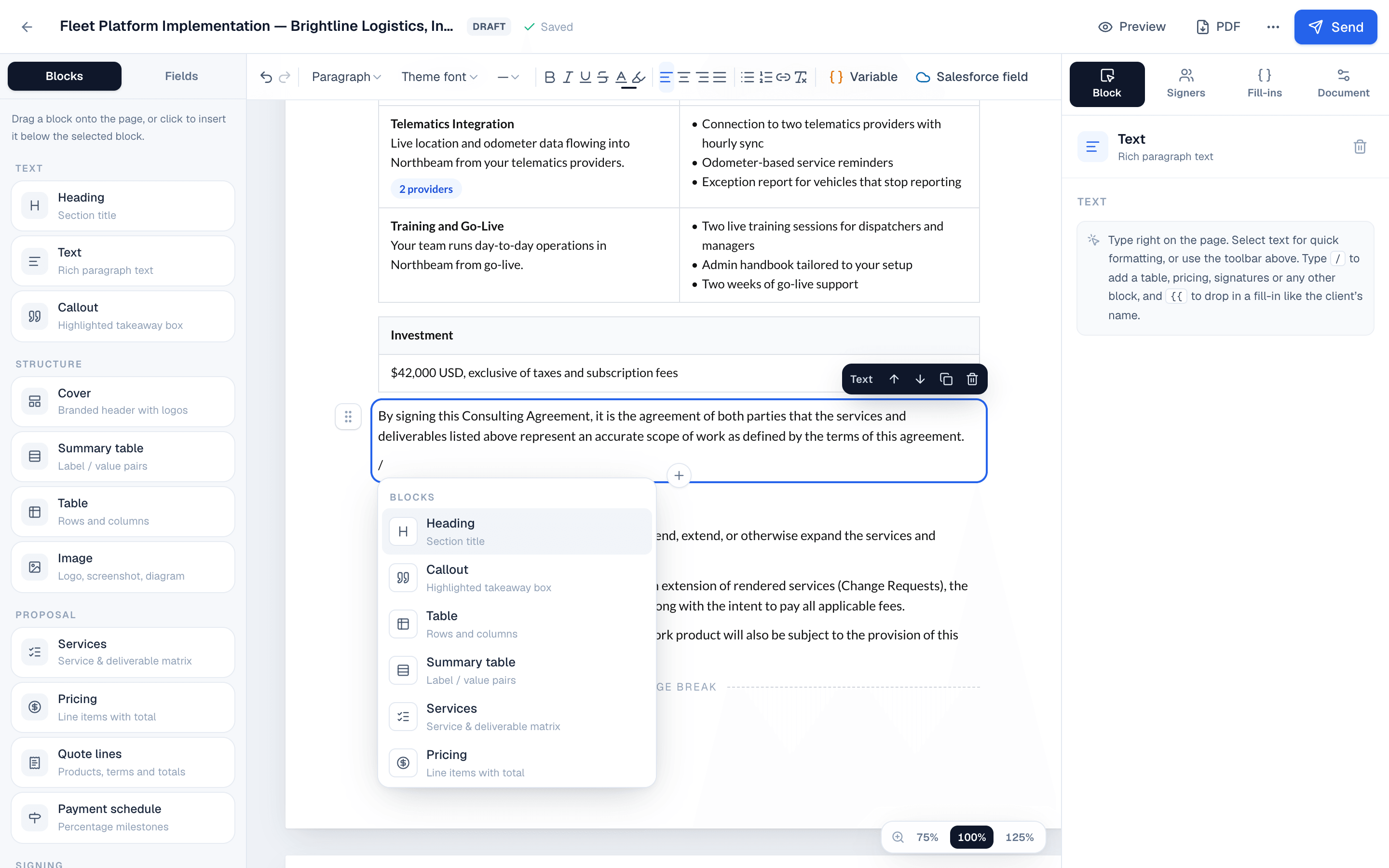
Click a block to select it. A small toolbar lets you move, duplicate or delete it, and the Block tab on the right shows its settings.
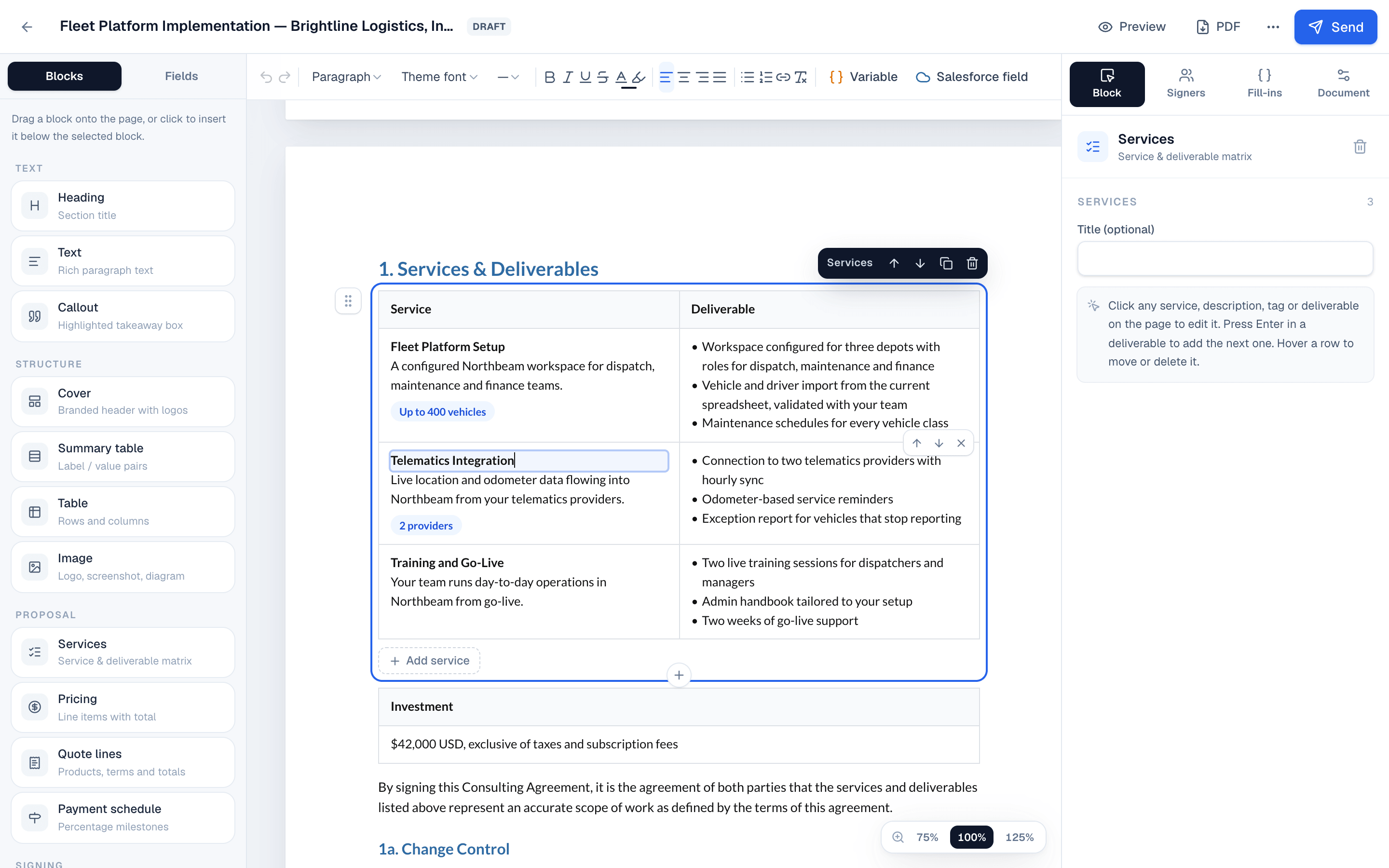
To add a block while typing, press / at the start of an empty line and pick from the menu: heading, callout, key details, table, pricing table, payment schedule, signature block and more.
A callout highlights what matters, such as a summary of the deal or a deadline. Pick its color in the Block tab: Dark (the default), Blue, Green, Amber, Red or Purple. The color shows in every look.
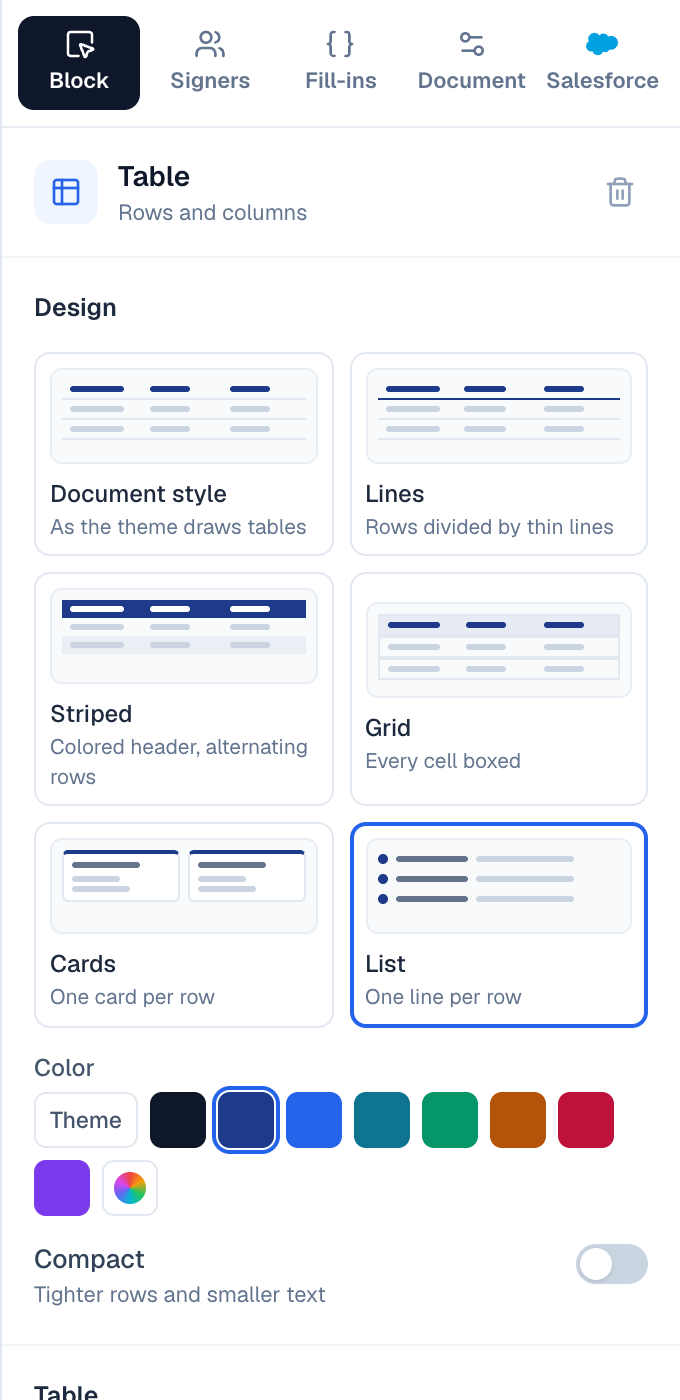
A table can take the document's style or one of five designs, chosen under Design in the Block tab: Lines, Striped, Grid, Cards (one card per row) and List (one line per row). Then make it yours: a color, a header row or none, the first column in bold, and Compact for tighter rows. Rename, move and remove columns under Columns. The designs look the same in every look.
Pictures and videos in tables. Put a product photo, a diagram, a screenshot or a short video right in a cell. Drag an image file from your computer onto the cell: the cell is outlined and says Drop here while you drag, and over the table's borders the nearest cell is picked. You can also paste an image while typing in a cell, or select the table and choose the image button in the cell's corner. Drop several files at once and they all go into that cell. To move a picture to another cell, drag it there.
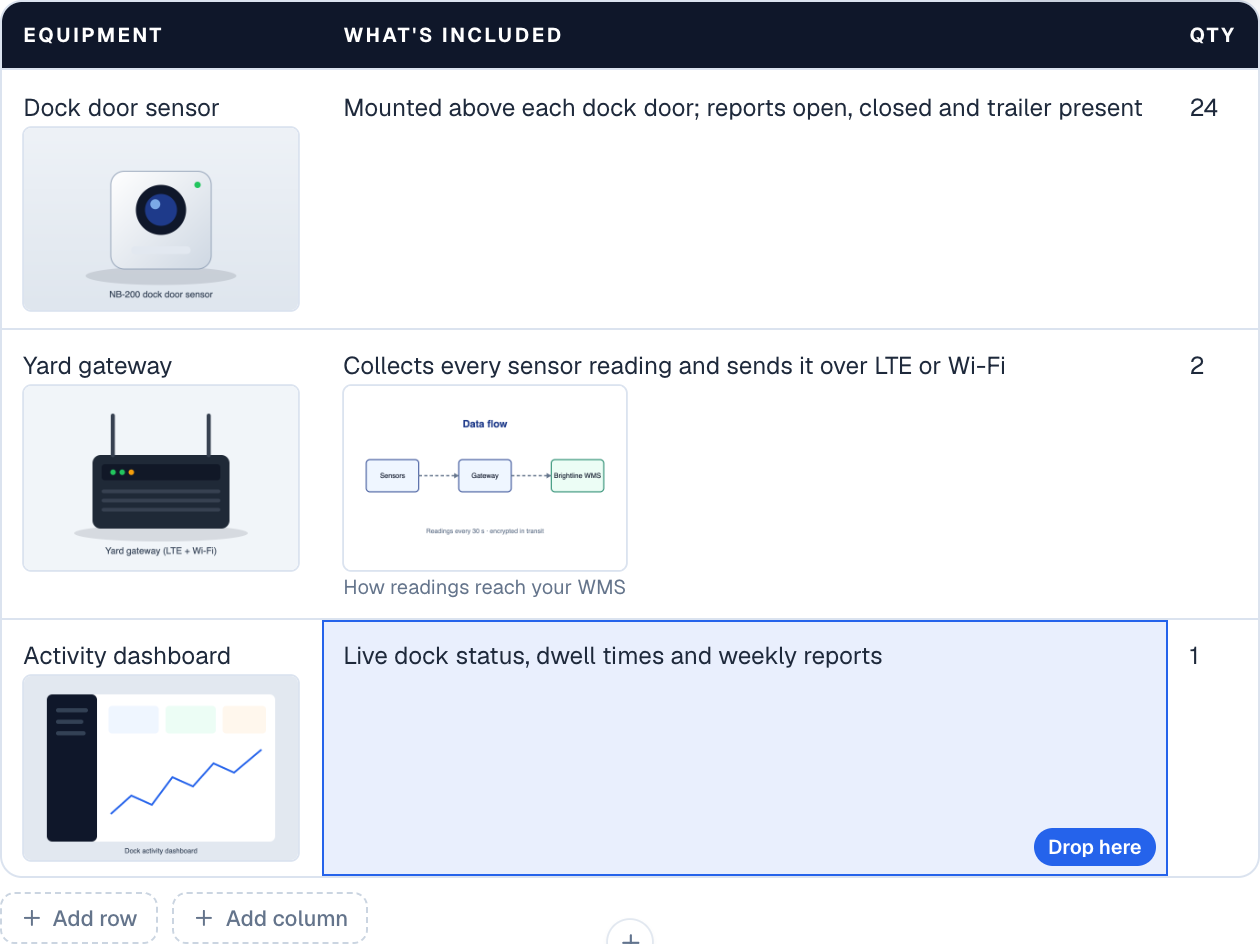
Point at a picture for its tools: Describe (what it shows, read aloud by screen readers and filled in from the file name, plus an optional caption printed under it), Replace and Remove. ⌘Z undoes any of it. Pictures show as tidy thumbnails in every design, including Cards and List, and print in the PDF at full quality. A table filled from a Salesforce related list doesn't take pictures, since its rows come from the record.
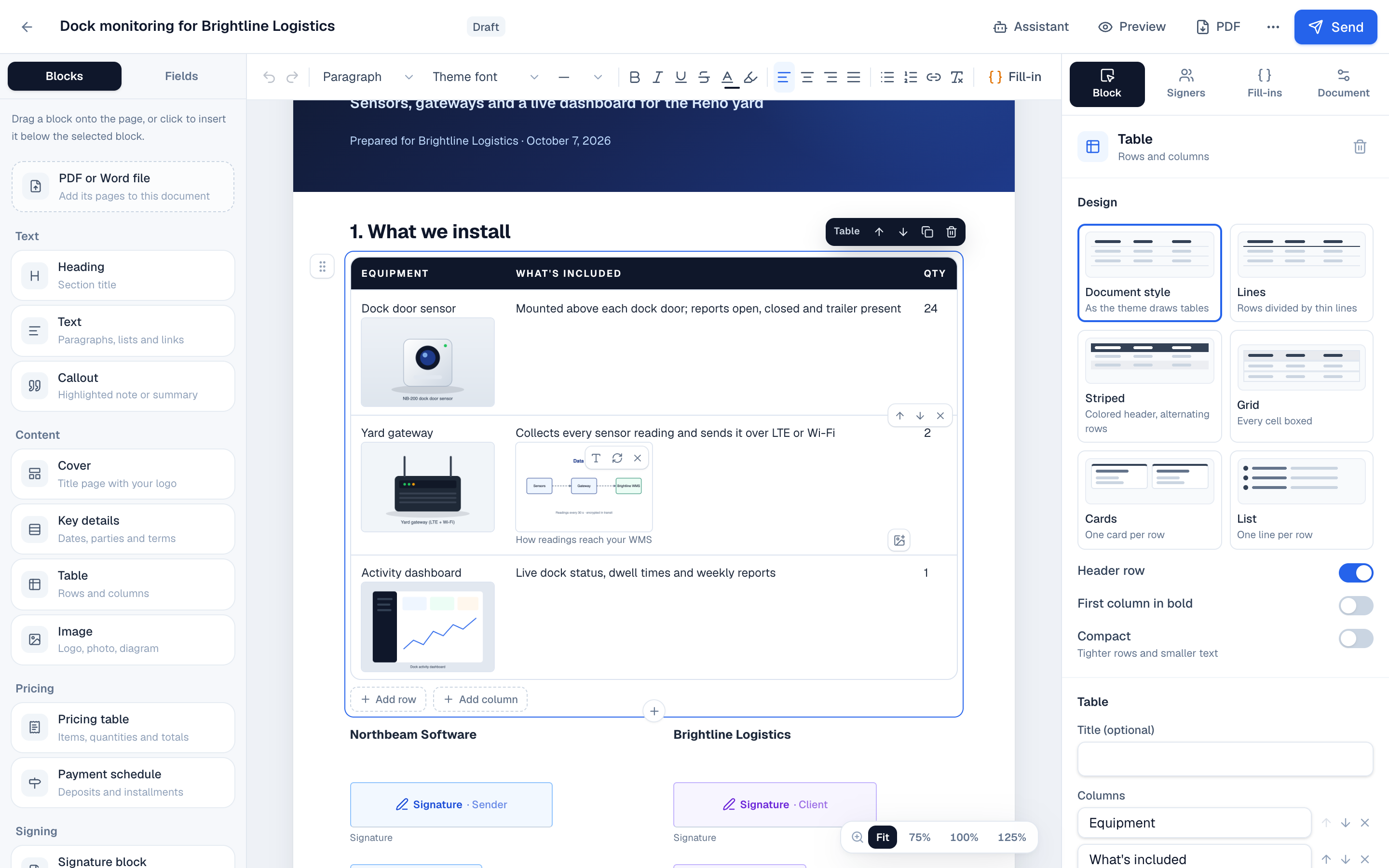
Pictures in the scope table. The Services & Deliverables scope table takes pictures on both sides. Drag an image onto a deliverable and that bullet is outlined with Drop here; drop it and the picture shows under that bullet. Dropped on empty space in the Deliverable column, it goes under the nearest bullet. Drop it on the service side and it shows under the service's description. You can also paste an image while typing in a deliverable, or use the image button in the corner of the Deliverable cell, which adds it under the bullet you're typing in (or the last one). Drag a picture to move it to another bullet, to the service, or into another table. Press Enter in a bullet and its pictures stay put; delete an empty bullet with Backspace and its pictures move up to the bullet before it.
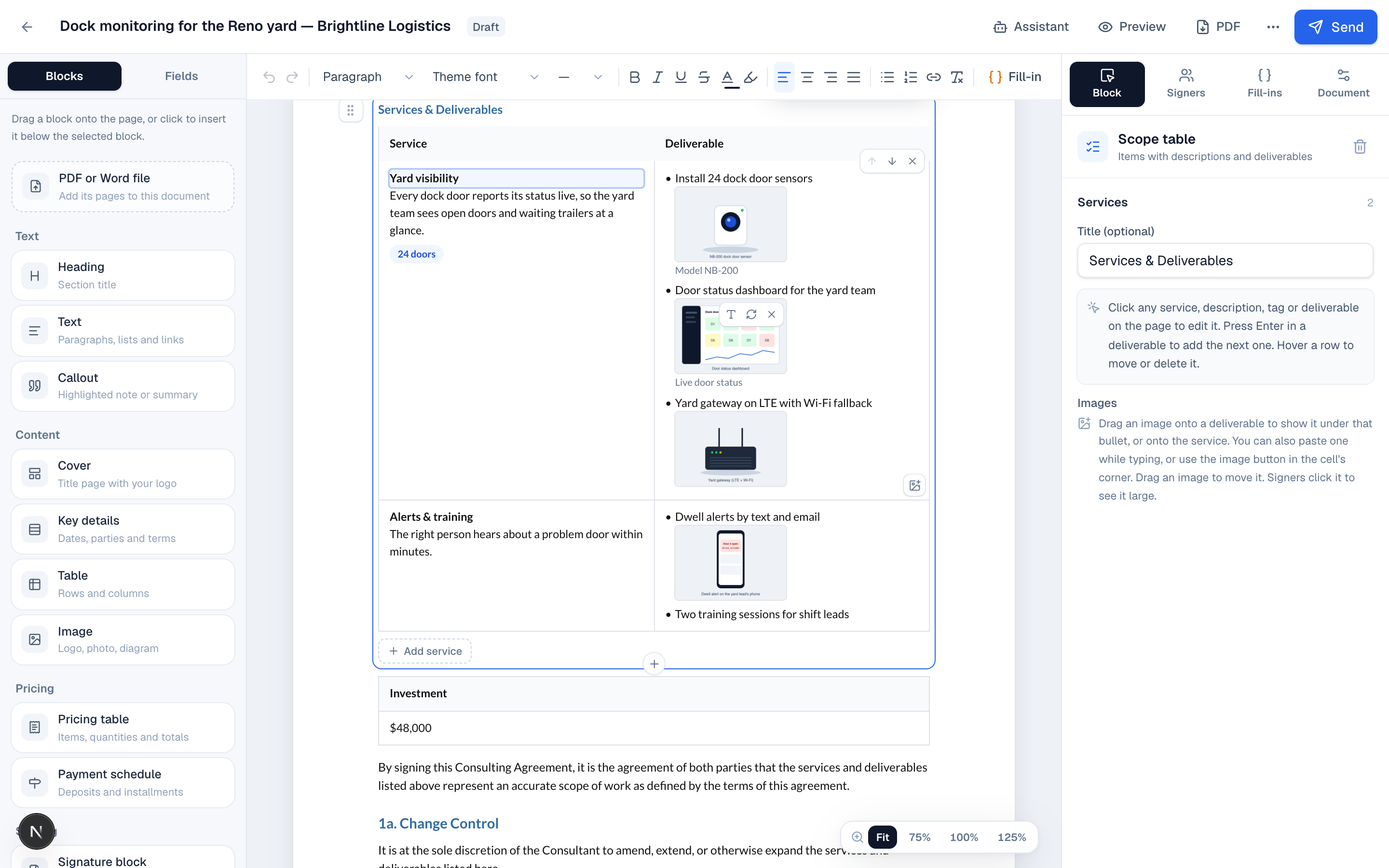
Videos. A cell or a deliverable takes videos the same way as pictures, and they sit in the same row of thumbnails, so you move, reorder and remove them the same way. Two kinds:
- A video file (MP4, MOV or WebM, up to 500 MB): drop it on a cell or a deliverable, paste it while typing there, or choose the button in the cell's corner, then Upload image or video. It uploads in the cell with a progress bar, and × cancels it. The cover is a frame from about a second in, and its length shows on the thumbnail. MP4 (H.264) plays in every browser; if your browser can't show a file's picture, you're told, because some signers may not be able to play it either. For a longer recording, put it on YouTube, Vimeo or Loom and use the link.
- A video link from YouTube, Vimeo, Loom or Wistia: paste the link while typing in a cell (
⌘⇧Vpastes it as text instead), or choose the button in the cell's corner and paste it under Video link. Its title, length and cover come from the video's site. Links to other sites aren't played in documents.
Point at a video for its tools: Title (shown when it plays and printed under it, plus an optional caption), Change cover (play or drag to any moment and choose Use this frame, or upload a picture), Replace and Remove.
What signers see. On the signing page, the document page and in Salesforce, people click or tap a picture to see it large, or a video to play it. The arrows, the arrow keys or a swipe step through the table's other pictures and videos (in a scope table, each service's and then its deliverables', row by row), and the close button, Esc or a click beside it closes it. Stepping away from a video stops it, and a video never starts on its own. On a phone they can pinch to zoom a picture. It works with a keyboard alone and in all five signing languages.

A video from YouTube, Vimeo, Loom or Wistia plays in that site's own player, which loads only when the signer presses play: until then the page shows the cover stored with your document, and nothing comes from the video's site. YouTube plays from its privacy-enhanced youtube-nocookie.com, and Vimeo with Do Not Track.

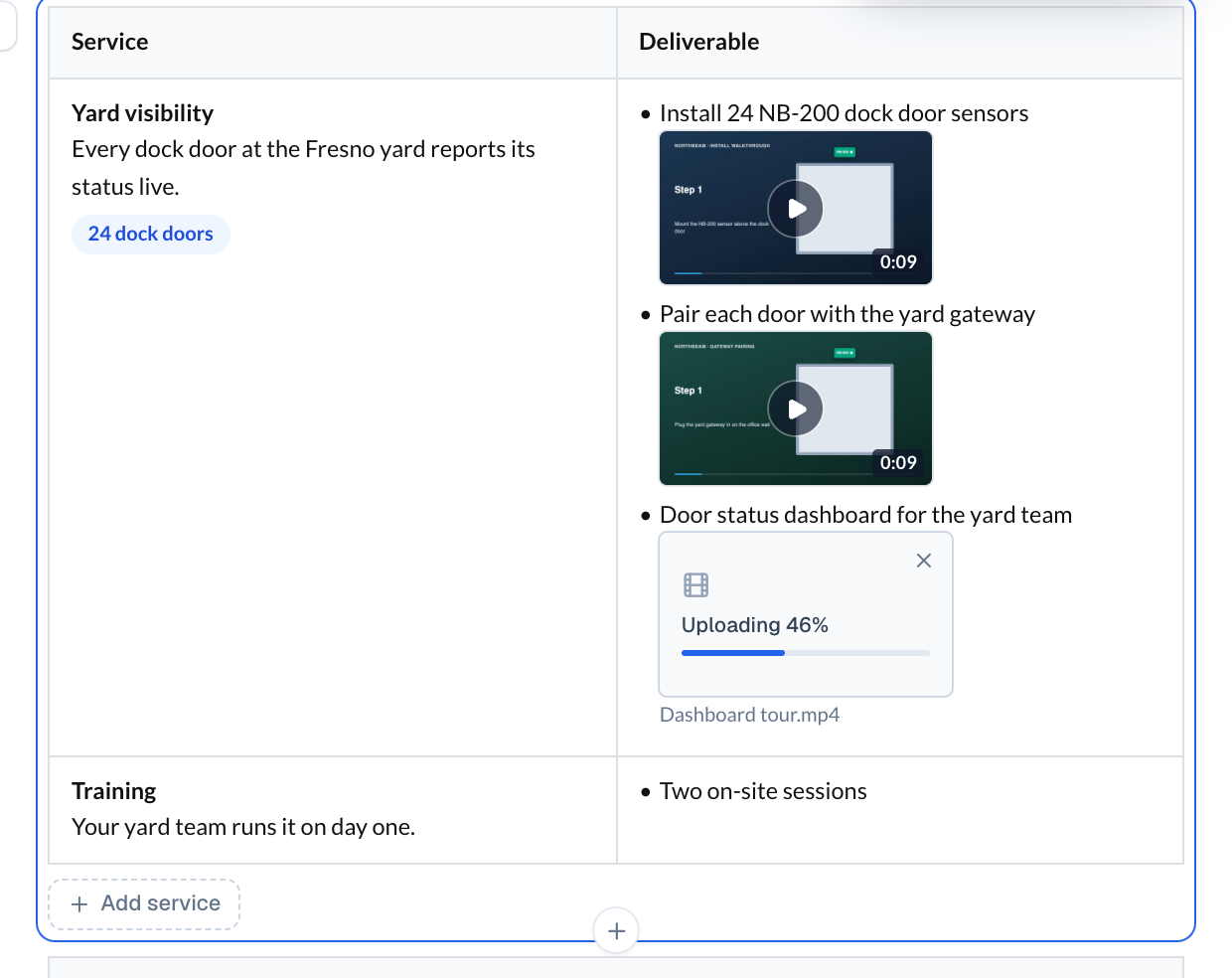
In the PDF, a video prints as its cover with a play button, its title and length, and a link. A video you uploaded links to its own page, with your logo, where it plays without signing in, and it keeps working after the document is signed. A YouTube, Vimeo, Loom or Wistia video links to the video on that site. Like pictures in a document, anyone with the link can watch it, and search engines don't list it. The video is part of what's signed: the document's fingerprint covers the uploaded file itself (its SHA-256), or the video link, so swapping a video afterwards would show.
| Shortcut | What it does |
|---|---|
/ | Add a block |
{{ | Insert a fill-in, such as the client's name |
⌘Z | Undo |
⌘D | Duplicate the selected block |
⌥↑ ⌥↓ | Move the selected block |
Design it with the assistant
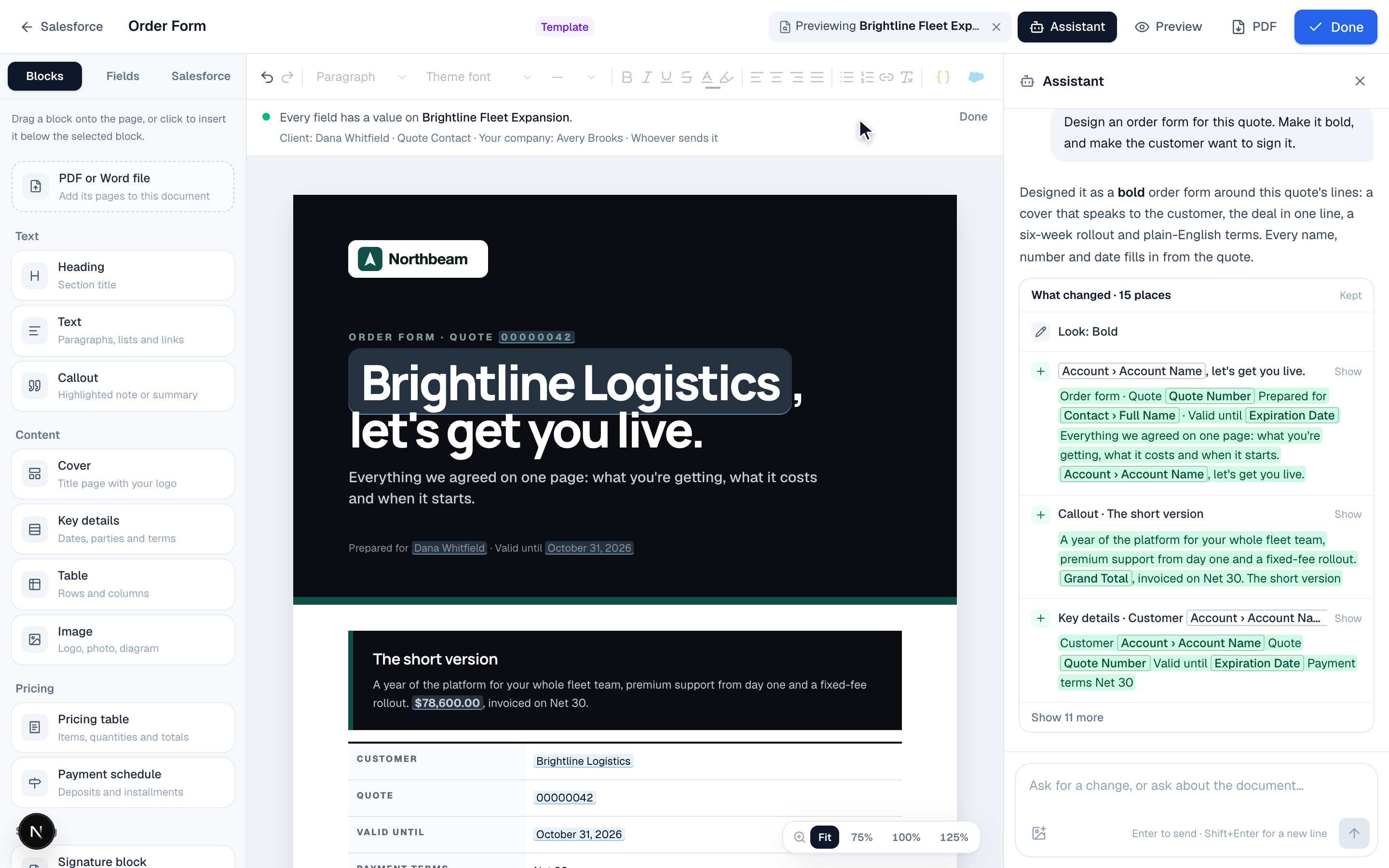
Choose Assistant at the top of the editor and describe the document: what it's for, who reads it and how it should feel. The assistant writes the wording and designs the page every time: a cover, section headings, a summary callout, key details, pricing and a payment schedule where they fit, and a look that suits it. In Salesforce it builds around the record, so names, numbers, dates and quote lines fill in when it's sent.
- Open a template (Templates → Edit on the template), or choose New template (in Salesforce: the Tally Sign tab → Templates → New template).
- Choose Assistant and type what you want, for example *Design an order form for this quote. Make it bold.*
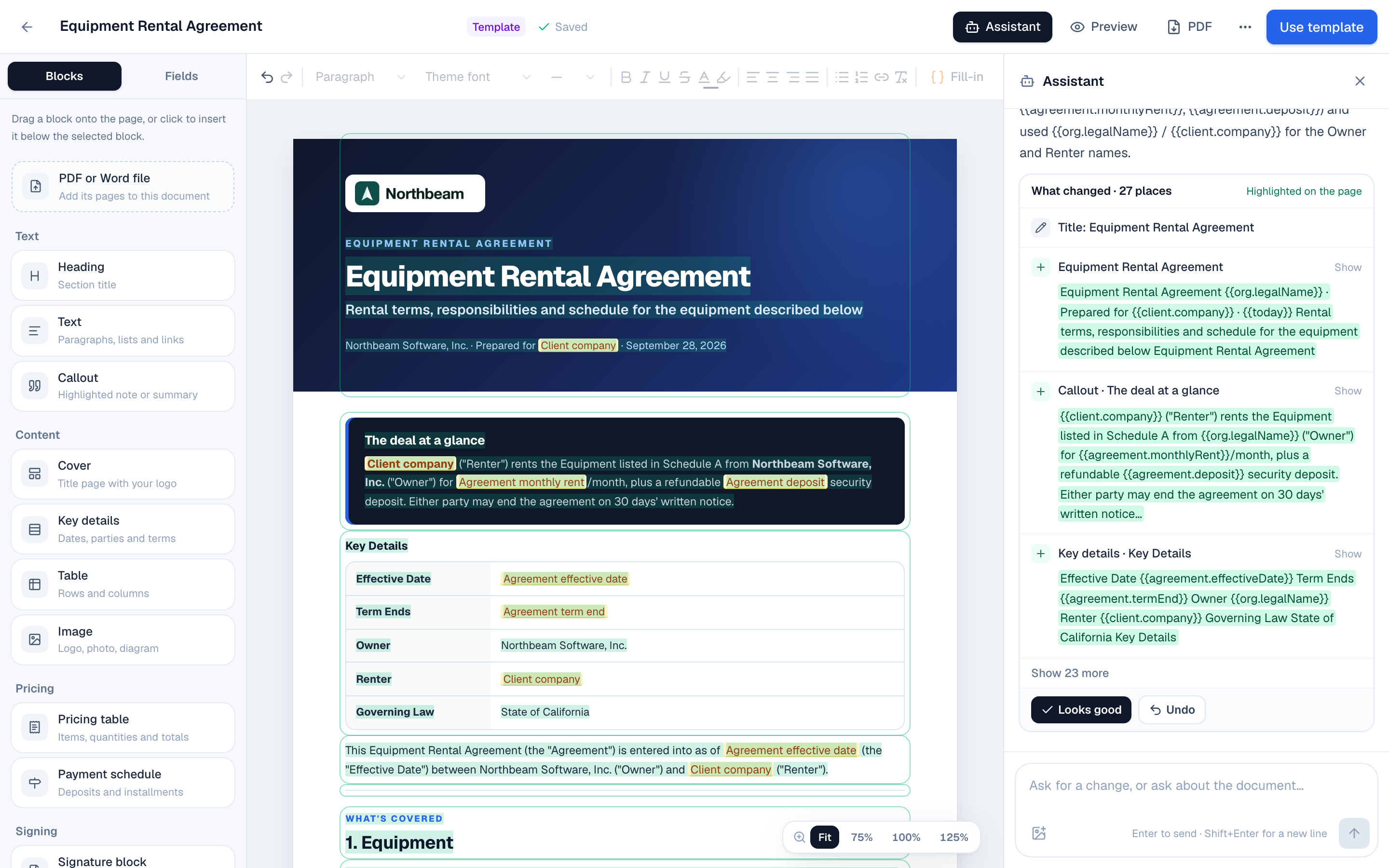
- Read What changed. Every change is highlighted on the page. Choose Looks good to keep them, or Undo.
- Ask for more changes the same way: *make the terms shorter*, *add a confidentiality section*, *switch to the Classic look*.
In a document made from a template, it fills your template in. Paste the brief for a deal into a draft you made from one of your templates, for example *Draft a statement of work for Maclean Health* followed by the scope, and the assistant keeps your layout: the cover, the look, your tables and your standard terms stay as they are. It writes the deal into the places the template has for it, adds a plain section for anything with no place yet, and tells you what's still to fill in, such as a fee it wasn't given. To get a new layout instead, say so: *start over* or *redesign it*.
You can attach a picture to your message, such as the customer's logo or a product photo, and the assistant puts it on the cover or in the page.
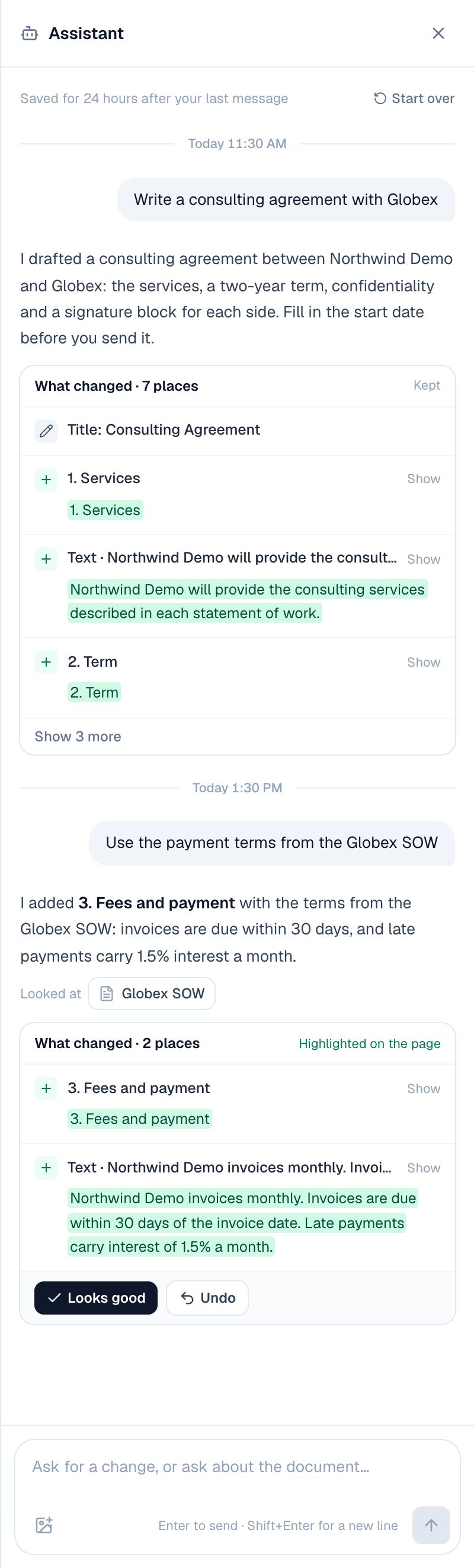
It remembers the conversation. Each template and document keeps its own chat. Close the assistant, leave the editor or open the document on another computer, and the conversation is still there when you choose Assistant again, with the pictures and files you gave it, so you can carry on where you left off. It's cleared 24 hours after your last message, and a line with the time shows where you came back after a break. To clear it sooner, choose Start over at the top of the chat, then Clear. Each person on your team has their own conversation, and if the chat fails to answer, Try again sends your message again.
It knows your other templates and documents. Ask for *the payment terms from the Globex SOW* or *the same scope as the NDA we sent Acme*, and it reads that document first, then shows which one it used under Looked at, with a link to open it.
To change the look yourself, open the Document tab on the right of the editor and pick one under Look:
| Look | What it's like |
|---|---|
| Modern | A banner cover and clean tables. The default. |
| Bold | An ink cover, oversized headings and your brand color as the accent. Made for proposals and order forms. |
| Proposal | Arial, teal headings and bordered tables. |
| Letterhead | Lato, blue headings and a running header. |
| Classic Word | Cambria body and blue Calibri headings, like a Word document. |
| Plain | Helvetica, a centered title and bold labels. |
Place and resize fields
Open the template in the editor (Templates → Edit on the template), or a draft from Documents. Choose the Fields tab on the left and pick who fills them in under Fields for. Drag a field anywhere on the page, over text, a table or a signature block, and it stays exactly where you let go. It moves with the content around it when you edit the page. Clicking a field instead places it on the page in view.
While you drag, pink guide lines show when the field lines up with another one, and it snaps into line.
Click a field on the page to select it. Drag the handles on its right edge, bottom edge or corner to make it bigger or smaller. The Block tab shows its settings: type, who fills it in, label, required, and exact width and height. The signer sees the field at the size you set.
| Shortcut | What it does |
|---|---|
| Arrow keys | Nudge the selected field 1px (hold Shift for 10px) |
⌘D | Duplicate the selected field |
⌫ | Delete the selected field |
Esc | Deselect |
Initials and other field types
Each signer can have any of these fields. In the editor, open the Fields tab on the left to see them.
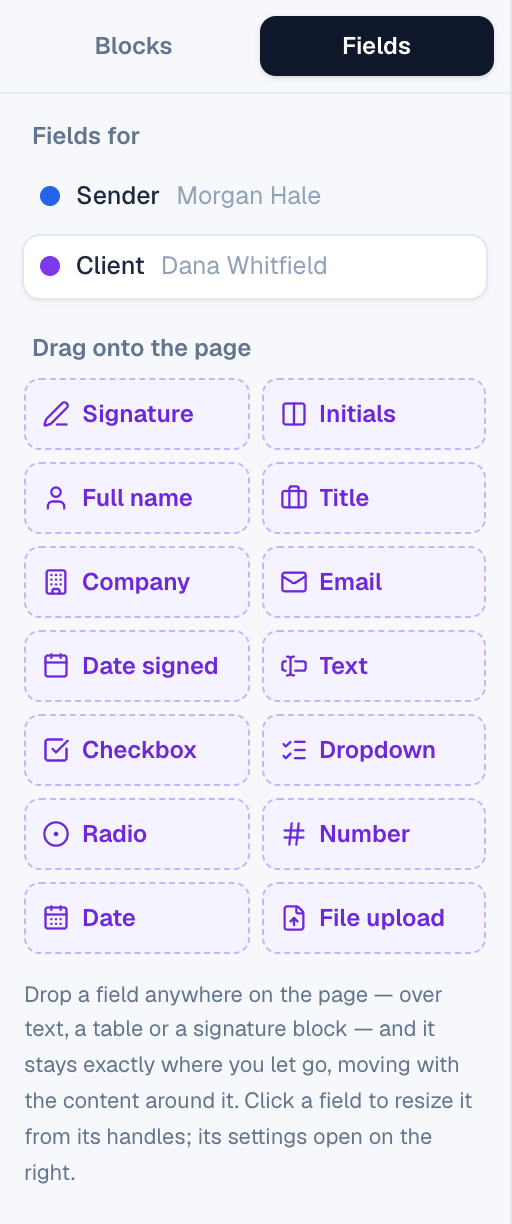
| Field | What the signer does |
|---|---|
| Signature | Draws or types a signature the first time, then signs every other signature field with one click. |
| Initials | Draws or types initials the first time, then initials every other initials field with one click. |
| Full name, Title, Company | Typed by the signer. Filled in from the recipient's details when you entered them, and the signer can correct them. |
| Filled in with the signer's email. They can't change it. | |
| Date signed | Filled in automatically when they finish. |
| Text | Any text you ask for, such as a PO number. You can have it checked as an email address, phone number, number, ZIP or postal code, or a pattern of your own (see Check what they type). |
| Checkbox | Ticked or left empty. Optional unless you turn on Required. |
| Dropdown | Picks one choice from a list you write, such as Net 30, Net 45 or Net 60. |
| Radio | Picks one of the choices you write, all shown on the page, stacked or in a row. The signed PDF prints every choice with theirs marked. |
| Number | Types a number. You can set the smallest and largest, the decimal places, and what shows before or after it, such as $ or %. |
| Date | Picks a date from a calendar, such as a start date. Unlike Date signed, it isn't filled in for them. You can set the earliest and latest date. |
| File upload | Uploads a file you ask for, such as a W-9 or an insurance certificate: a PDF, or a JPEG or PNG image, up to 10 MB. |
- Open a template (Templates → Edit on the template) or a draft (Documents → Drafts), and choose the Fields tab on the left.
- Under Fields for, pick the signer, for example Client.
- Drag Initials to where the signer should initial, for example next to a clause or at the bottom of a page.
- With the field selected, the Block tab shows Type, Filled in by, Label (the name the signer sees) and Required.
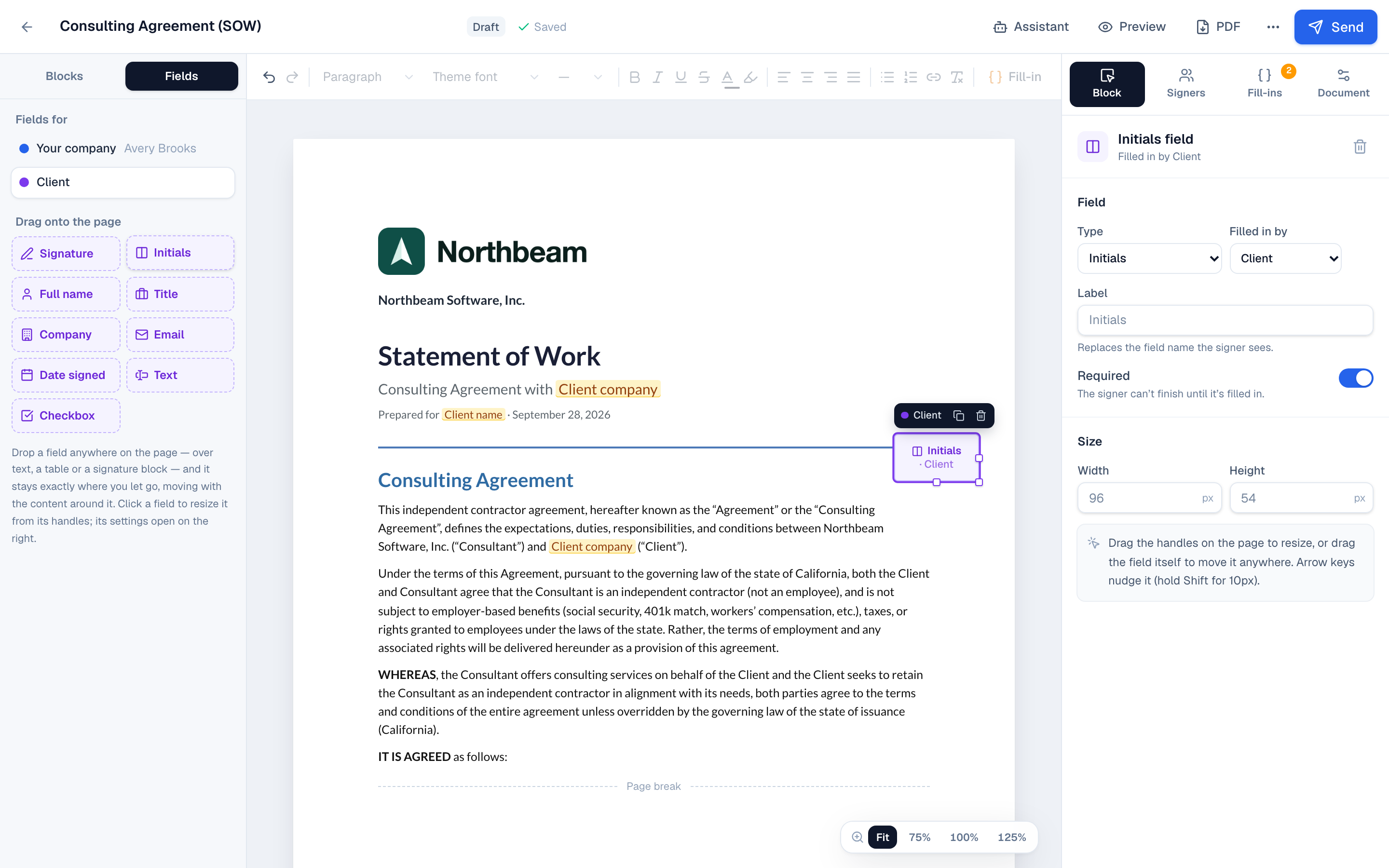
Initials on every page: an Initials field isn't repeated for you. Place one on each page that needs it. The quickest way is to place one, press ⌘D to duplicate it and drag the copy to the next page. The signer adopts their initials once, and each field then takes one click.
Choices, numbers, dates and files
Select a dropdown, radio, number, date or file upload field on the page. Under Field in the Block tab are its type, who fills it in, its label and Required; the settings below them depend on the type.
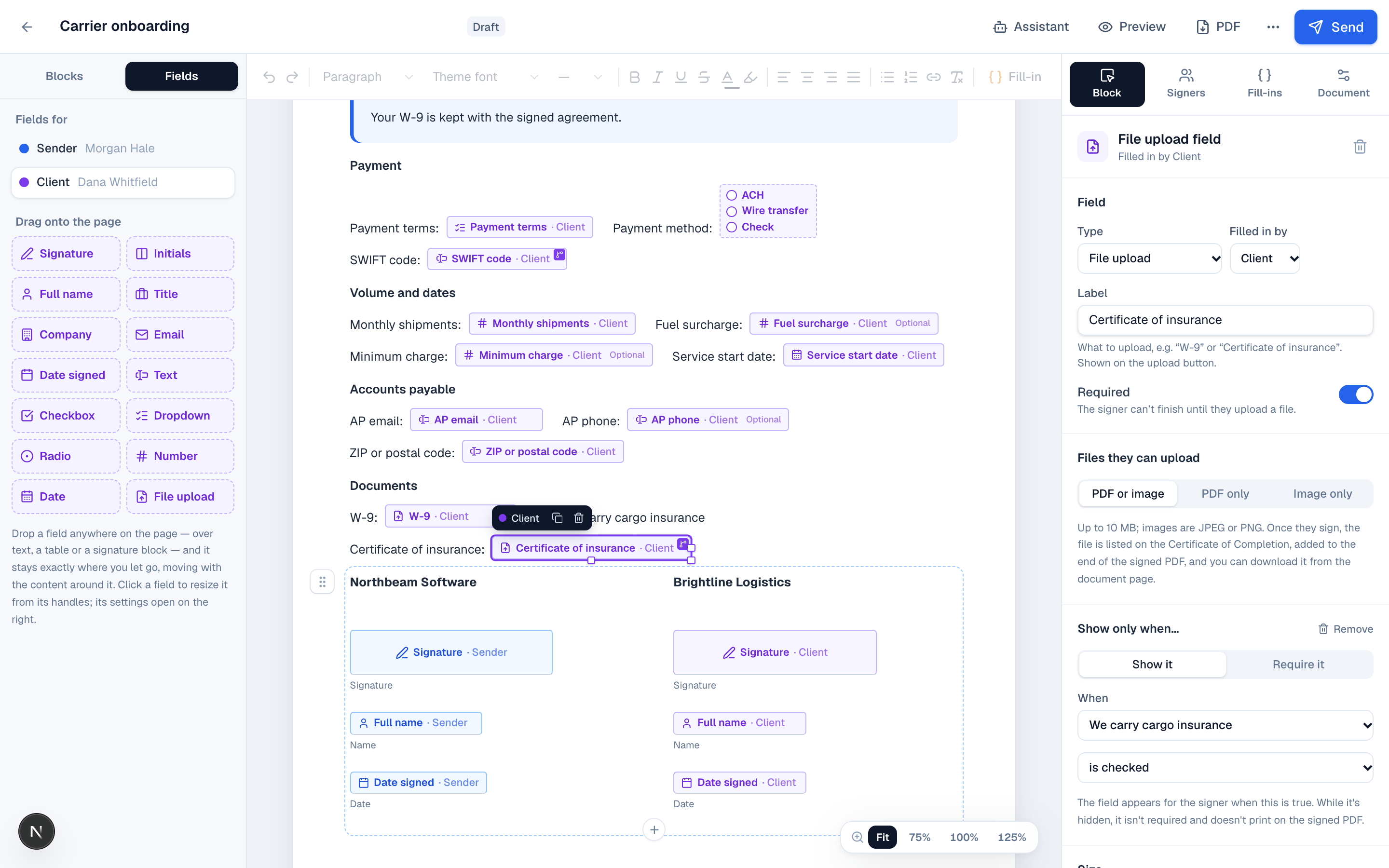
| Field | Settings |
|---|---|
| Dropdown, Radio | Choices: type each one; Enter adds the next, the arrows reorder them. For radio buttons, Layout sets Stacked or In a row. The label names the group, such as Payment method. |
| Number | Smallest and Largest, Decimal places (None for whole numbers), and Before the number / After the number, such as $ or %. |
| Date | Earliest and Latest: no limit, The day they sign, or a date you pick. |
| File upload | PDF or image, PDF only or Image only. The label goes on the upload button, so name what you need, such as W-9. |
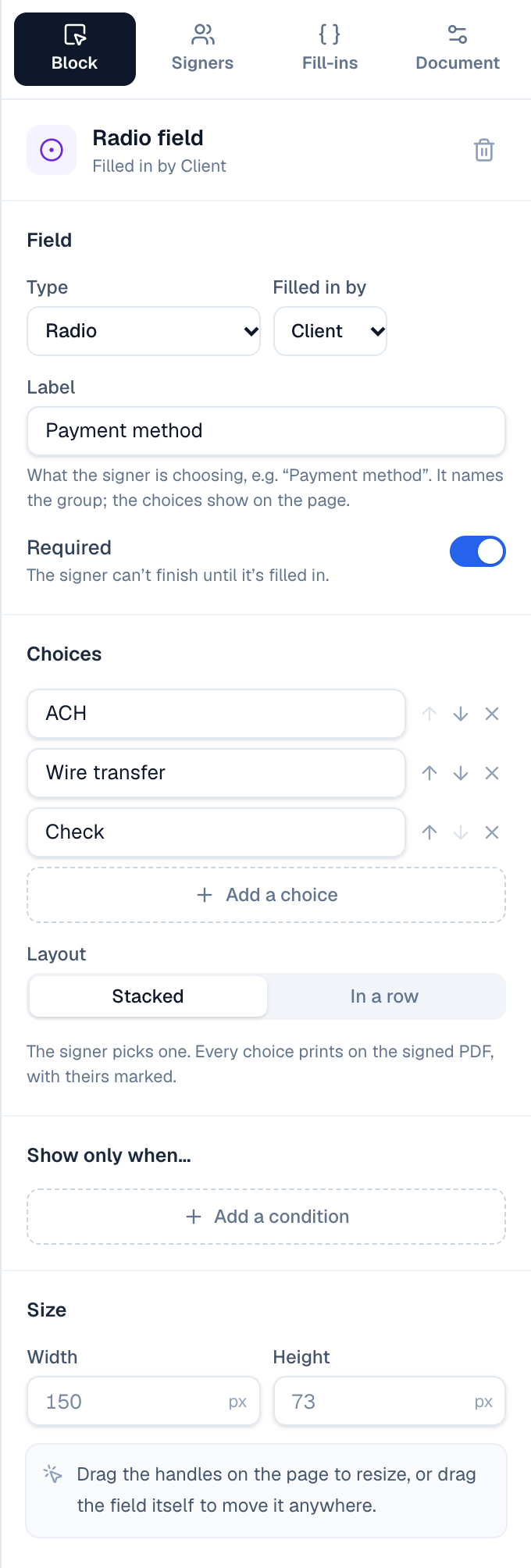
Signers type numbers the way the document writes them, for example 1,250.50 in US English or 1.250,50 in German (Document → Language and region).
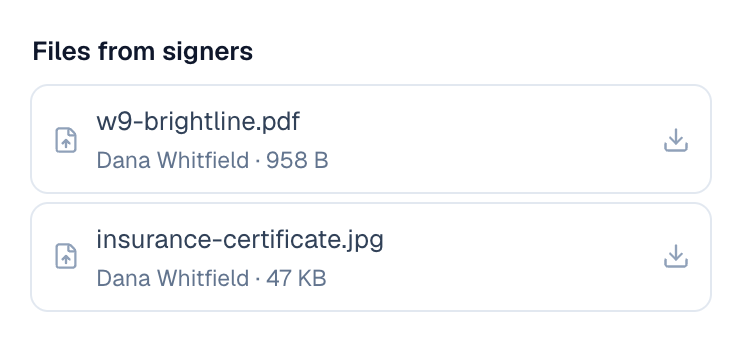
After signing, a file upload is listed on the Certificate of Completion with its name, size, who uploaded it and when, and its SHA-256 fingerprint. It's added to the end of the signed PDF, after the document and its exhibits and before the certificate: a PDF's pages as they are, a picture on a page of its own. On the document page, it's under Files from signers, where you can download it. Your own systems can get it too, through the REST API and webhooks: see Use the REST API.
Check what they type
A Text field can make sure what the signer types has the right form. Select the field and, under What they can type, choose a Format:
| Format | Accepts |
|---|---|
| Email address | An address like name@company.com. |
| Phone number | 7 to 15 digits, with spaces, dashes, dots, brackets and a leading + if they like. |
| Number | A number, written the way the document writes numbers. |
| ZIP or postal code | US ZIP codes and postal codes of other countries, such as 60607, 60607-1234 or SW1A 1AA. |
| Custom pattern | Whatever matches your Pattern, a regular expression the whole entry must match, for example [A-Z]{2}-\d{4} for AB-1234. Message when it doesn't match is what the signer is told. |
Fewest characters and Most characters limit the length of any text field.
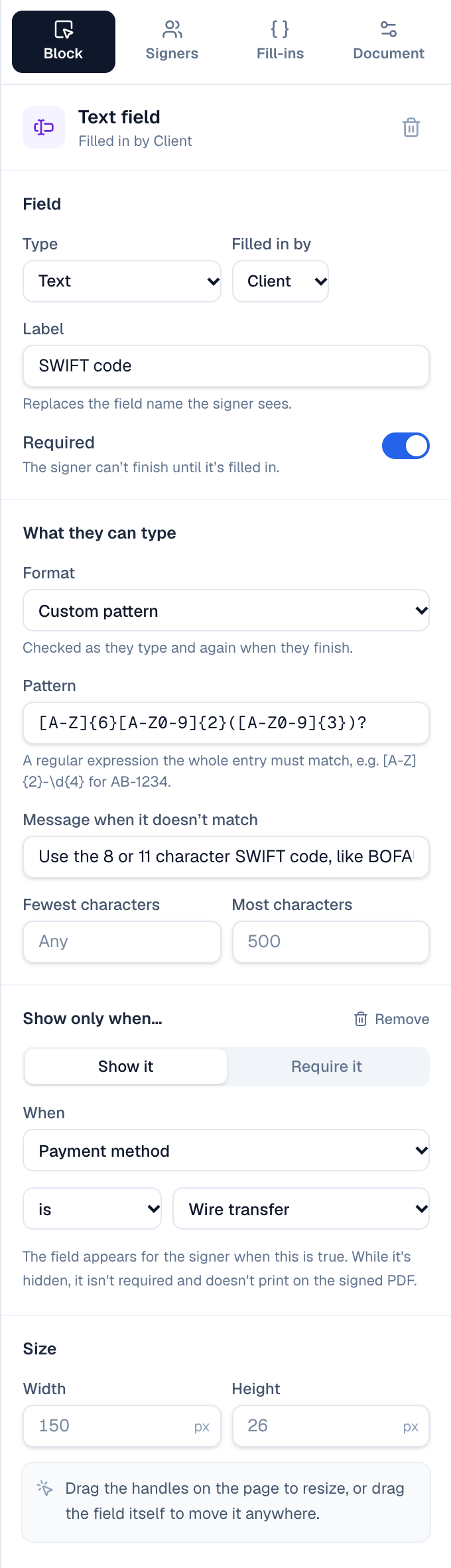
Signers see a short message under the field as soon as they leave it, in their language, and can't finish until it's right. Tally Sign checks again when they finish, so an entry can't get past by changing the page.
Show a field only when another has a value
Some fields only matter after an earlier answer: bank details only if they pay by wire, an insurance certificate only if they tick that they're insured. Make a field conditional so it appears only then.
- Add the field the condition looks at first, such as a checkbox, dropdown or radio field for the same signer.
- Select the field to make conditional, and under Show only when… choose Add a condition.
- Under When, choose the other field, then what it should be: is checked or is not checked for a checkbox; is, is not or has a choice for a dropdown or radio field; is, is not or is filled in for anything else.
- Keep Show it to show the field only then, or choose Require it to show it always but require it only then.
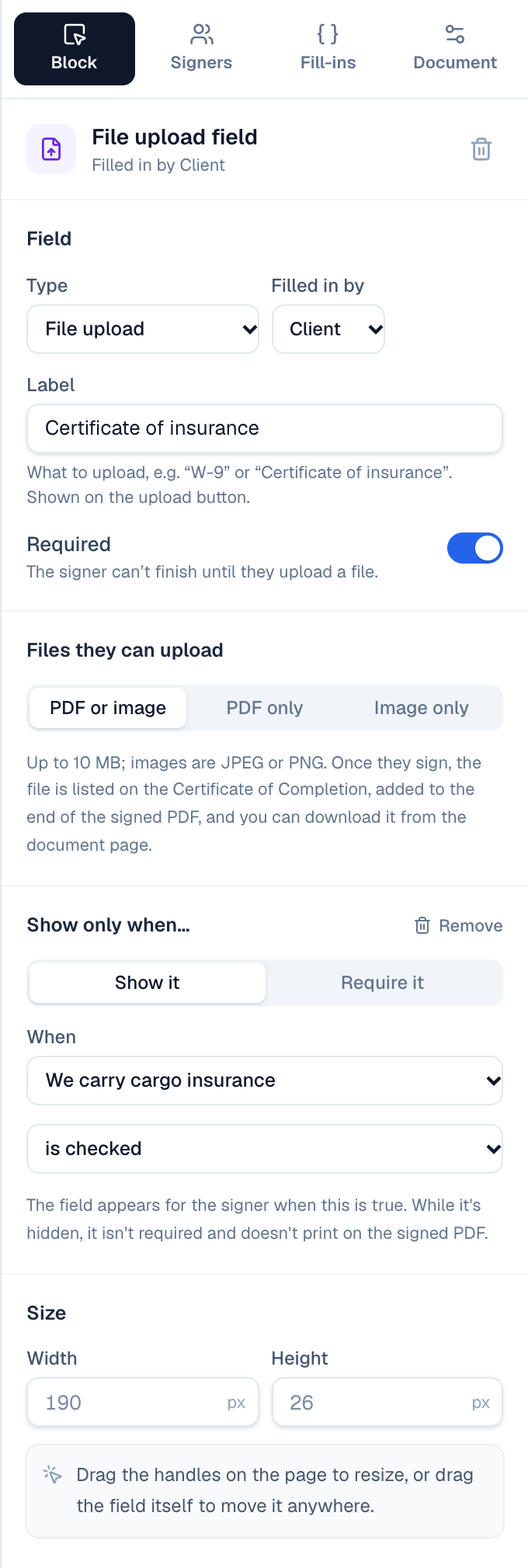
While a field is hidden it isn't required, isn't counted in the signer's progress and doesn't print on the signed PDF. In the editor every field shows; conditional ones carry a small branch mark.
Start from a PDF or Word file
If you already have a contract, you don't have to rebuild it by hand. There are two ways to bring it in.
Have the assistant rebuild it (PDF). The assistant reads the PDF and writes it into the template as editable blocks: the wording in the same order, fill-ins for what changes per deal, such as names, dates and amounts, a signature block, and a fresh design.
- Choose Templates, then New template → Blank template.
- Choose Assistant at the top of the editor.
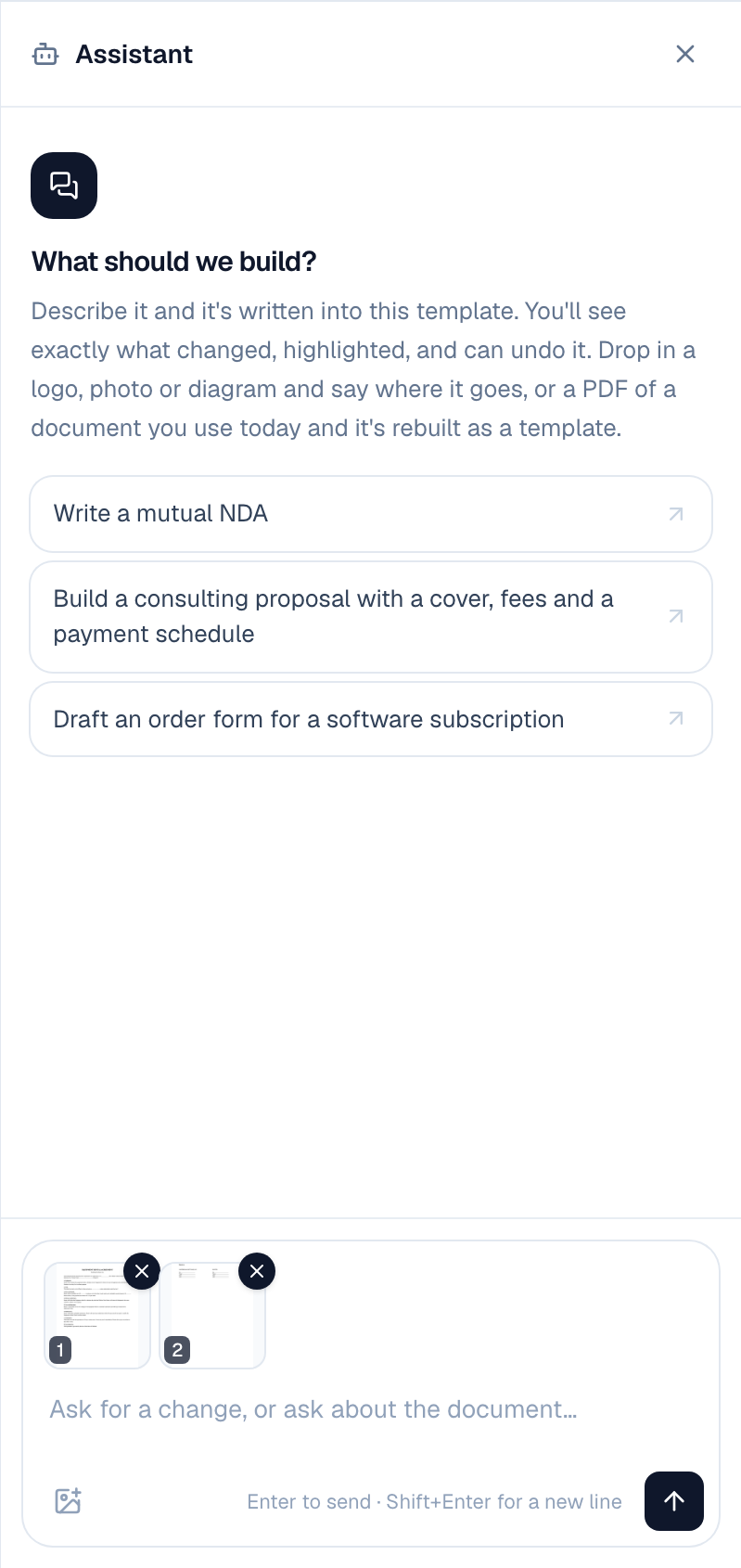
- Drop the PDF on the chat, or choose the picture button under the message box and pick it. Its first 6 pages are added to your message as pictures, and the assistant also reads the words on every page, so amounts, dates and names come through exactly.
- Press
Enter. With no text, it rebuilds the document as a template. You can also say what you want, for exampleRebuild this as a template and use the Bold look. - Read What changed and choose Looks good to keep it, or Undo.
Upload the file as it is. Choose Templates → New template → Upload a PDF or Word file (or New document → Upload a PDF or Word file for a one-off document).
- A Word file (.docx) becomes editable blocks: headings, paragraphs, lists, tables and pictures. Edit it like any template.
- A PDF keeps its pages exactly as they are. Drag fields onto the pages from Fields, and Salesforce fields or fill-ins onto its blanks (see Salesforce fields and fill-ins on a PDF). To change its words, see Change a PDF's wording.
- Files can be up to 25 MB, and PDFs up to 150 pages. Old .doc files and password-protected PDFs can't be read: save them as .docx or as a new PDF first.
- To add a file's pages to a template you already have, use PDF or Word file at the top of Blocks.
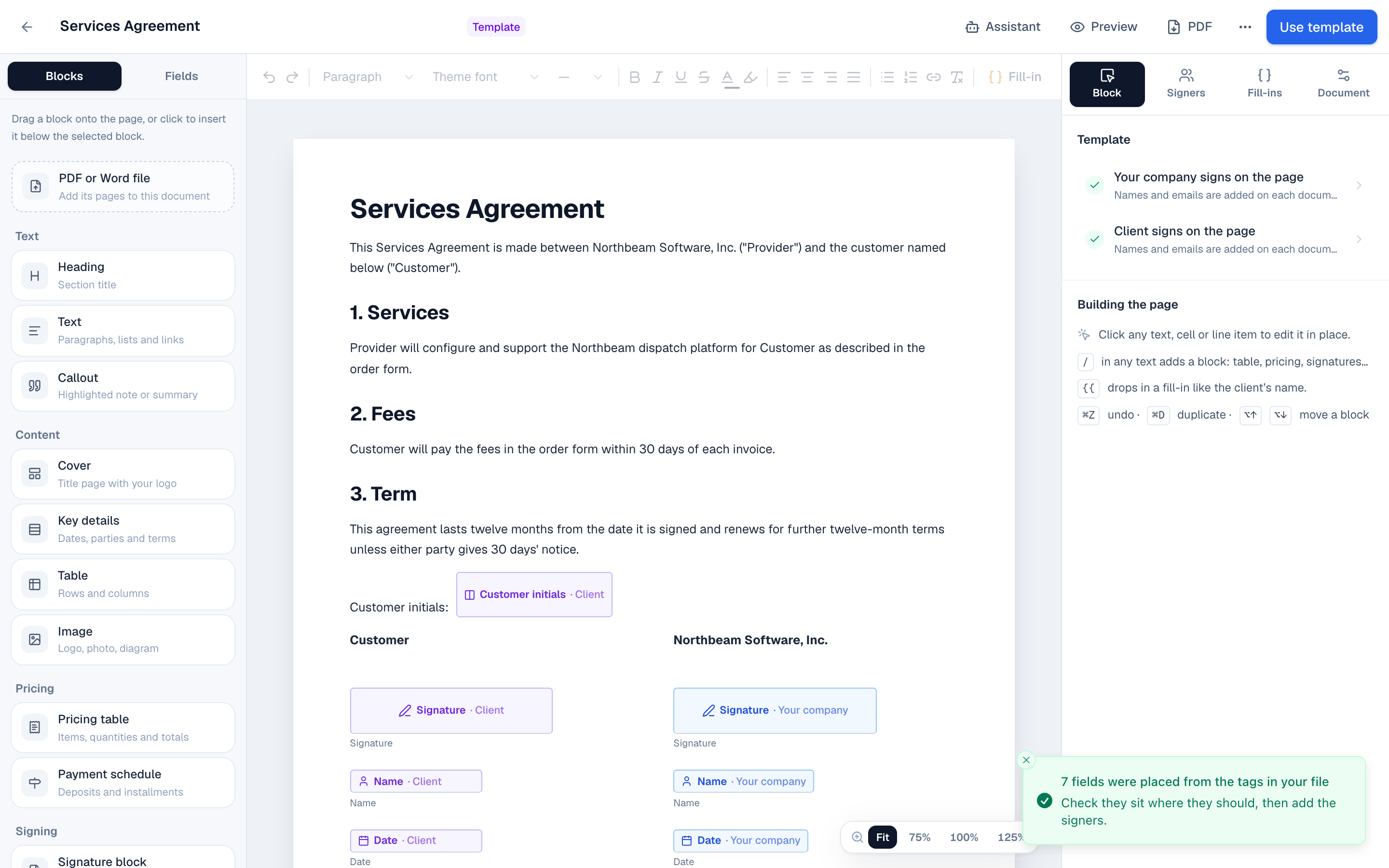
Text tags place fields for you. Type them in the file where each field goes. The number is the signer: 1 is the other party, 2 is your company, and 3 and up are more signers.
| Tag | Field |
|---|---|
\s1\ | Signature |
\i1\ | Initials |
\n1\ | Full name |
\t1\ | Title |
\c1\ | Company |
\e1\ | |
\d1\ | Date signed |
\x1\ | Text box |
\k1\ | Checkbox |
The long form names the signer instead, for example {{signature:client}} or {{initials:company}}. A contract that already has tags like these, for example from another e-signature tool, needs no dragging at all. Check the fields sit where they should, then add the signers.
Salesforce fields and fill-ins on a PDF
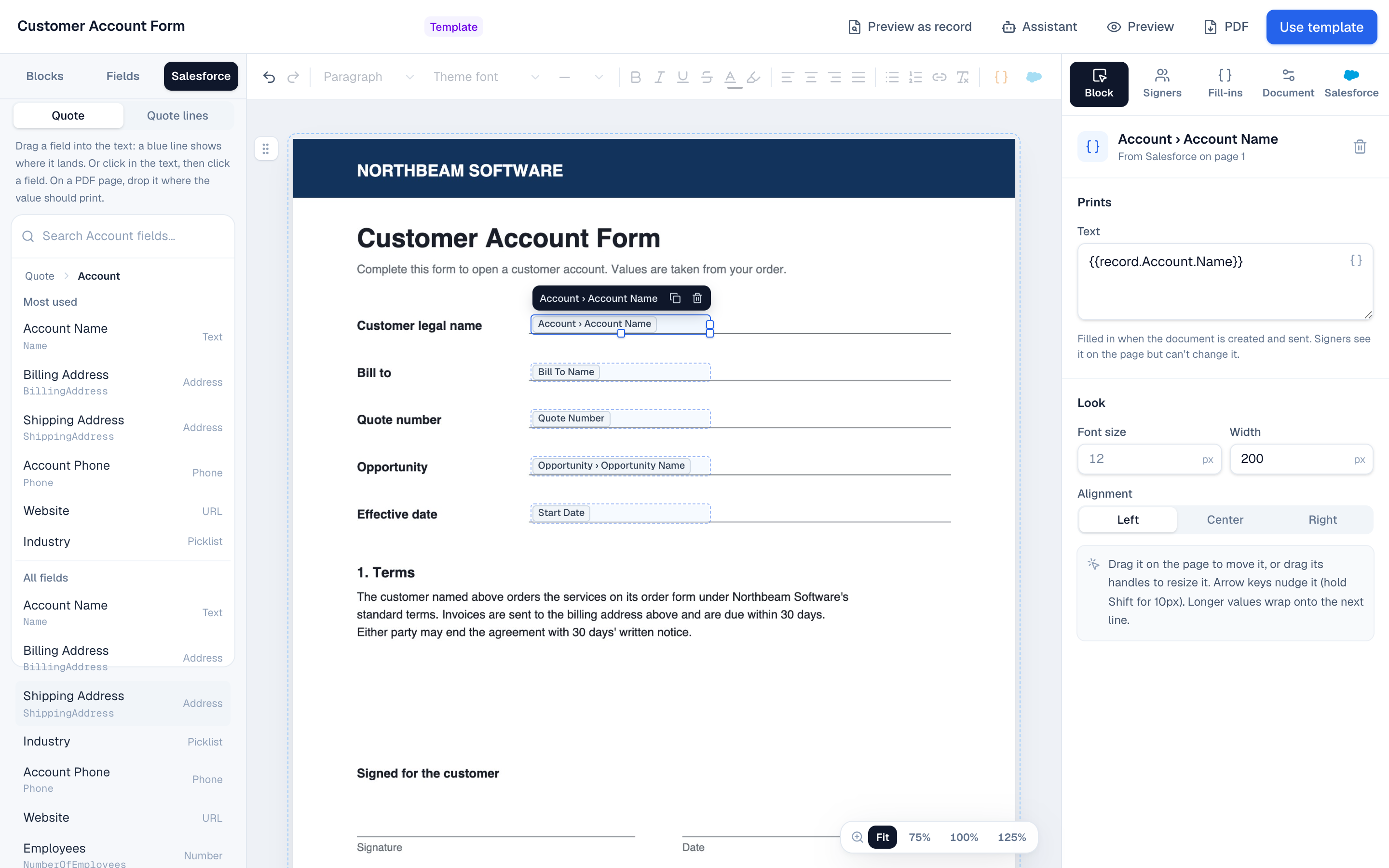
A PDF form often has blanks for things you already know, like the customer's legal name, the quote number or the start date. Put a Salesforce field or a fill-in on the blank, and its value is printed there on every document made from the template.
- Choose Templates in the sidebar, then Edit on the template made from the PDF. Click the PDF page to select it.
- Choose the Salesforce tab on the left, next to Blocks and Fields. If it asks which Salesforce record the template is sent from, choose the object. Search the fields, or open a related record such as Account with the arrow.
- Drag the field onto the blank on the page. Over a blank (like
Customer Name: ______) or just past a line of the PDF's text, the chip settles where the value will print: on the line, in the PDF's own size and font. Elsewhere it starts where the chip's top-left corner is when you let go. - Drag it to adjust where it sits. Drag its right edge to make room for longer values, which wrap onto the next line.
Let Tally Sign fill the blanks. Select the page: in the Block tab on the right, under Values on the page, Tally Sign lists the blanks it found and what fills each one. Labels that name a Salesforce field on the template's record (or its account and contact) get that field; without Salesforce, Customer Name and Contact Email get the signer's company and email. The signing lines get the signer's Signature, Full name and Date signed fields, sized to the line. Choose + to fill one, or Fill all.

- Fill-ins work the same way: drag one by its name from the Fill-ins tab on the right. To add one that isn't used yet, select the page and choose Add text under Values on the page, then pick it with the
{}button next to Text. - Clicking a field instead of dragging it, while the page is selected, puts it near the top of the part of the page on screen, for you to move.
- Double-click anywhere on the page to type there: the text lines up with the PDF's text next to it.
- With it selected, the Block tab shows Text, Font size, Width, Font, Bold and Alignment. Double-click it (or press
Enter) to type on the page,⌘Dduplicates it, the arrow keys nudge it, andDeleteremoves it.
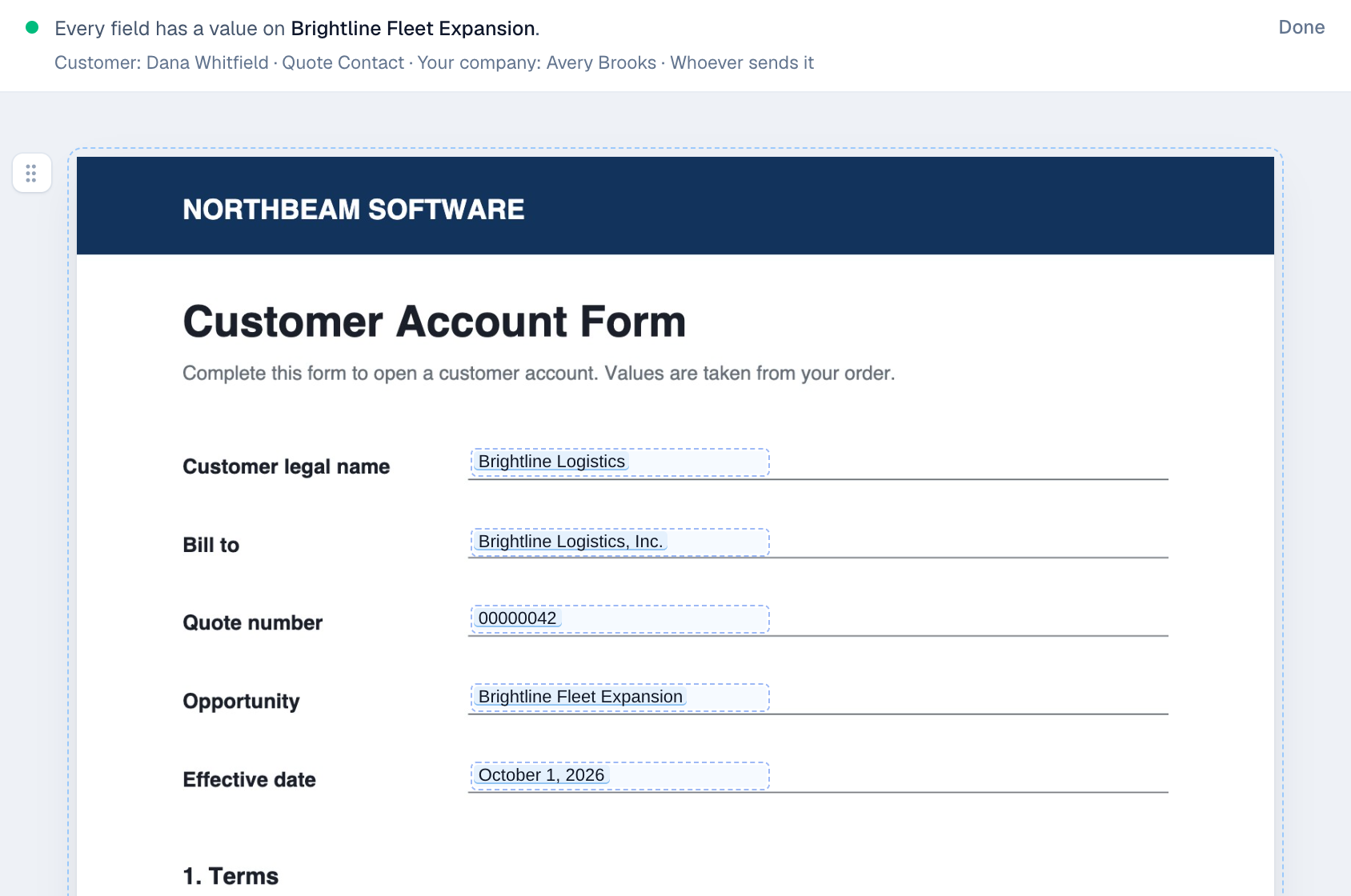
Choose Preview as record to see a record's values on the page before you send.
Change a PDF's wording
An uploaded PDF keeps its exact look, so its words can't be edited like text. There are two ways to change them.
Open the template made from the PDF in the editor: Templates → Edit on the template.
Retype a line. Double-click a line of the PDF and type. The line opens with its words, in the same place, size and font; what you type prints on a white patch over the original. Press Enter when you're done. Leave the words as they were and the patch goes away again.
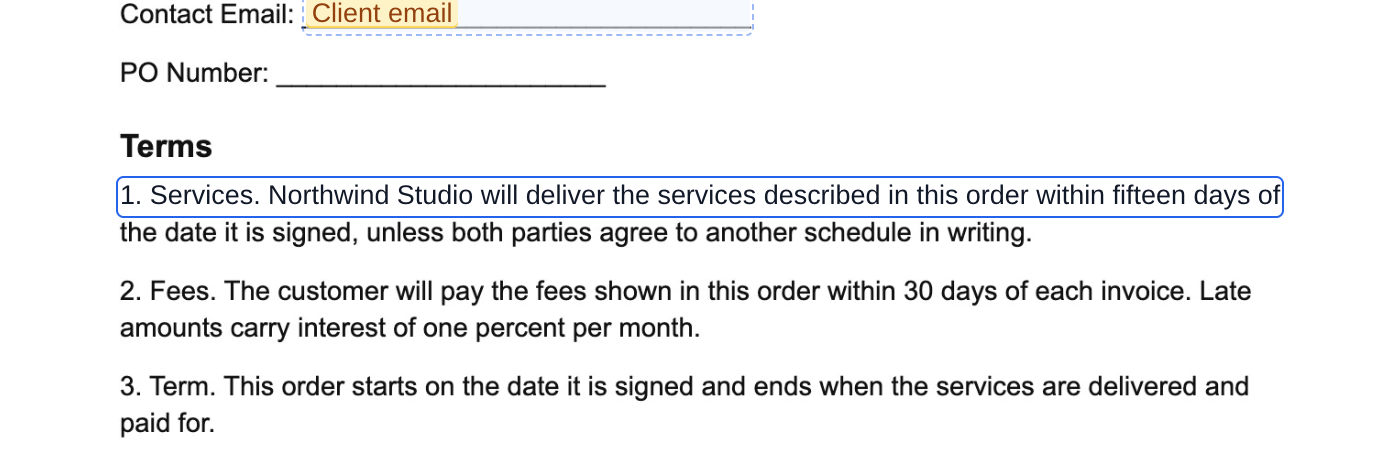
Make the text editable. For bigger changes, turn the pages into text. Select a PDF page and choose Make text editable… under Wording in the Block tab, or choose Edit its wording on the message you see after uploading a PDF.
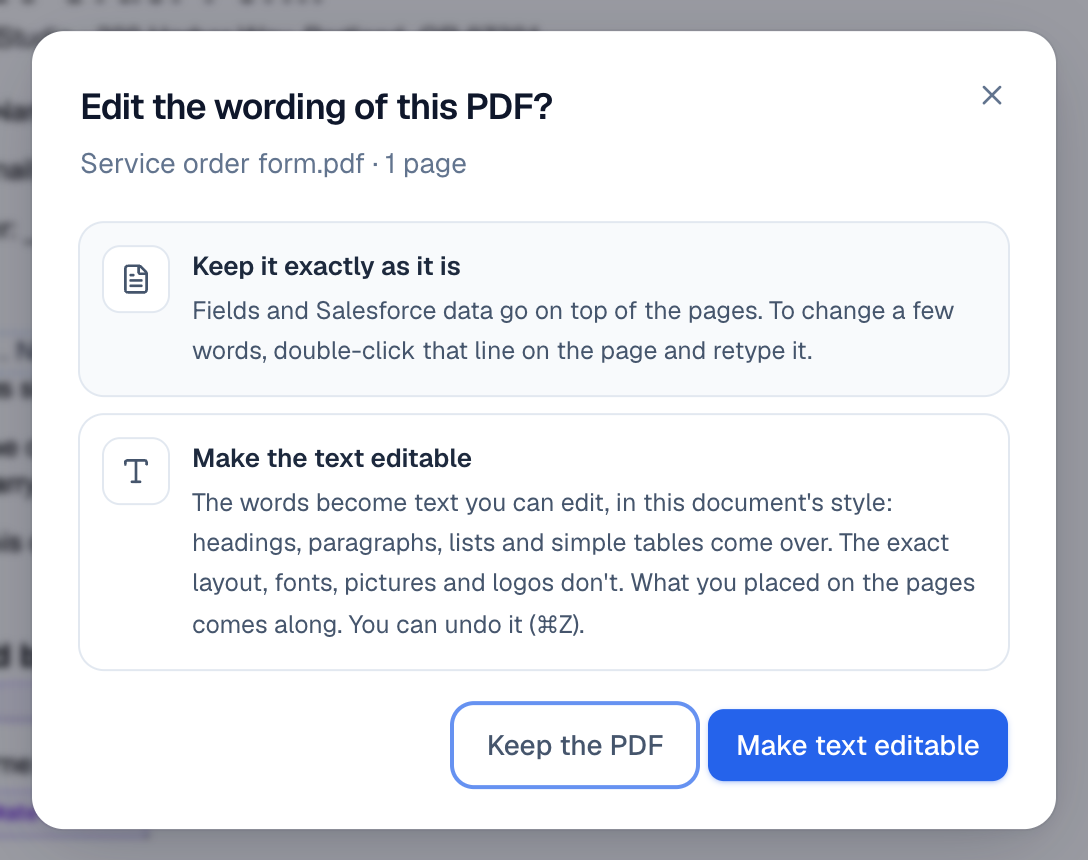
- Headings, paragraphs, bold words, bulleted lists and simple tables come over, in your template's style. Page numbers and running headers and footers are left out.
Label: ______lines become a form table, and signing lines become a signature block. Values and fields you placed on the blanks move into them.- The exact layout, fonts, pictures and logos don't come over. Check the wording against the original.
⌘Zputs the PDF pages back.
Fill-ins
Fill-ins are values that change per document, written as {{name}}. Some fill themselves in: your company details come from Settings and signer details come from the recipients. Others you type per document, like an effective date. In the editor, they're listed in the Fill-ins tab on the right.
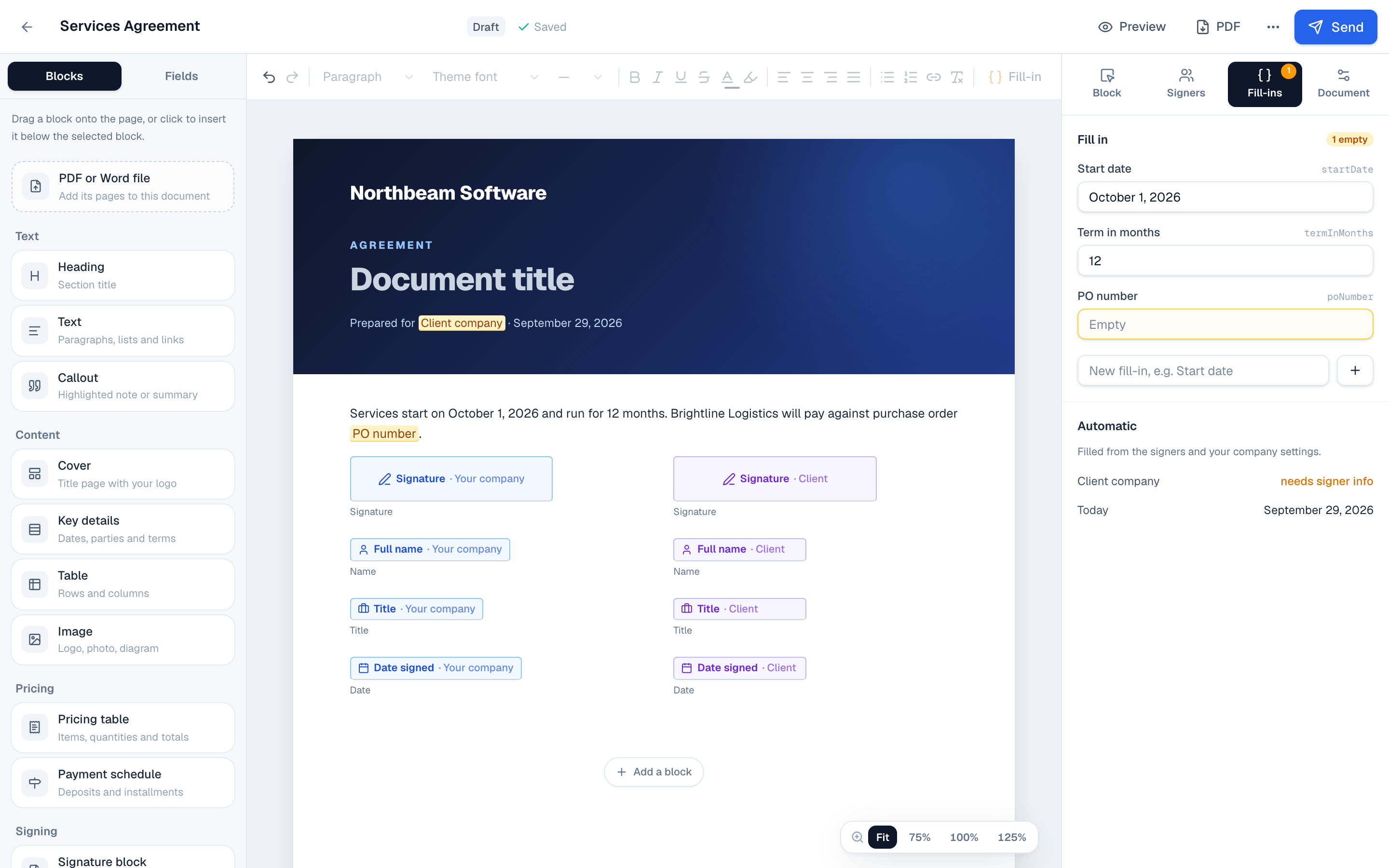
To add one, type {{ in any text and then its name, in words if you like: {{Start date offers New fill-in “Start date”, which goes in the text as {{startDate}}. Typing the whole {{Start date}} does the same. You can also add one with the box under Fill in in the Fill-ins tab.
Who signs
In the editor, the Signers tab on the right lists the roles in the template, for example Your company and Counterparty. Names and emails are filled in on each document.
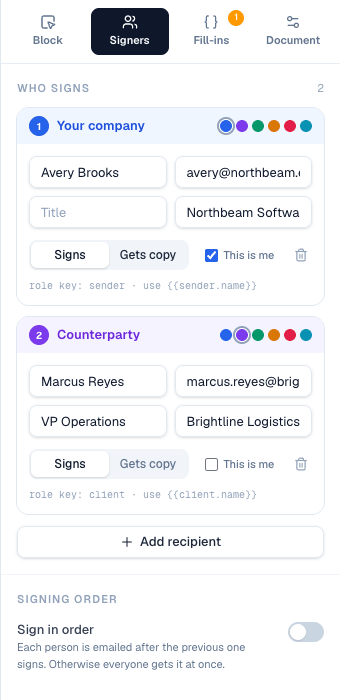
- Signs, Reviews or Gets copy: signers sign; reviewers read it, comment and suggest edits without signing (the customer's lawyer, say); copy recipients follow along, comment and suggest edits too. Reviewers and copy recipients get their own link when it's sent, and the signed PDF at the end. See Reviewers and people copied.
- This is me: marks the role you sign as, so it's filled with the sender.
- Sign in order: each person is emailed after the previous one signs. Otherwise everyone gets it at once.
Let anyone sign it from one link
A template can also have a public link: put it on your website, in an email or on a QR code, and anyone who opens it fills in their name and email and signs their own copy. Choose Public link at the top of the template. See Public signing links.
On the website: No CRM needed·Pricing