
Locked sections
Which parts of a document customers can edit, and which they can only ask to change.
2 sections · 3 screenshots · 1 clip
Step by step · 5 steps
Your customer suggested an edit
Where: Tally Sign → Documents → the document → Questions & changes
1. See the suggested edit
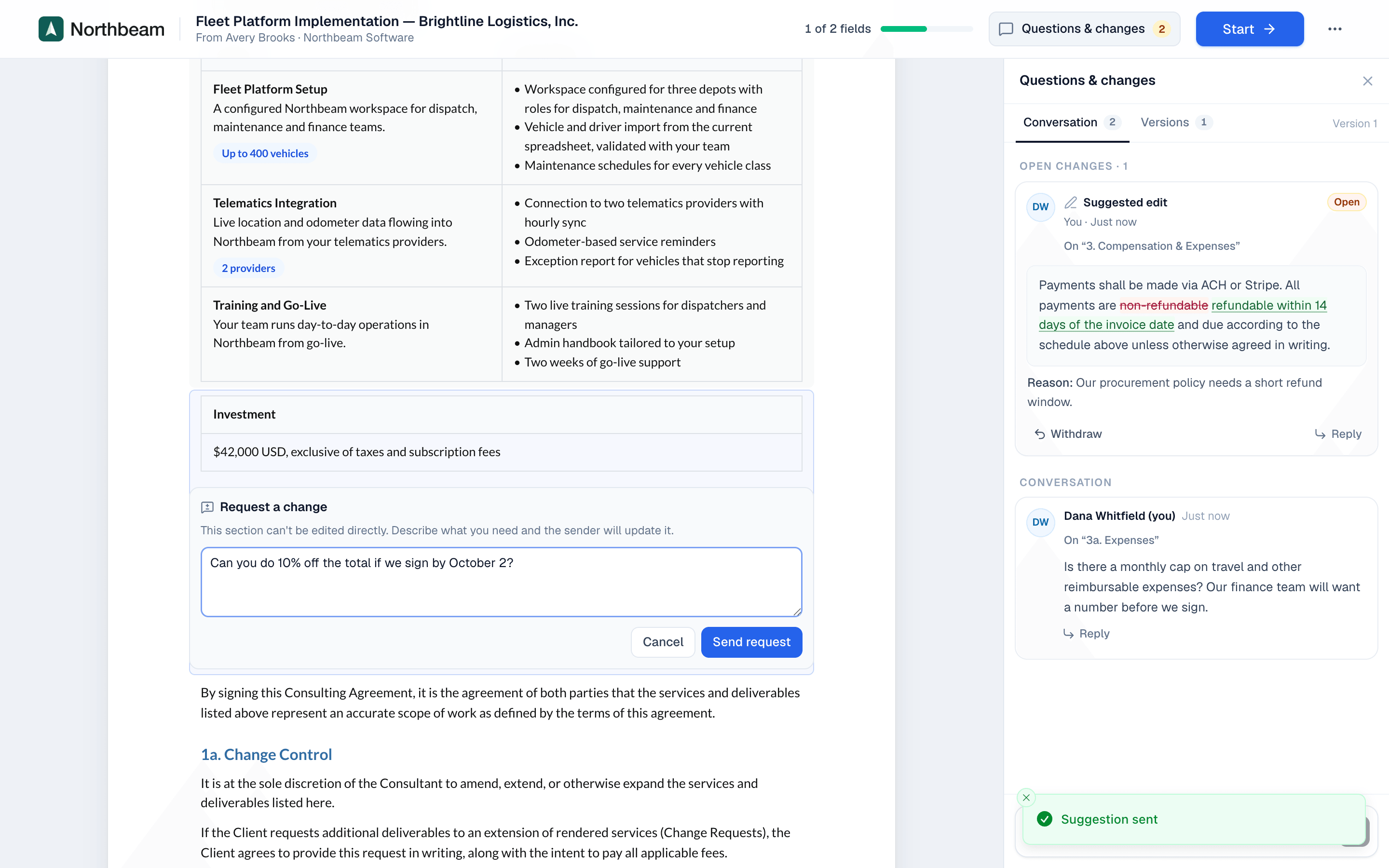
In Tally Sign, choose Documents in the menu on the left and open the document, then the Questions & changes tab. On the page, the paragraph shows the removed words in red and the new ones in green. The Suggested edit card under Open changes shows the same change and the customer's Reason.
More detail: See the suggested edit
1 of 5
What's locked by default
Customers can suggest edits to text blocks. Blocks that carry numbers or signatures are locked, so the customer can only request a change:
- Pricing table
- Payment schedule
- Signature block
Handling a request on a locked section
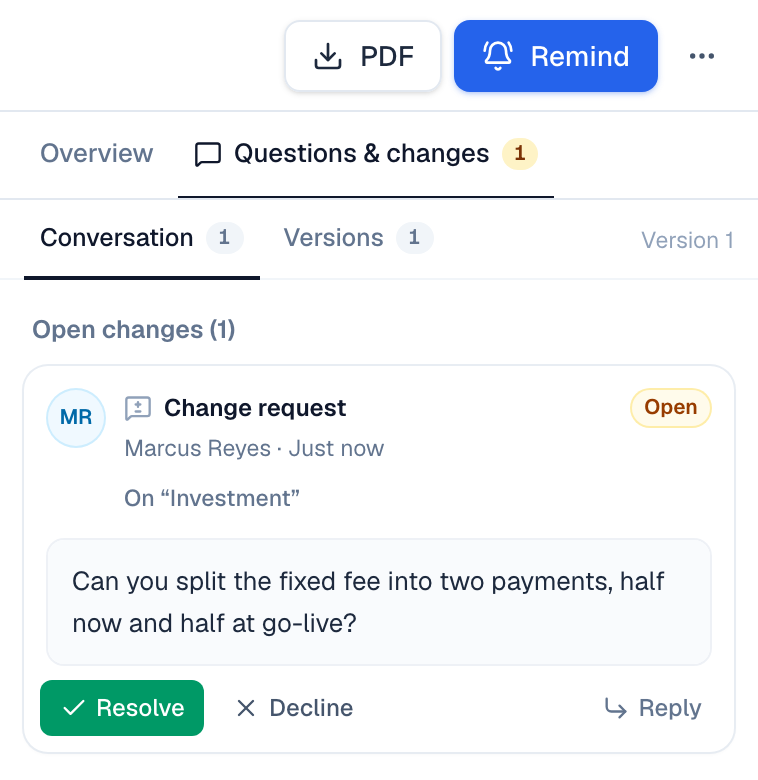
- Open the document from Documents and read the request in the Questions & changes tab.
- Make the change where it belongs: on the quote in Salesforce, or on a revision of the document.
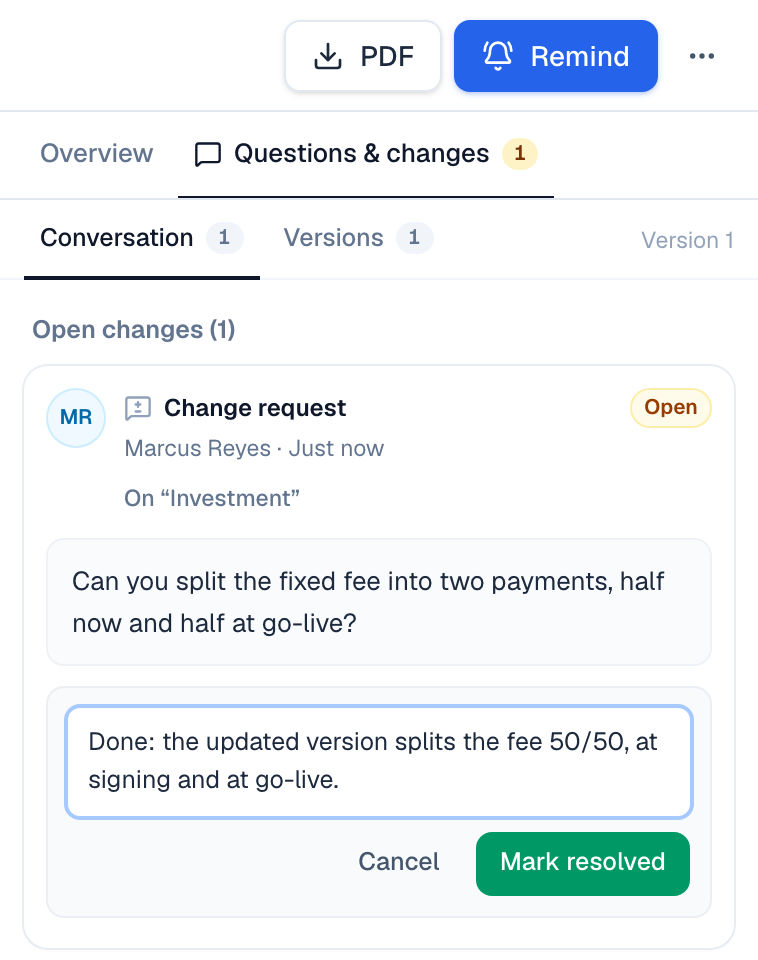
- Choose Resolve on the request, add a note for the customer and choose Mark resolved. Or choose Decline and say why.
On the website: No CRM needed·Pricing