
Automation rules
Send or draft a document when a Salesforce record changes. Each rule becomes a real Flow in your org.
5 sections · 2 screenshots · 6 clips
An automation rule says: when this kind of record changes like this, send this template. You set rules up in Tally Sign under Settings → Automation, which appears once Salesforce is connected. Only owners and admins can change them.
Step by step · 6 steps
Create an automation rule
Where: Tally Sign → Automations → Send from Salesforce
1. Start a new rule
In Tally Sign, choose Automations in the menu on the left, then the Send from Salesforce tab, and choose New rule. The tab appears once Salesforce is connected. The same rules are in Settings → Automation.
More detail: Start a new rule
Create a rule
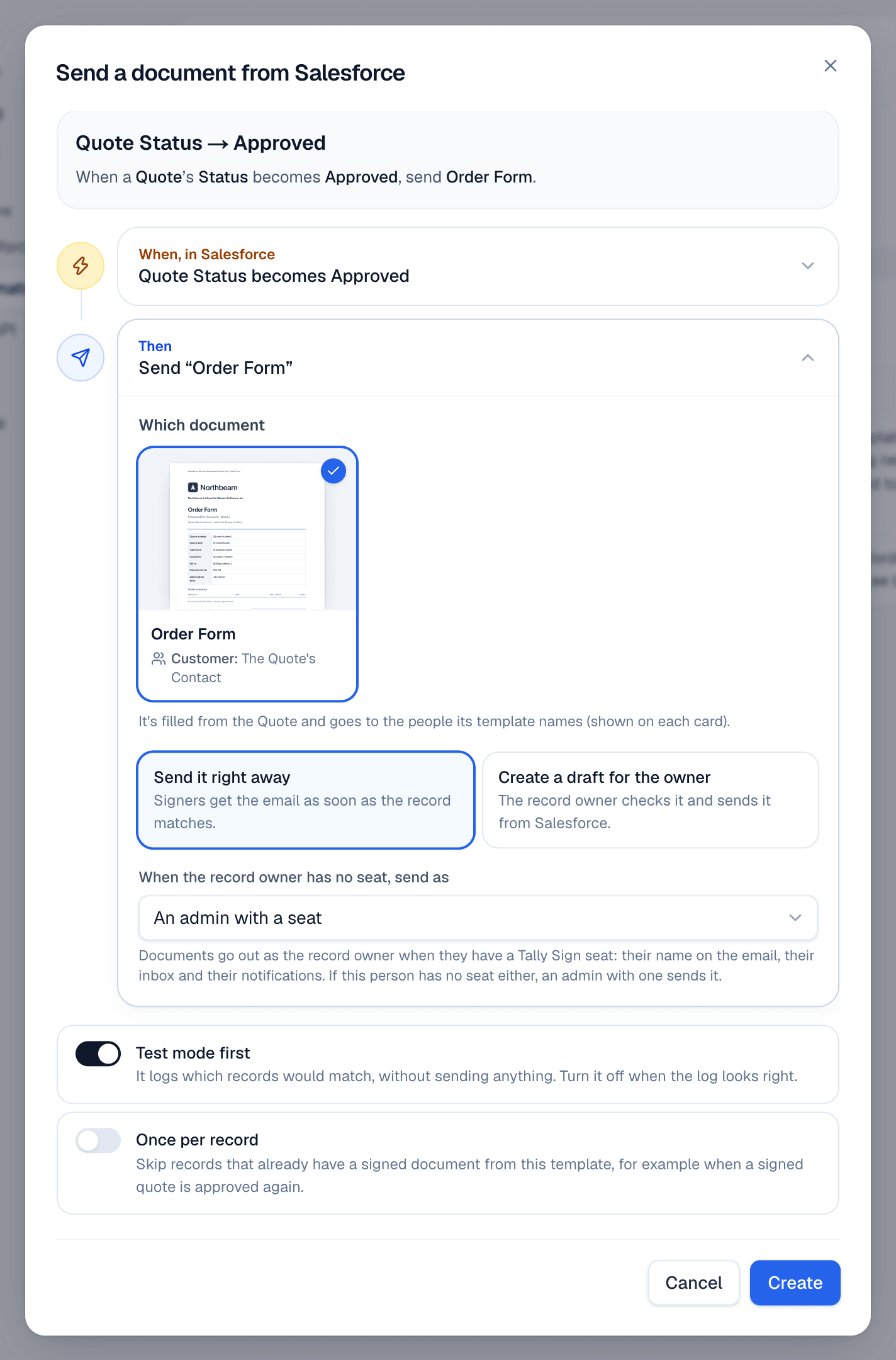
- In Tally Sign, choose Automations in the menu on the left, then the Send from Salesforce tab, and choose New rule. The same rules are in Settings → Automation.
- Open When, in Salesforce. Under Record, pick the object, for example Quote.
- Under Changes like this, choose A field becomes a value, It's created or It's updated. For A field becomes a value, pick the field and what it becomes, for example Status becomes Approved.
- Optional: under Only if, choose Add a condition, for example Grand Total is greater than 10,000. A rule on It's updated needs at least one condition.
- Open Then and choose the template under Which document. Only templates used on that object are listed.
- Leave Send it right away, or choose Create a draft for the owner so the record owner checks it and sends it from Salesforce. Under When the record owner has no seat, send as, pick who sends it instead.
- At the top of the dialog, click the rule's name and type your own. The name is shown on the envelope in Salesforce.
- Leave Test mode first on and choose Create. The rule is added, turned off.
Turn it on
A new rule is off. In Automations → Send from Salesforce (or Settings → Automation), turn on the switch next to it. Tally Sign deploys a record-triggered Flow to your Salesforce org and activates it, which takes up to a minute. The Flow calls the Run Tally Sign automation rule action, which hands the record to Tally Sign to fill and send the document. Editing or turning a rule on again replaces the Flow's older versions, so they don't pile up.
Test mode
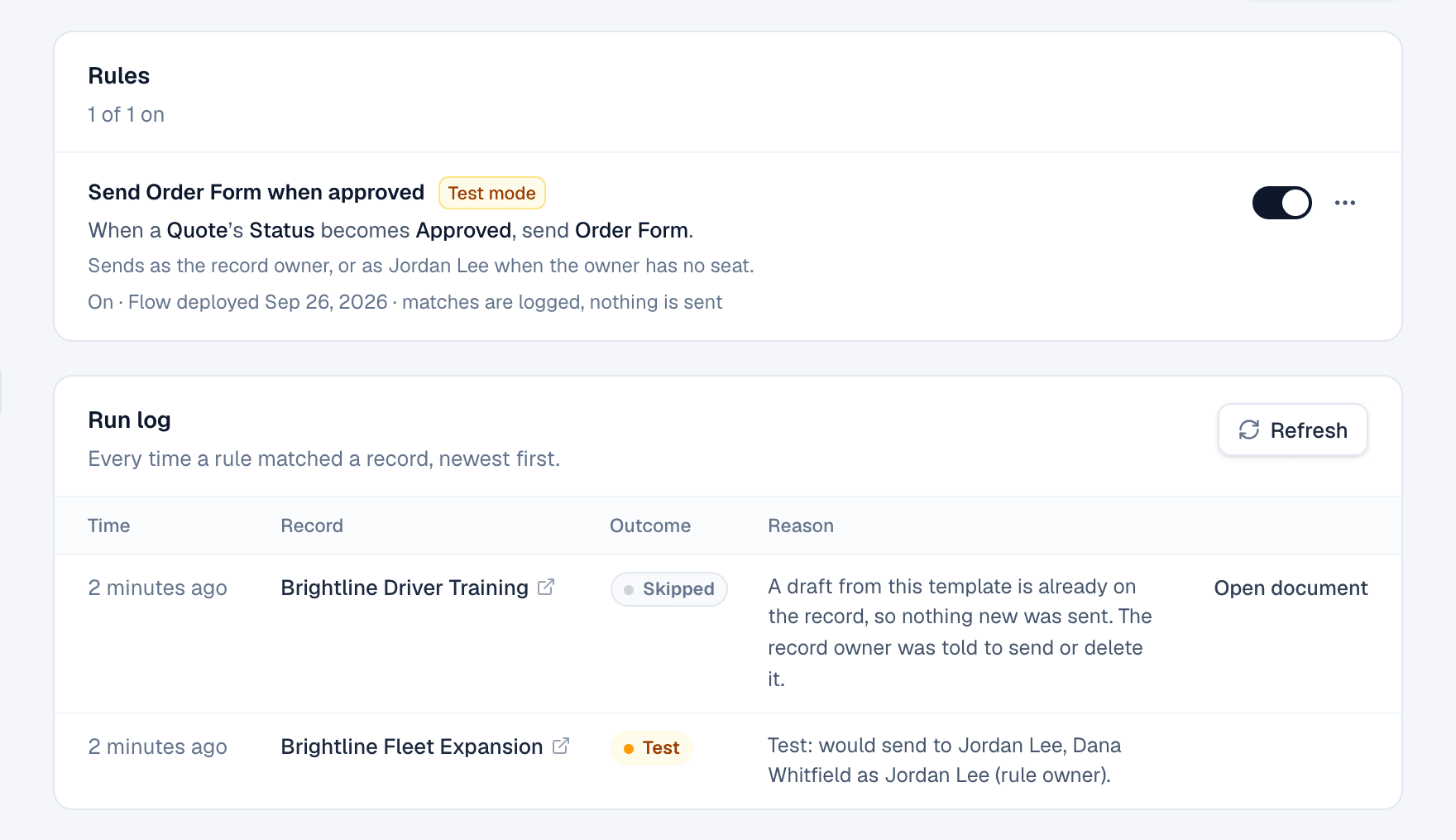
In test mode, the rule runs on every matching change but sends nothing. The Run log shows who would have received the document, for example Test: would send to Dana Whitfield. Leave a rule in test mode for a few days, check the log, then choose Turn off test mode from the rule's … menu in Settings → Automation.
The run log
The Run log is below the rules, in Automations → Send from Salesforce and in Settings → Automation. Each run shows one of these outcomes:
| Outcome | Meaning |
|---|---|
| Queued | Tally Sign has the record and runs it in a moment. If Salesforce can't be reached, it waits and tries again, and the reason says why. |
| Sent | The document went out. The reason lists who got it and who it was sent as. |
| Draft | A draft was created, because the rule creates drafts, or because a signer or value was missing. |
| Test | Test mode: what would have happened. |
| Skipped | The record didn't match the conditions, it already has a document from this template, the rule is off, or Salesforce is disconnected. |
| Error | Something went wrong. The reason says what. |
Filter the log by rule. Open document opens the document a run created or found.
Built-in safety
- No duplicates. If the record already has a draft or sent document from the same template, the run is skipped: A sent envelope from this template already exists for the record. When it's someone's draft that's in the way, the record owner gets a bell notification, Draft waiting, to send or delete it. Turn on Once per record in the rule (choose Edit in its … menu in Settings → Automation) to also skip records that already have a signed document from the template, for example when a signed quote is approved again.
- No incomplete sends. If no signer is found or a required value is empty, Tally Sign creates a draft instead of sending, and sends the record owner a bell notification that says what's missing: Needs a signer or Needs details. If the send itself fails, the bell says Couldn't send and why.
- Sent by the record owner. Automated documents go out as the record owner when they have a seat, so it's their name on the email, their inbox, their notifications and their countersignature. If the owner has no seat, the person under When the record owner has no seat, send as sends it; if they have no seat either, an admin with one does. A rule in draft mode leaves the draft with that person and sends the record owner a Draft ready bell.
- Updates need a condition. A rule on It's updated needs at least one condition, so it doesn't run on every edit.
On the website: Any object·Pricing