
Set up your company
Add your logo, brand color and legal details so every document and email looks like it came from you.
3 sections · 2 screenshots · 2 clips
Tally Sign puts your company on everything it sends: documents, signing pages, emails and the signed PDF. The product name only appears as the platform. Setting this up takes about five minutes.
Step by step · 4 steps
Add your logo and brand color
Where: Tally Sign → Settings → Company
1. Open your company settings
In Tally Sign, choose Settings at the bottom left. Company opens first. Scroll down to Branding.
More detail: Open your company settings
Company details
After you create an account, Tally Sign opens Settings with a short setup checklist. You can come back to it any time from Settings → Company.
- Open Settings in the sidebar and choose Company.
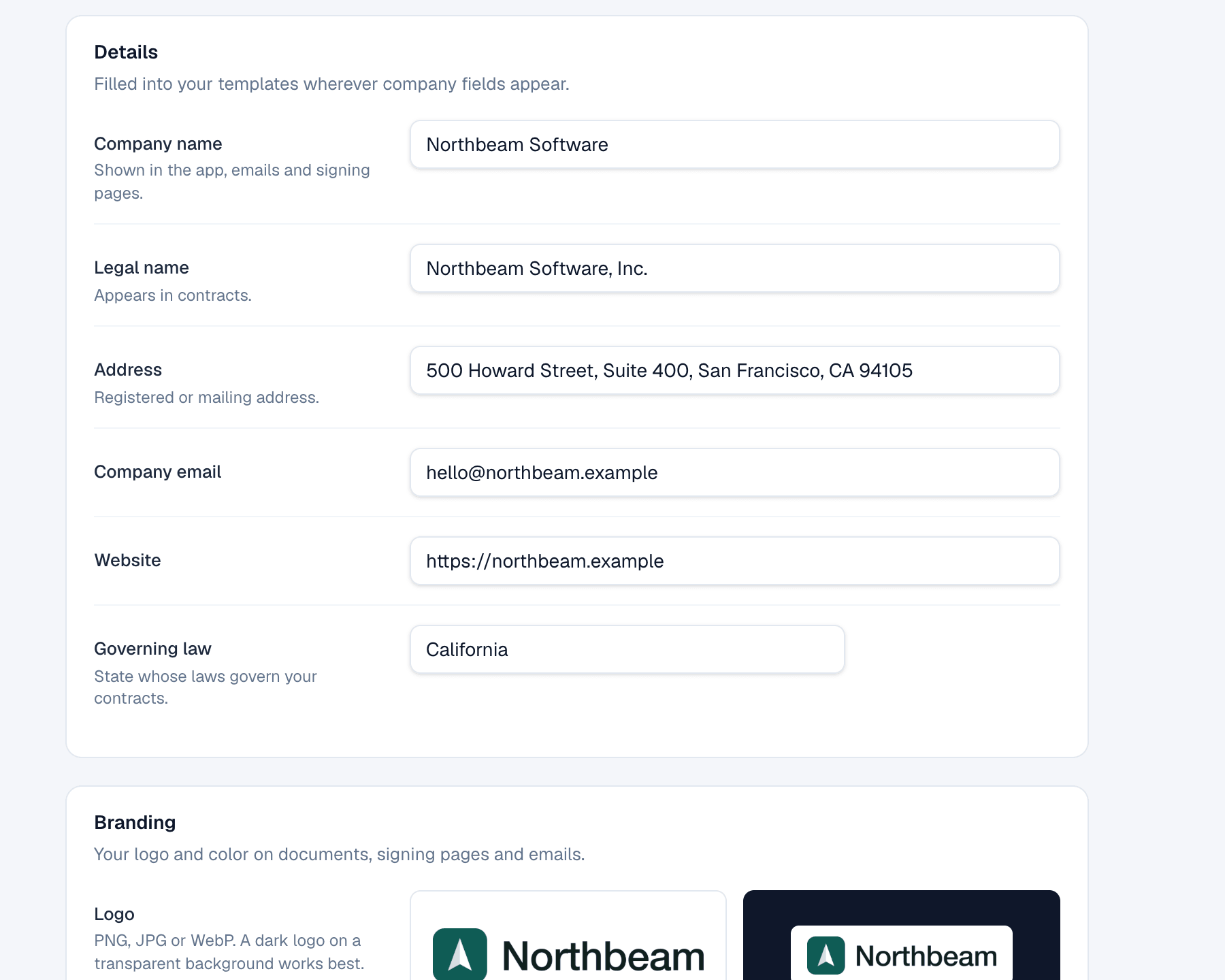
- Enter the Company name. It's shown in the app, in emails and on signing pages.
- Enter the Legal name, for example
Northbeam Software, Inc.. Templates use it wherever the contract names your company. - Enter the Address, Company email and Website.
- Set Governing law to the state whose laws govern your contracts.
- Choose Save changes.
Logo and brand color
- Open Settings → Company and scroll to Branding.
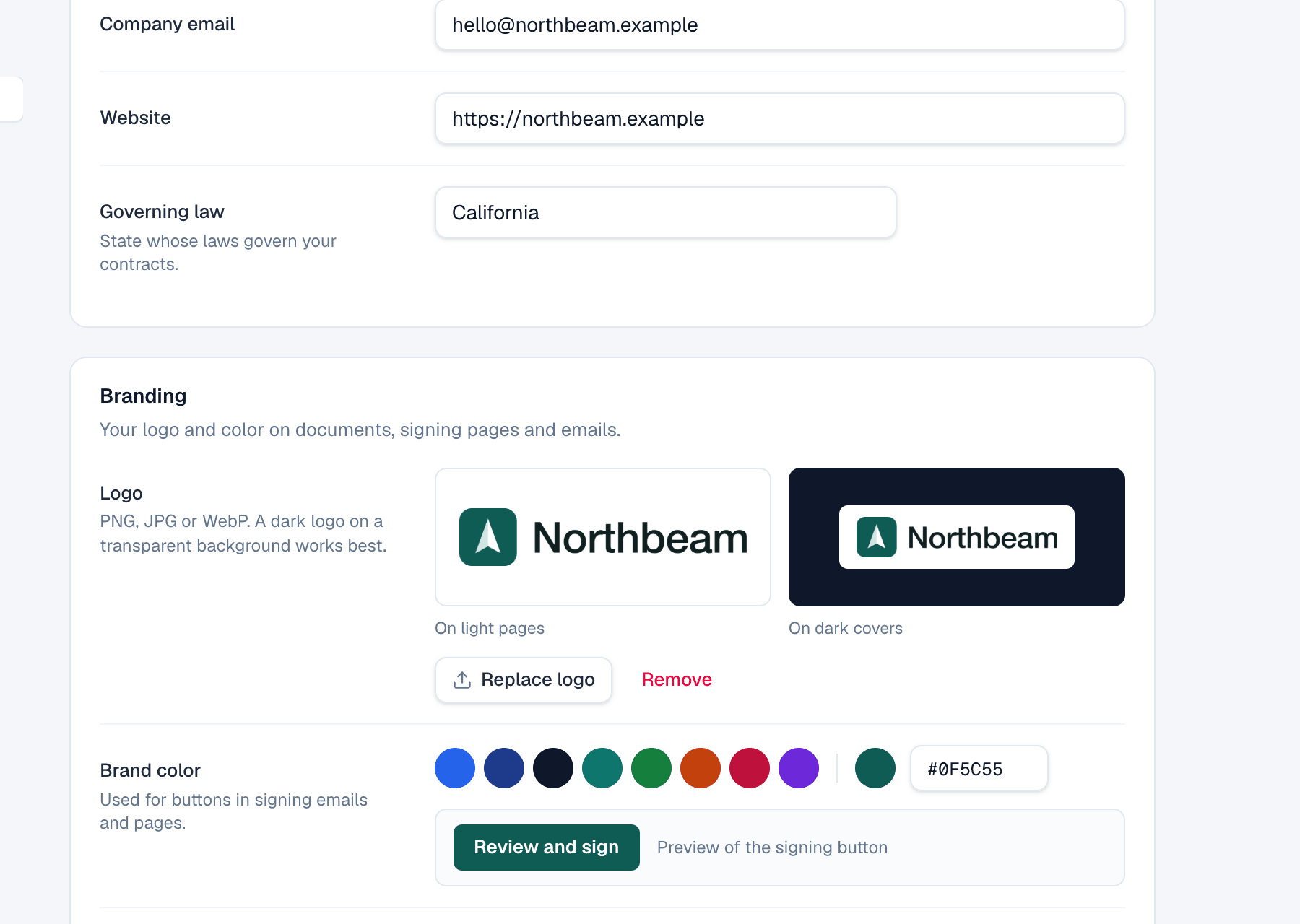
- Choose Upload logo. PNG, JPG or SVG work. A dark logo on a transparent background works best.
- Check both previews: On light pages and On dark covers.
- Pick a Brand color from the presets, or enter a hex value such as
#0f5c55. - Look at the Review and sign button preview. If the color is too light for white text, Tally Sign warns you.
- Choose Save changes.
Sections and teammates
Sections split your documents into areas, for example Business and Rentals. Each section has its own documents and templates, and can sign as a specific person. Most companies keep the single default section. Sections are set up in Settings → Sections.
To invite teammates, open Settings → Team. See Team and roles.
If your company signs in through Okta, Microsoft Entra ID, Google Workspace or another identity provider, set up Settings → Single sign-on. It's included on every plan. See Single sign-on.
On the website: No CRM needed·Pricing