
Get help: ask a question or talk to a person
Ask the support assistant and get the steps with screenshots and clips, go through a task step by step, show it a screenshot of where you're stuck, or send your question to the support team.
4 sections · 4 screenshots
Support opens on a question box: ask the assistant, which answers from the guides, or reach the support team. Every guide is one click away under Browse all guides. Open it from Support in the app's sidebar, or at tallysign.com/support. You don't need to be signed in.
Ask a question
- Open Support and type in the question box. On a guide page, choose Ask a question in the bottom-right corner.
- Type what you're trying to do or what went wrong, for example
My customer didn't get the signing email, and pressEnter. Or pick one of the suggested questions. - Read the answer. When it comes from a guide, the guide opens on the right, at the part that answers your question, with its screenshots. On a phone, choose Show the guide. Read more opens it again.
- Ask a follow-up in the same box. New question starts over.
A word or two is enough, for example salesforce or it's not working. The assistant answers what you most likely meant and lists other things you may have meant under Or did you mean. Choose one to ask it.
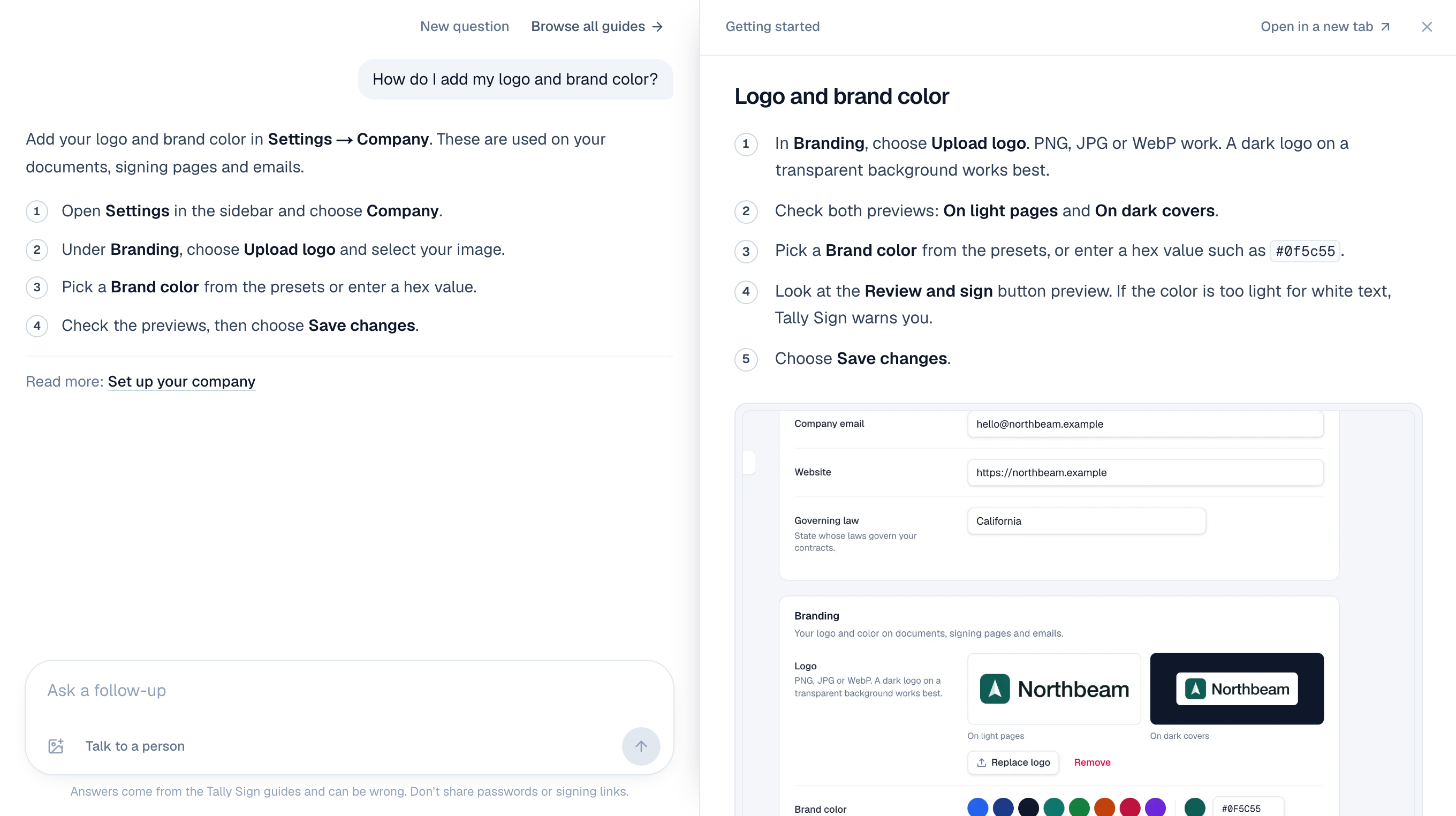
Links to other guides open in the same panel. Open in a new tab shows the guide on its own page, and × closes it. The conversation stays while the browser tab is open, so you can go to a guide and pick it up again from Ask a question there.
Rather read the guides yourself? Choose Browse all guides under the question box for every track and guide, or use Search the guides at the top of any Support page.
Go step by step
For a task that takes several screens, like setting up Salesforce or showing an opportunity's products in a template, the answer offers a walkthrough under its first line. It opens on the right; on a phone, choose Walk me through it. You get one step at a time: where you are, what to do there, and a short clip of it being done in the product, with the pointer clicking, choosing and dragging.
- Ask how to do the task, for example
How do I set up Salesforce?. - Follow step 1 in the panel on the right, then choose Next. Back goes back, and the numbers at the top jump to a step. The arrow keys work too.
- For the rest of a step, choose the link under More detail. × closes the walkthrough and Show the steps opens it again.
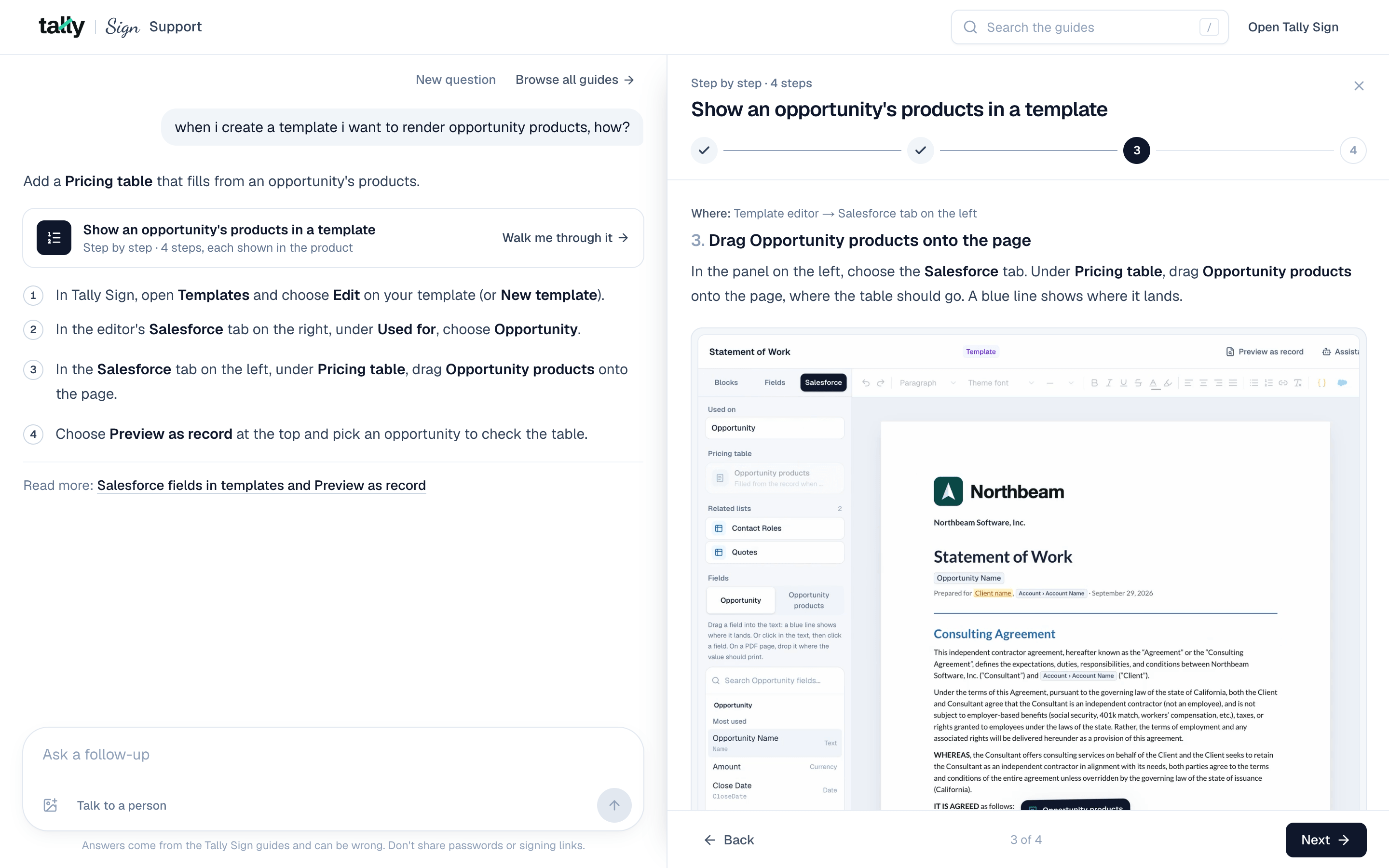
Answers and guides show clips too, where a step means dragging, choosing from a list or typing. A clip plays while it's on screen. Choose it to pause, or use the buttons in its corner to play it again from the start. Guides with a walkthrough show it under their introduction.
Show it a screenshot
If you're stuck on a screen, show the assistant. It says which screen you're on and gives the next steps from there.
- Take a screenshot of the screen.
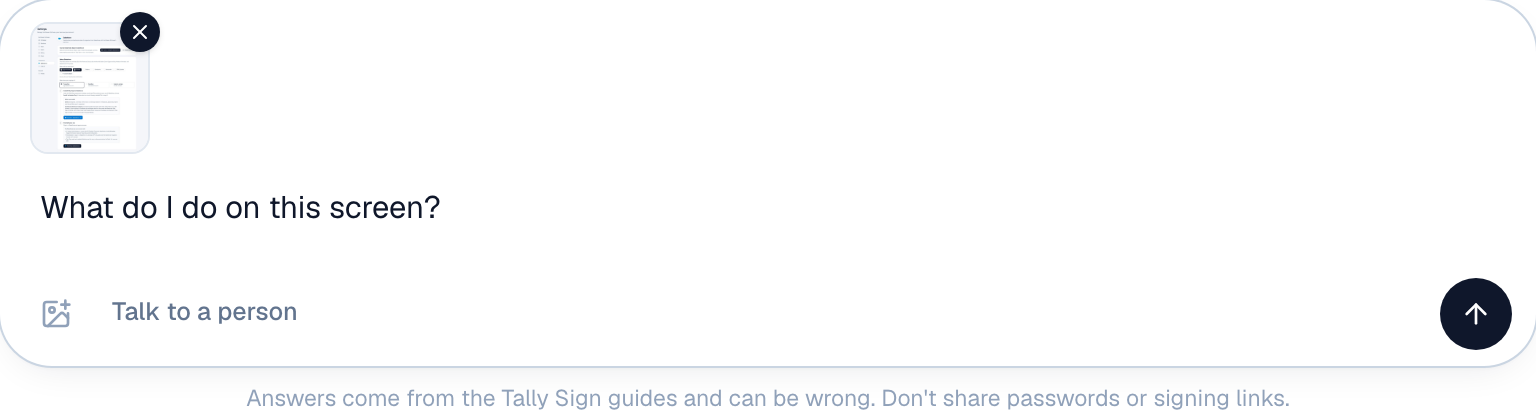
- Open Support (or Ask a question on a guide page). Drop the screenshot on the chat, paste it into the question box, or choose the picture button next to Talk to a person. Up to four at a time.
- Add your question, for example
What do I do on this screen?, and send it.
Talk to a person
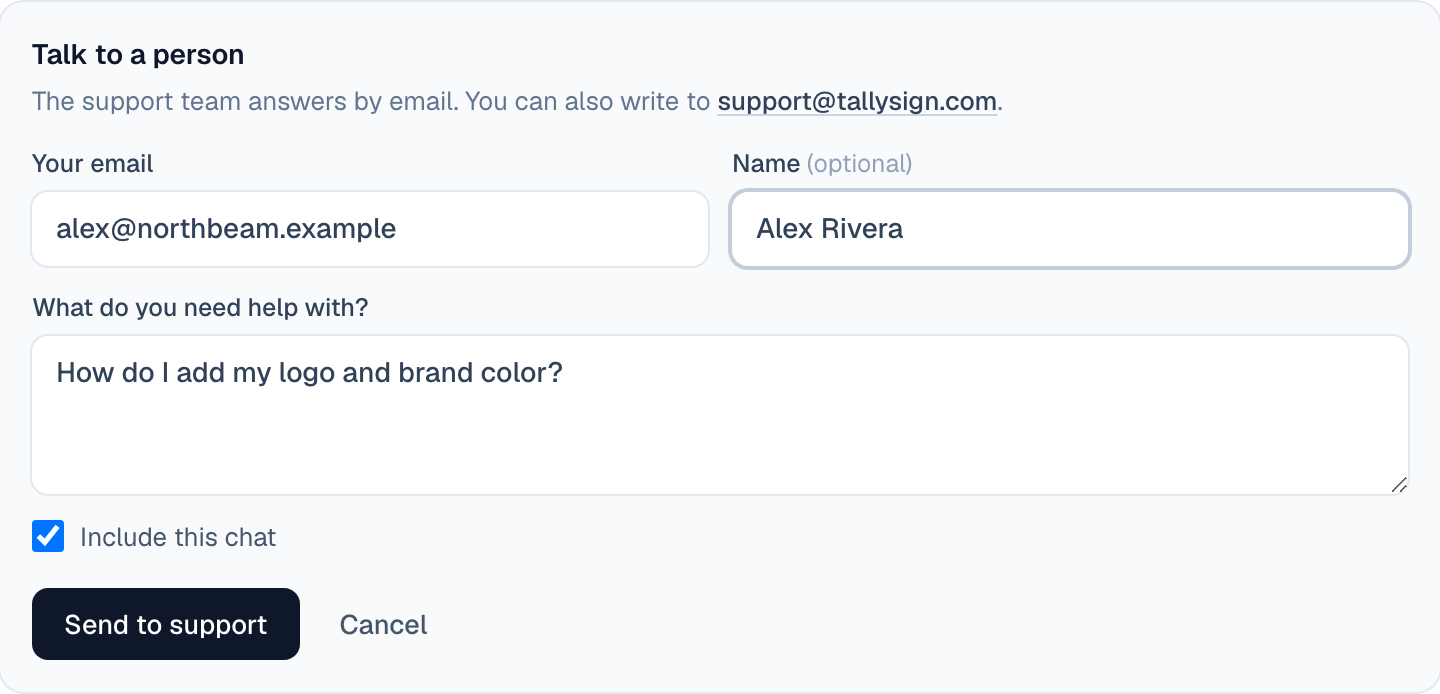
The support team answers by email. Sending from the chat gives them your question, the conversation and your screenshots, so you don't have to explain it twice.
- Open Support and choose Talk to a person under the question box.
- Enter Your email. When you're signed in, it's filled in.
- Check What do you need help with?. It starts as your last question.
- Leave Include this chat ticked (it sends your screenshots too), or untick it to send only your message.
- Choose Send to support. The team replies to your email.
You can also email the support address shown under Talk to a person on the Browse all guides page. If you received a document to sign, the company that sent it is the best first contact: reply to the signing email.
On the website: No CRM needed·Pricing