
Bring over your DocuSign templates
Using DocuSign in Salesforce? Create the same templates in Tally Sign in a click: same pages, same Salesforce object, same signer.
3 sections · 4 screenshots
When your Salesforce has DocuSign for Salesforce, Tally Sign notices and offers to create the same templates for you, as templates you can edit and add Salesforce fields to. Each one keeps the Salesforce object it's sent from and who signs it. DocuSign isn't changed.
Step by step · 5 steps
Bring over your DocuSign templates
Where: Tally Sign → Templates
1. Find the DocuSign notice
In Tally Sign, choose Templates in the menu on the left. When your Salesforce has DocuSign for Salesforce, owners and admins see We noticed you use DocuSign at the top. Choose Bring over DocuSign templates.
- You can also open Settings → Move from DocuSign. That tab is there only for companies whose Salesforce has DocuSign.

More detail: Find the DocuSign notice
Where it shows up
Once Salesforce is connected, owners and admins see this on the Templates page and in Settings → Salesforce until the templates have been brought over. Your org in Settings → Salesforce also lists DocuSign for Salesforce, with a Bring over DocuSign templates link.
Choose Bring over DocuSign templates, or open Settings → Move from DocuSign. That tab is there only for companies whose Salesforce has DocuSign.
Create them from Salesforce
In Settings → Move from DocuSign, Your DocuSign templates lists every template DocuSign for Salesforce keeps in your org: the object it's sent from, its file, and where it's at.
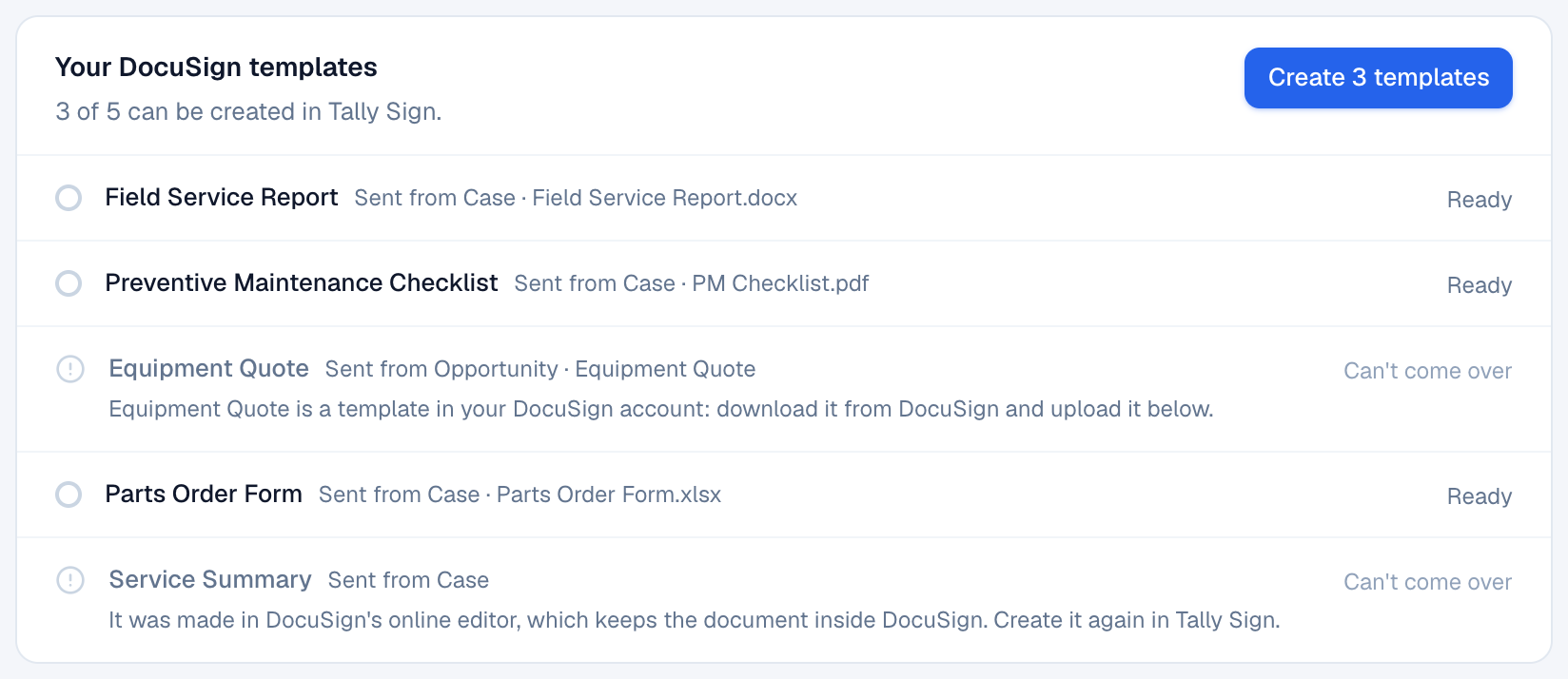
- Choose Create 3 templates (the button shows how many are ready). It takes a minute; you can leave the page.
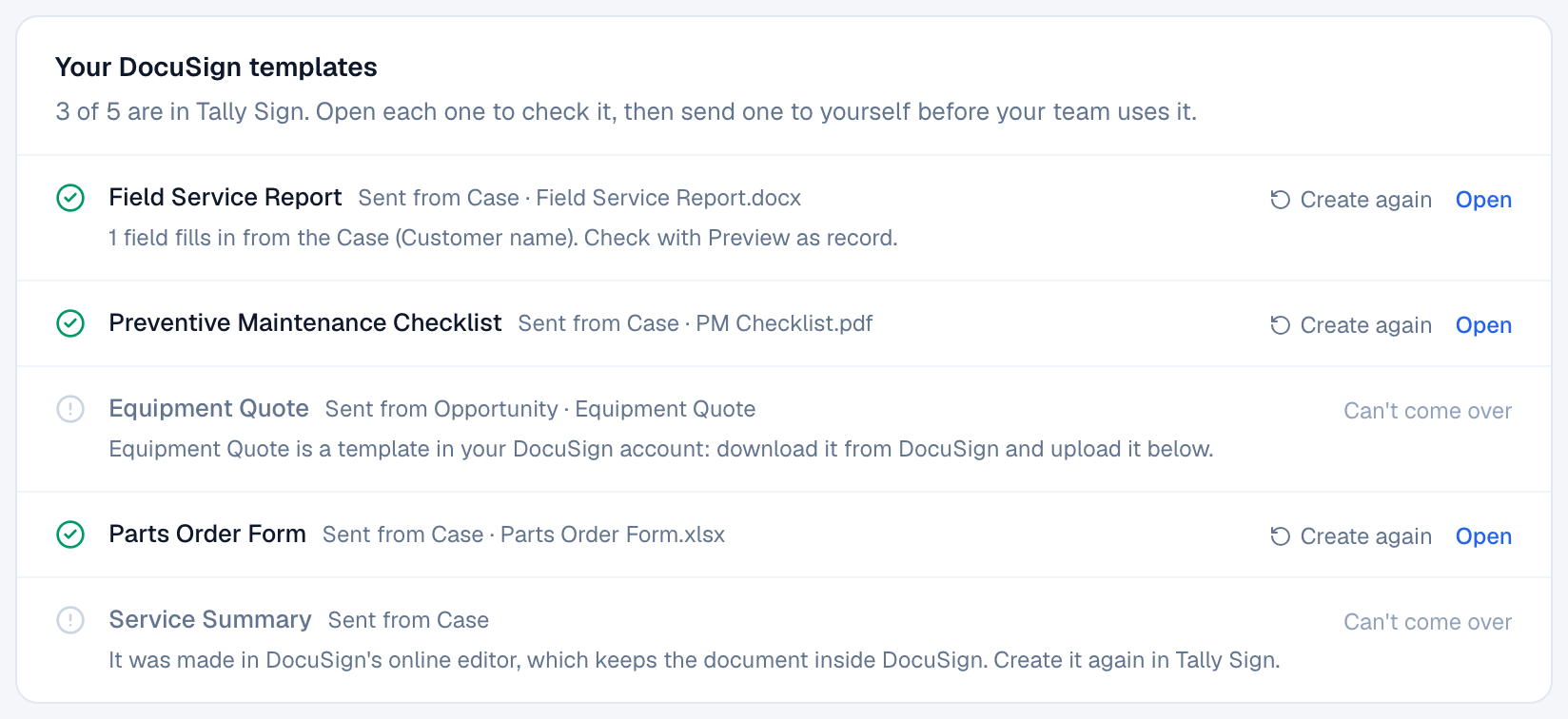
- Each row turns green with Open when its template is ready. Open each one to check it, then send one to yourself before your team uses it.
| In DocuSign | In Tally Sign |
|---|---|
| Template sent from a Case (or any object) | A template sent from the same object |
| Signer found on the record, such as the Case's Contact | The same signer rule (Contact), so the right person is filled in when you send |
| Word or Excel form | A template you can edit: its labels and blanks become a table, and the logo and address come along |
| Blanks like Customer Name, Contact, Email, Date | Salesforce fields that fill in from the record (the Case's account, its contact, today's date); others stay blank to fill in |
| Item grids (labor, expenses, parts) | Tables that fill from the Case's related lists with the same name, one row per record, with a total when there's an amount |
| "Customer signature approval" and "Date of approval" rows | A signature section with the customer's signature and date |
| PDF file | Its pages as they are, with the customer's signature and date beside the form's own labels |
| Gen template (Word) | A template from the Word file, with DocuSign's merge fields turned into Salesforce fields |
| Gen template made in DocuSign's online editor | Not brought over: create it again in Tally Sign |
Templates kept in DocuSign itself
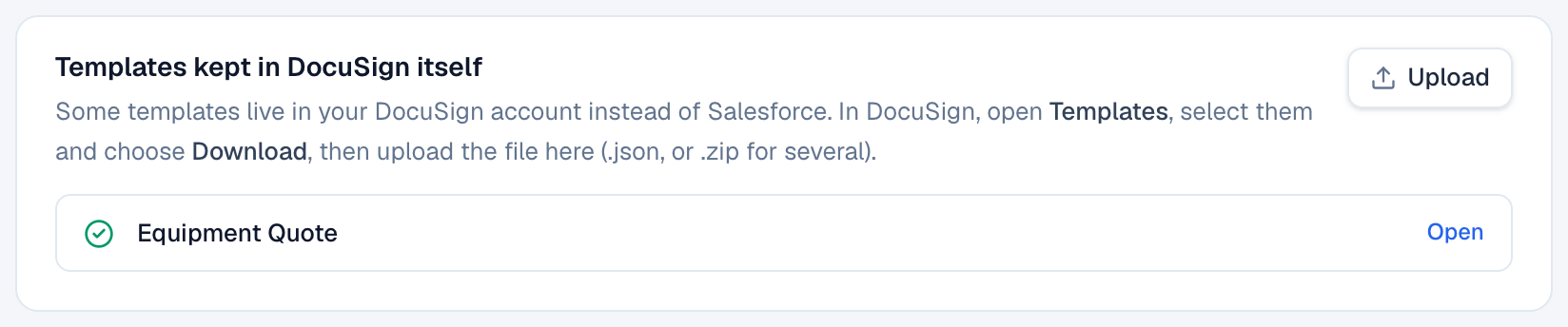
Some DocuSign templates live in the DocuSign account, not in Salesforce; their row says so. Bring those over as files:
- In DocuSign, open Templates, select the templates and choose Download. You get a .json file for one template, or a .zip for several.
- In Settings → Move from DocuSign, choose Upload on Templates kept in DocuSign itself (or drop the file on it).
These keep their pages and every field where DocuSign had it, including fields placed next to text in the document. Fields come over as the same kind of field:
| In DocuSign | In Tally Sign |
|---|---|
| Drop-down list | Dropdown with the same items |
| Radio group | Radio with the same choices, placed where the first button was (check that it lines up with the form) |
| Number field | Number, with its smallest and largest value |
| Date field | Date the signer picks |
| Signer attachment | File upload |
| Email, phone, ZIP and SSN fields, and text with a validation pattern | Text with the same format check |
| Field shown only when a box is checked, a choice is made or a field is filled in | The same condition (see Show a field only when another has a value) |
Calculated (formula) fields, stamps, payment fields, notes, approve and decline buttons, and smart sections have no equivalent and are left out. The note under each template says what was left out or needs a look.
On the website: No CRM needed·Pricing