
What your customer sees when signing
The signing page from the signer's side: the guided tour, consent, fields, adopting a signature, finishing and their language; and what reviewers and people copied see.
14 sections · 28 screenshots · 11 clips
Signers don't need an account. They open the link in the email and sign in the browser, on a computer or a phone. The page carries your logo and brand color, and it's in the language you chose when sending.
Step by step · 5 steps
Have the customer sign in person on your device
Where: Tally Sign → Documents → Awaiting signature
1. Open the document
In Tally Sign, choose Documents in the menu on the left, then Awaiting signature, and open the document. Everyone on it is under Recipients on the right, with where they're at: Sent, Viewed or Signed.
More detail: Open the document
On this page
- Enter an access code
- A short guided tour
- Reviewers and people copied
- Consent to sign electronically
- Assign to someone else
- Fill in the fields
- Pictures and videos in the document
- Adopt a signature
- Initial
- Finish
- Download before signing
- Signers who use a keyboard or screen reader
- In their language
- Signing on a phone or tablet
Enter an access code
If you set an access code for the signer, the link opens on Enter your access code, with your logo and name. Nothing about the document shows until the code is right. The signing email tells them a code is needed and that it comes from you.
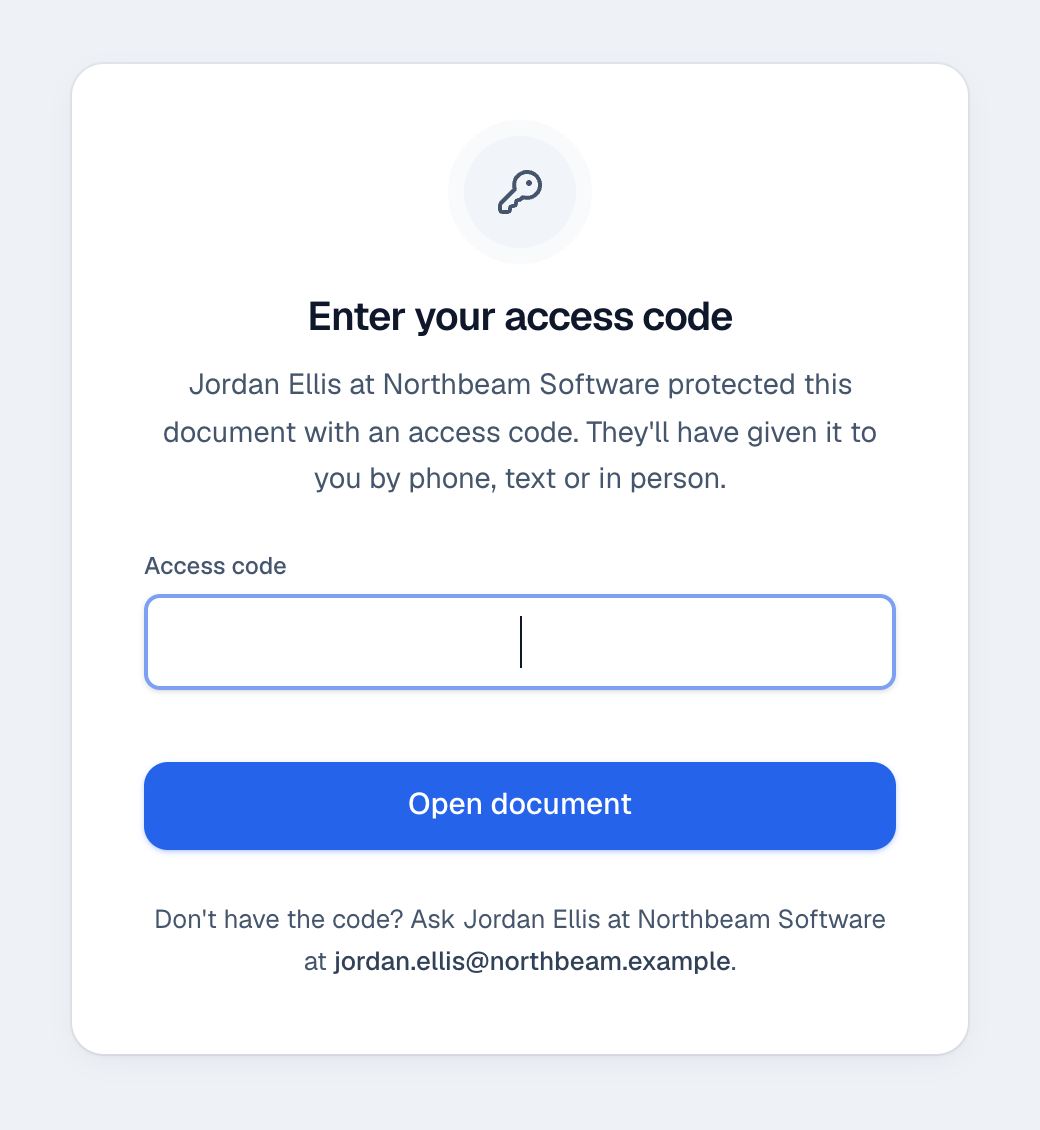
- They type the code (spaces and dashes don't matter) and choose Open document. The document opens, and they're not asked again in that browser.
- A wrong code says how many tries are left. After five, the link locks for 15 minutes; you can set a new code to open it again.
- Don't have the code? names you and your email address.
- The page is in the signer's language, and they can switch it at the top.
A short guided tour
The first time someone opens their link, a short tour points at the real controls, one at a time, in their language and your brand color. It's tailored to how they're on the document:
| They're… | The tour shows |
|---|---|
| A signer | Select a paragraph · Comment or suggest a change · The conversation · Sign when you're ready |
| A reviewer | Select a paragraph · Comment or suggest a change · The conversation · You don't need to sign |
| Copied | Here's the document · Comment on any paragraph · The conversation |
- Every step has Skip, and Escape skips it too. Next, Back and Done move through it; the arrow keys work as well.
- It never stands in the way: the page dims, but they can still scroll, click and sign. Signers see it after the consent dialog.
- It's shown once per person in each browser. Show me how, in the menu (three dots) at the top right or in Questions & changes, plays it again.
- It isn't shown when someone signs in person on your device.
Reviewers and people copied
Reviewers and people copied open their own link to the same page, read-only, with You're reviewing this document or You're copied on this document at the top. Neither signs. Both can comment on any paragraph and suggest edits; reviewers can also invite someone else to review.
See Reviewers, people copied and inviting someone for who can do what, and how to add them.
Consent to sign electronically
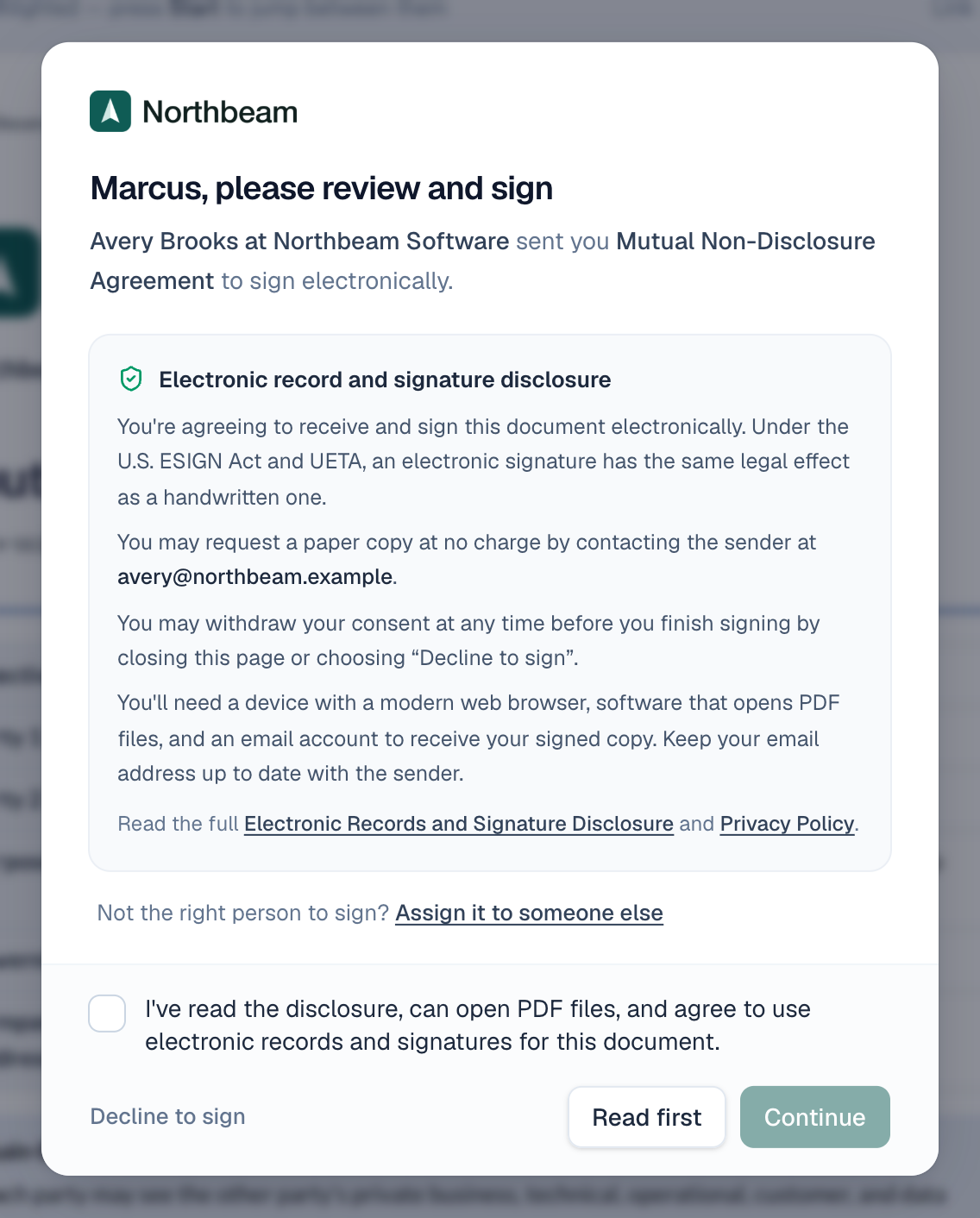
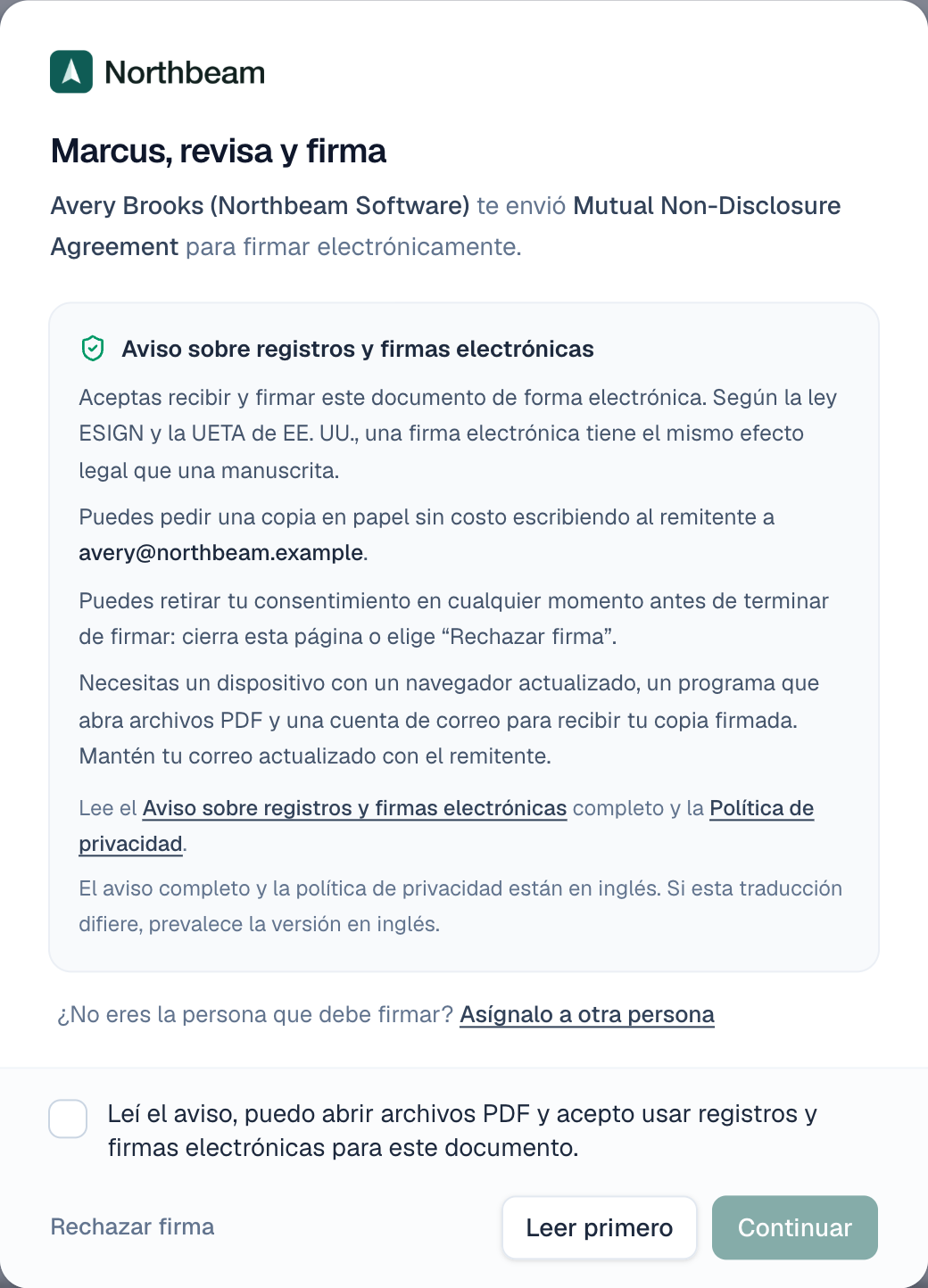
The first time a signer opens the link, they see who sent the document and a short disclosure about electronic signatures. It links the full Electronic Records and Signature Disclosure and the Privacy Policy. They tick the box agreeing to use electronic records and signatures, which sits just above Continue so it's always in view on a phone, and choose Continue. They can also choose Read first, Decline to sign, or Assign it to someone else if you allow it.
Assign to someone else
Sometimes the person you sent it to isn't the one who signs for their company. They can hand it to the right person instead of forwarding the email.
- On the signing page, choose Assign it to someone else in the first dialog, or open the menu (three dots) at the top right and choose Assign to someone else. (To bring someone in *as well*, without handing over the signature, they choose Invite someone to review in the same menu instead.)
- Enter the new person's full name and email, and a reason. You see the reason.
- Choose Assign.

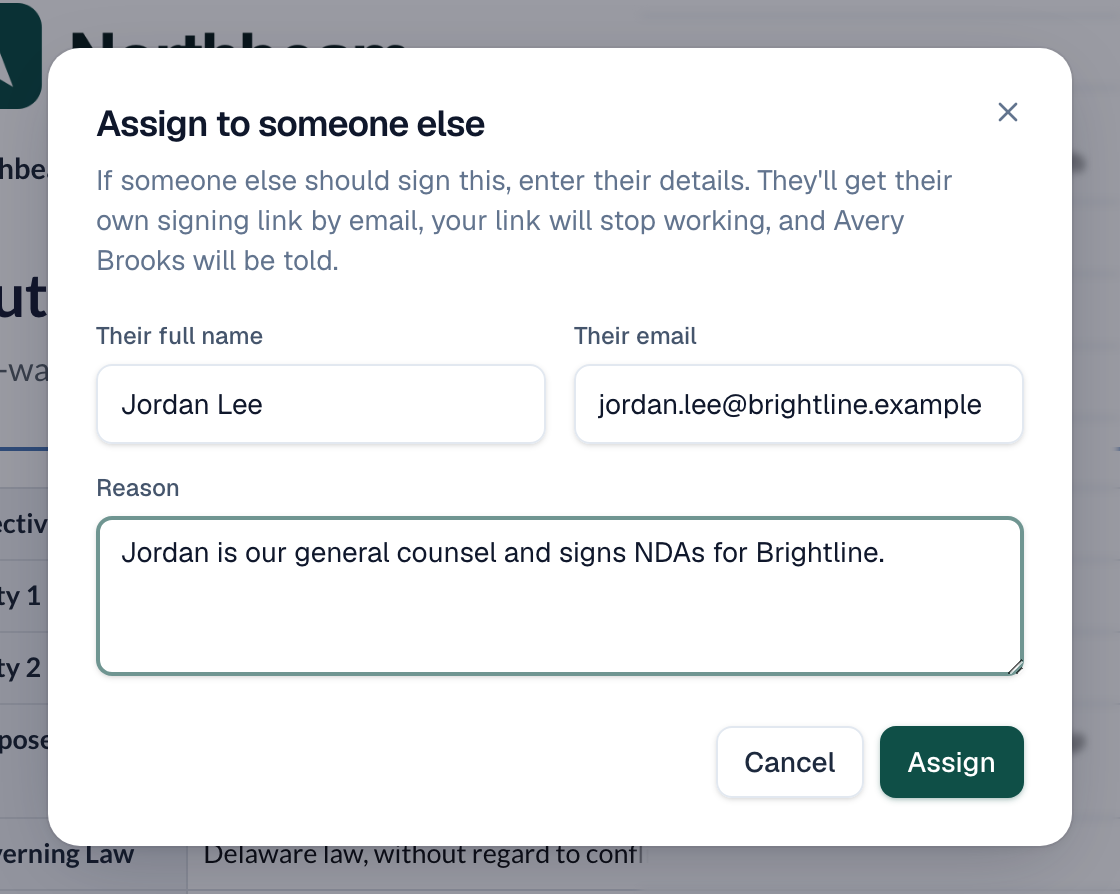
The new person gets their own email with a signing link and the reason. They take the same place: the same fields and the same turn when signing in order. The first person's link stops working at once.
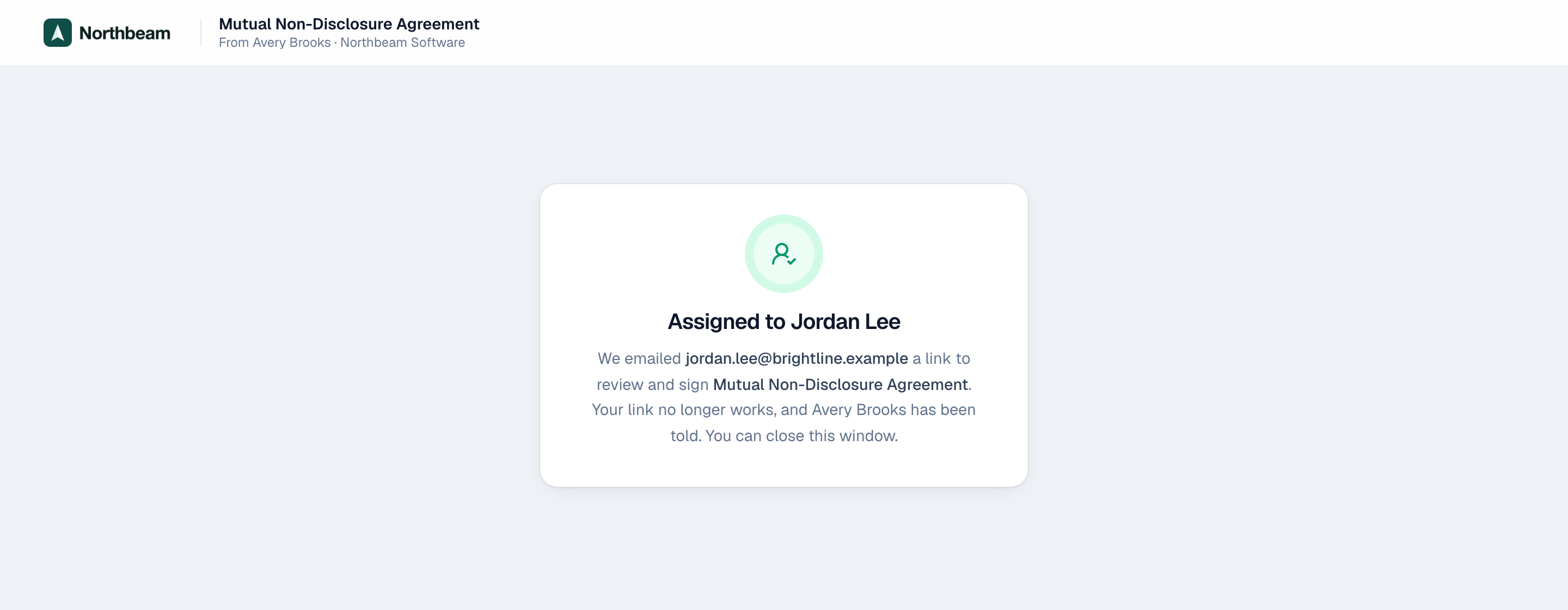
- You get an email saying who it was assigned to and why. The document page shows Assigned by on the new person's card.
- Activity and the certificate record the hand-off, with the old and new name and email, the reason, the time and the IP address.
- If it wasn't right, choose Change on their card to correct it, or void the document.
Fill in the fields
The signer's fields are highlighted. The header shows how many are done, for example 2 of 3 fields. Start, then Next field, jumps from one field to the next.

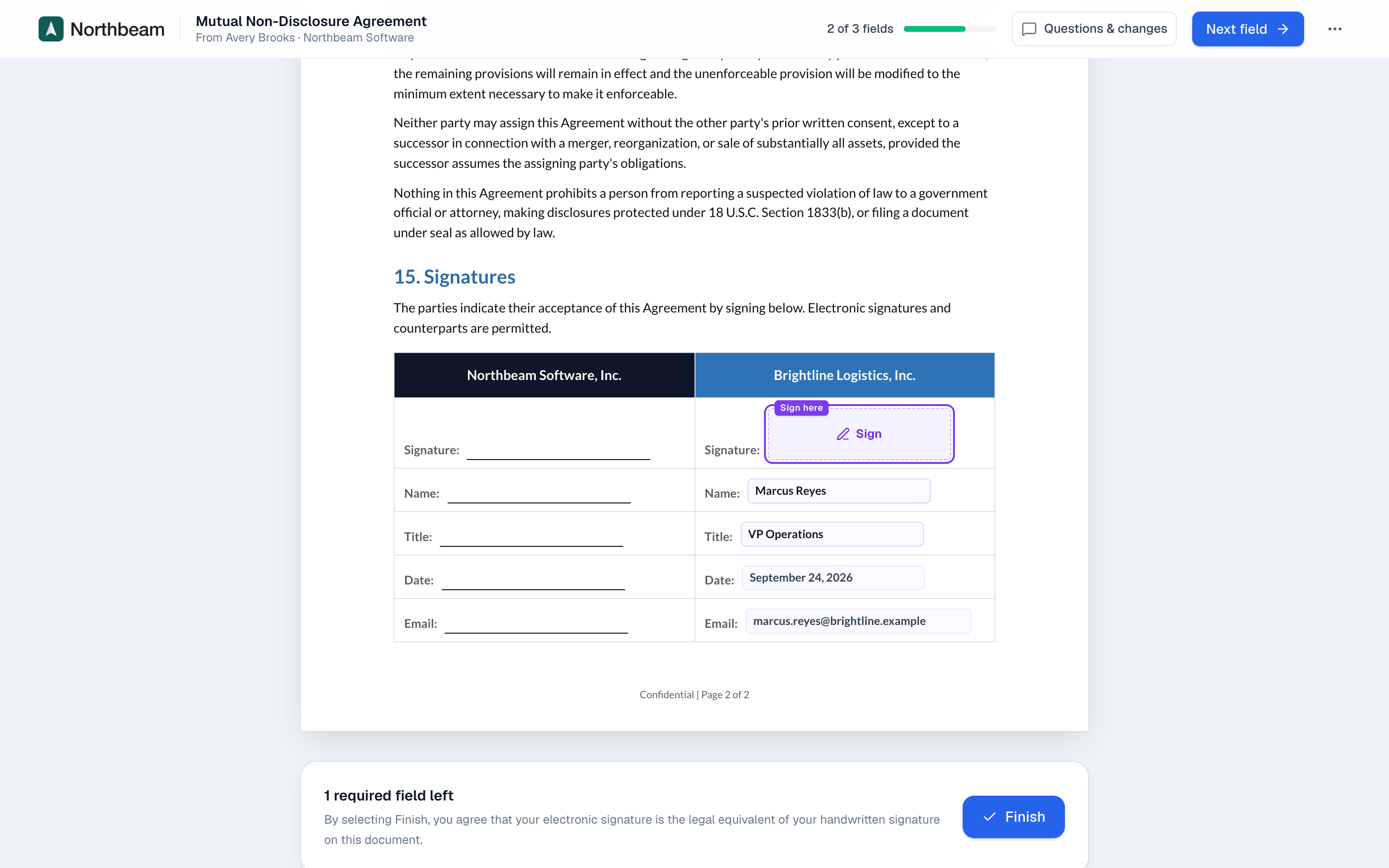
| Field | On the signing page |
|---|---|
| Dropdown | A list to pick from. |
| Radio | Every choice with a circle; one click picks it. |
| Number | A box for the number, with $ or % inside it when you set them. |
| Date | A calendar to pick the date from (the phone's own date picker on a phone). |
| File upload | Upload a file (or your label, such as W-9). The file uploads as soon as they choose it; they see its name and size, and can Replace or remove it until they finish. |
When something isn't right, such as an email address without a domain or a number above the limit you set, a short message under the field says what's needed, in the signer's language, as soon as they leave it. Finish goes to the first field that still needs fixing.

Fields that depend on an answer appear only when it's given: here, the SWIFT code once they choose Wire transfer, and the insurance certificate once they tick that they carry insurance. Hidden fields aren't required.

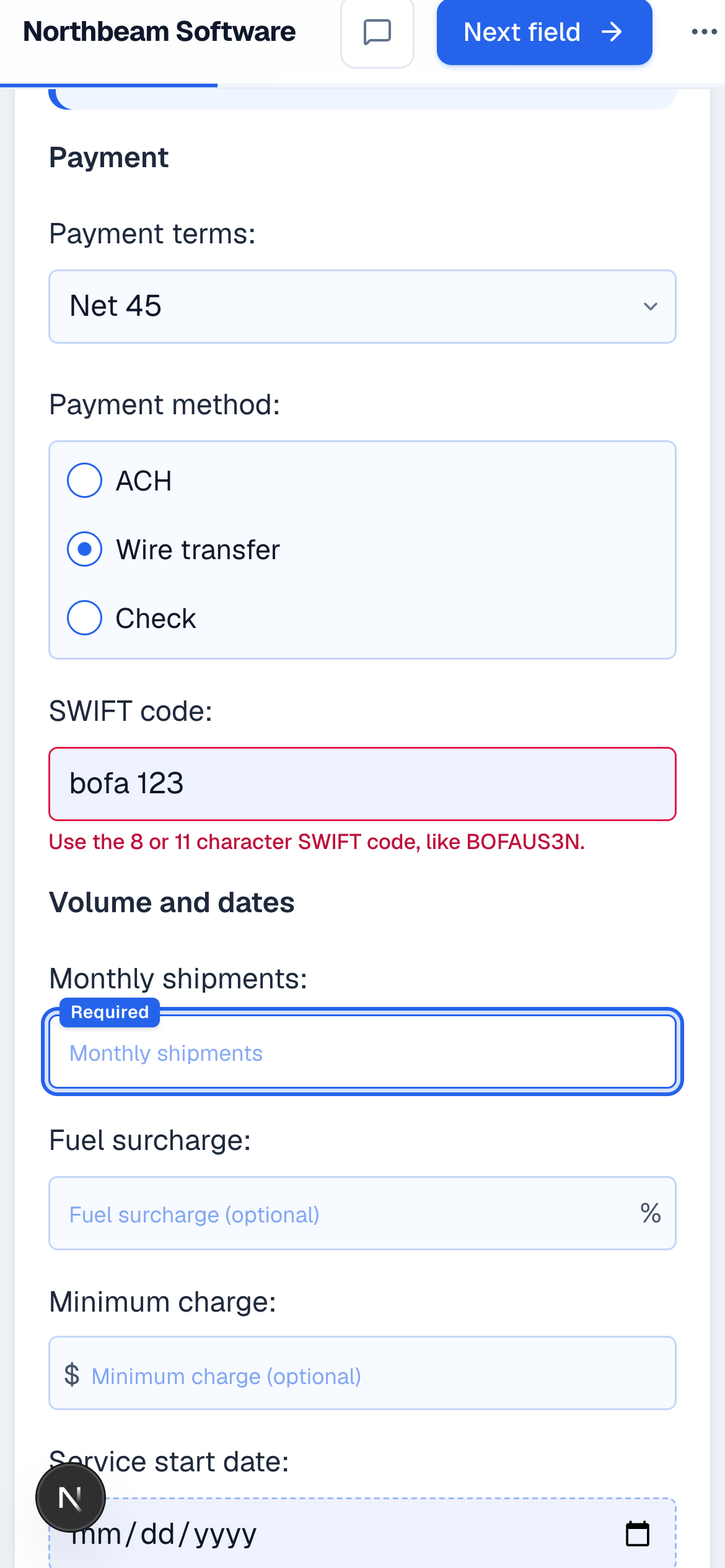
After they sign, each uploaded file is on the Certificate of Completion with its SHA-256 fingerprint, and the file is added to the signed PDF.
Pictures and videos in the document
Pictures and videos in a table or under a scope table's deliverables show as thumbnails. A video's thumbnail has a play button and its length. A click or tap opens it large: a picture to look at, a video to play, with the arrows, the arrow keys or a swipe going on to the next one, and the close button or Esc closing it. A video starts only when they press it, and stops when they step away.
A video from YouTube, Vimeo, Loom or Wistia plays in that site's player, which loads only when they press play; until then nothing on the page comes from the video's site. A video the sender uploaded plays in the browser's own player. In the signed PDF, each video is its cover and a link to watch it. See Pictures and videos in tables.

Adopt a signature
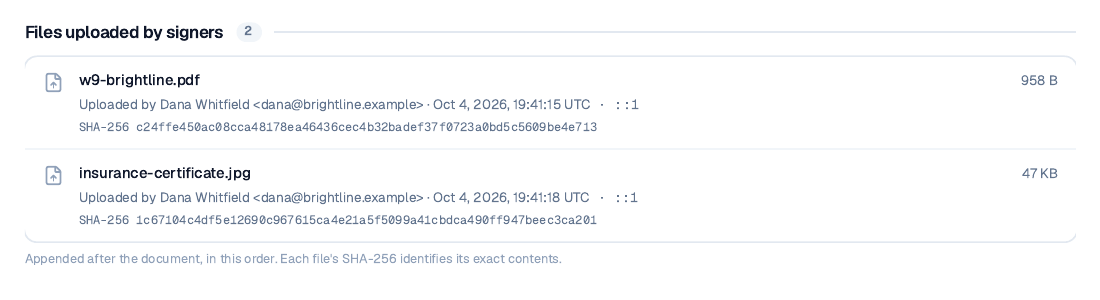
Clicking a signature field opens Adopt your signature. The signer draws it, or types their name and picks a style. The same signature is placed everywhere they sign in the document.
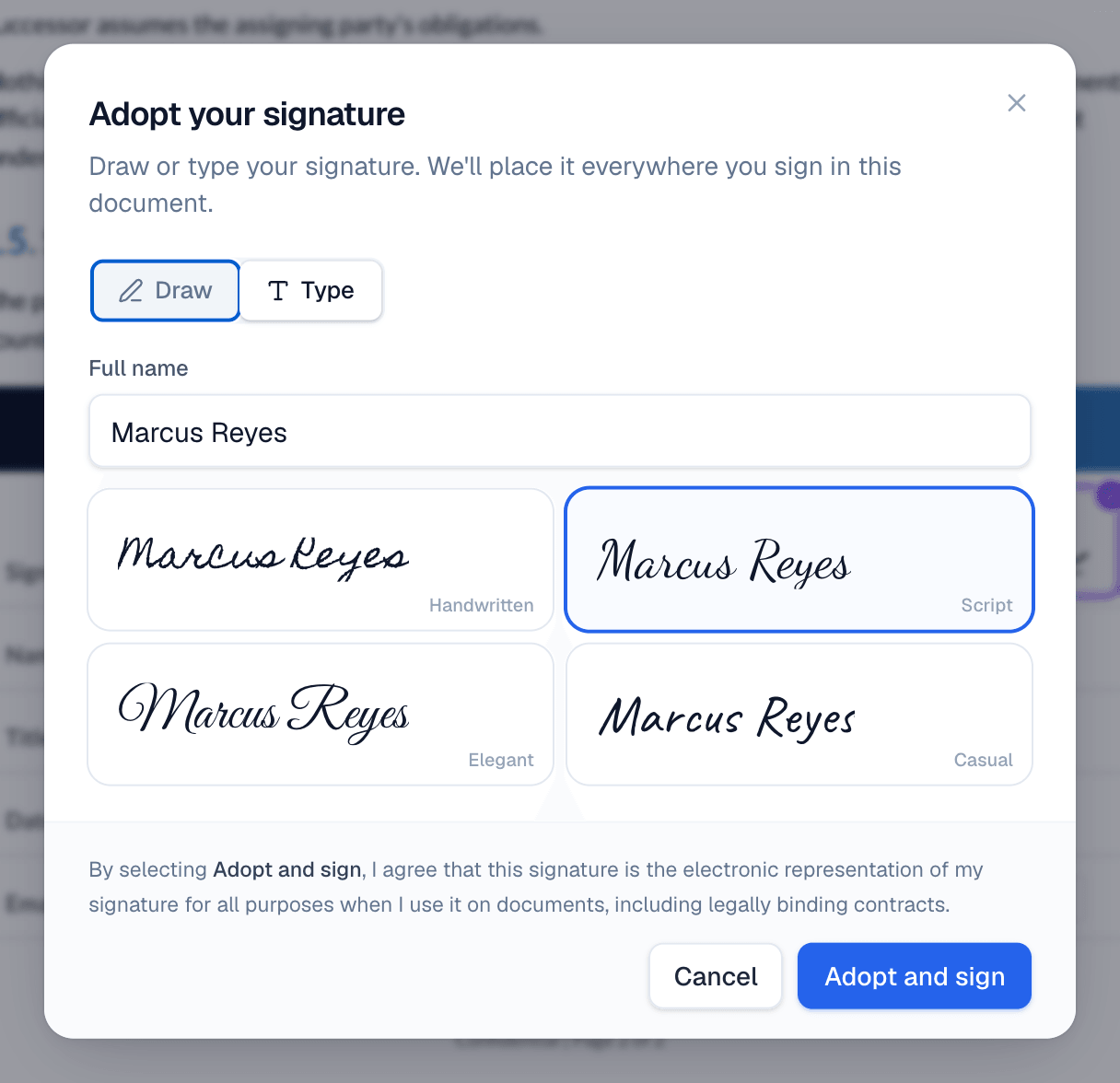
Someone using the keyboard (or a screen reader) gets Type first, and Type it instead sits under the drawing area. A typed signature is as valid as a drawn one.
Initial
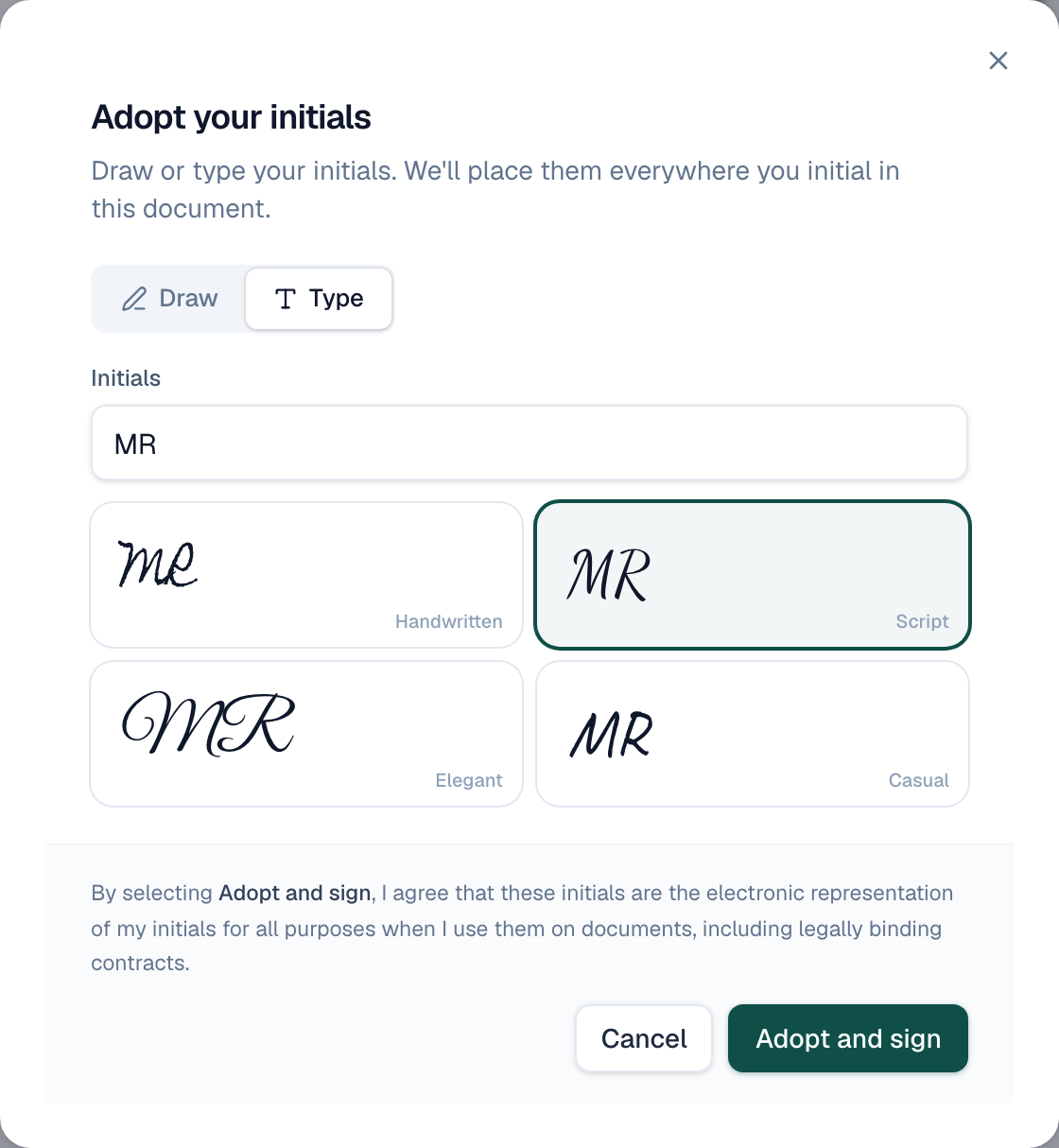
When a document has Initials fields, the signer adopts their initials the same way as a signature.
- The signer clicks an Initial field. Adopt your initials opens.
- They draw their initials, or choose Type. Their initials are filled in from their name, and they pick a style.
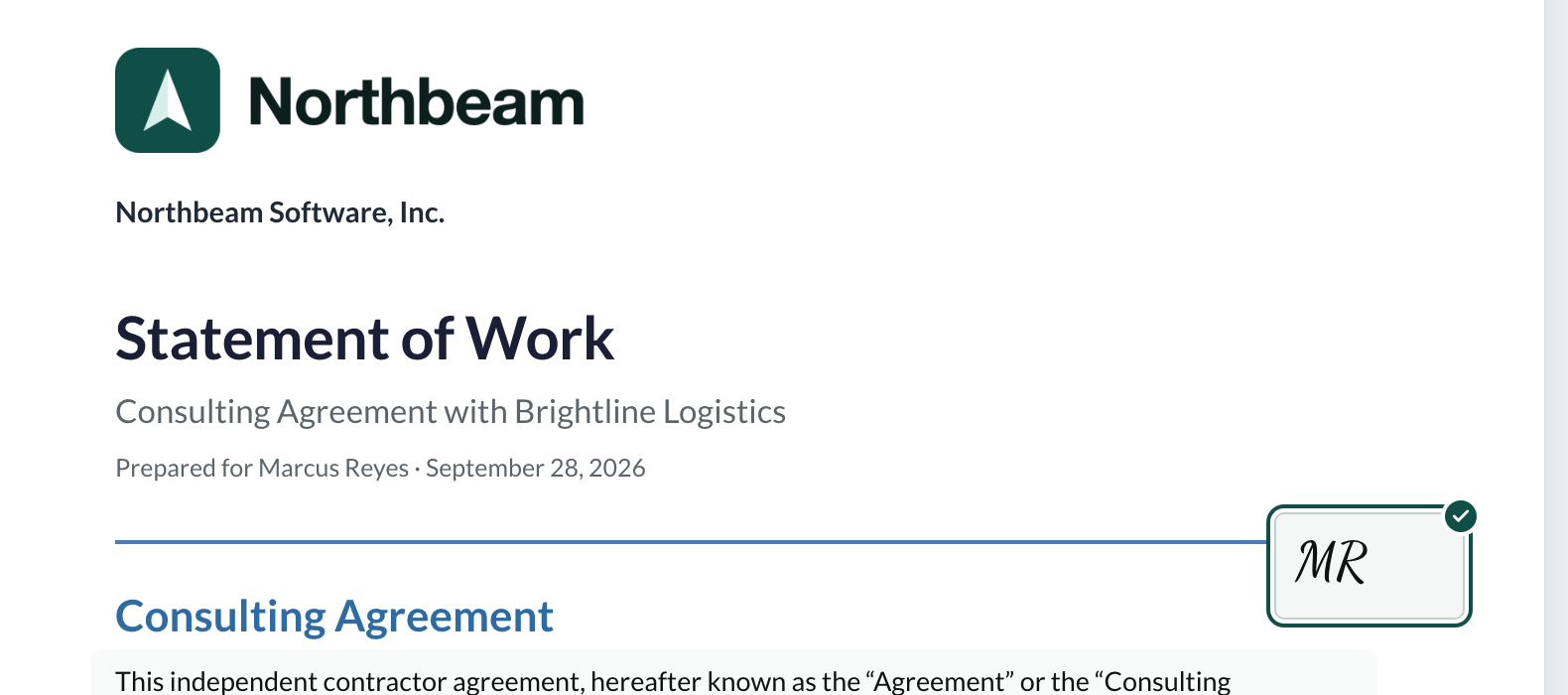
- They choose Adopt and sign. The field shows their initials with a check mark.
- Every other Initial field then takes one click. Next field goes to the next one.
Finish
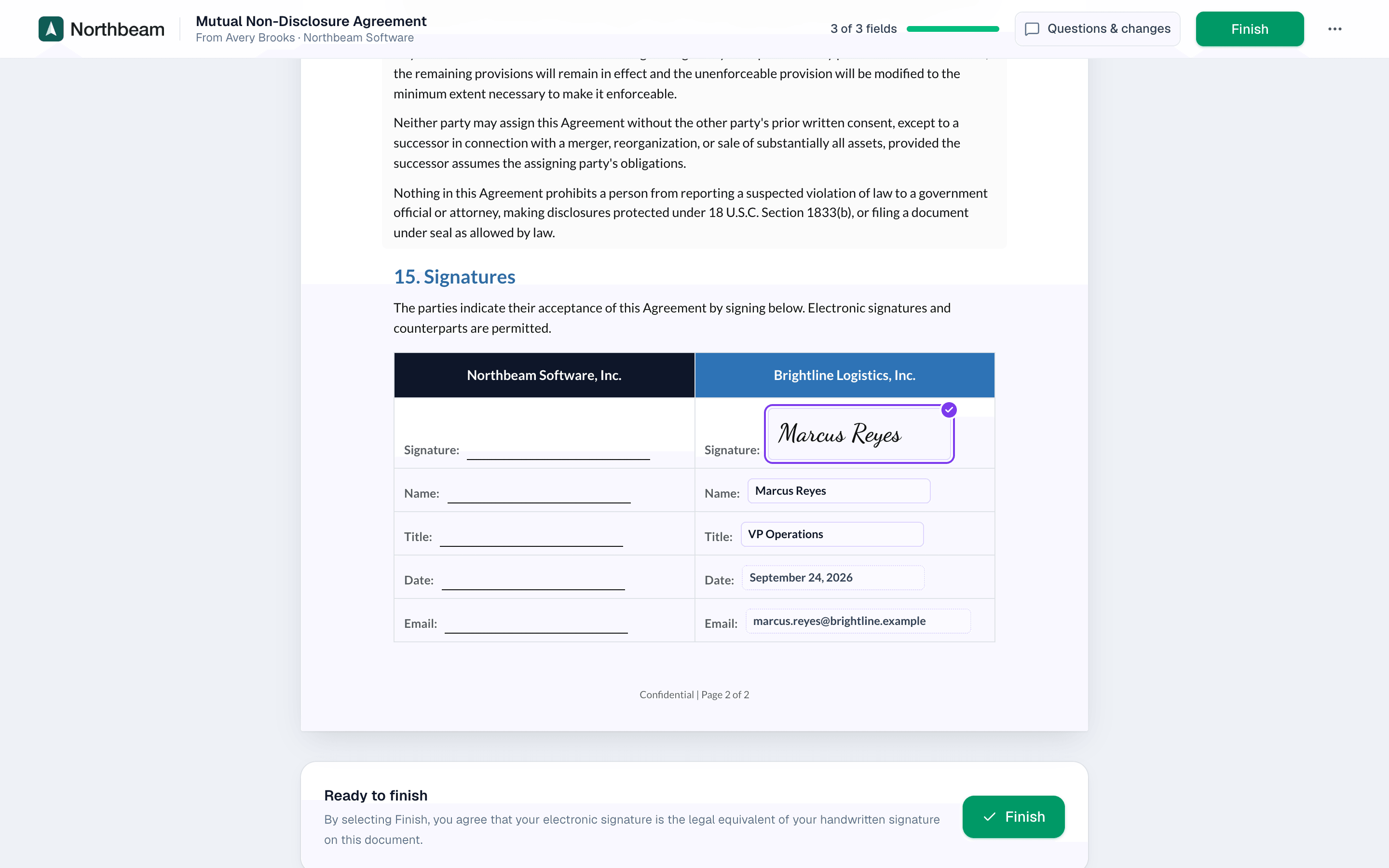
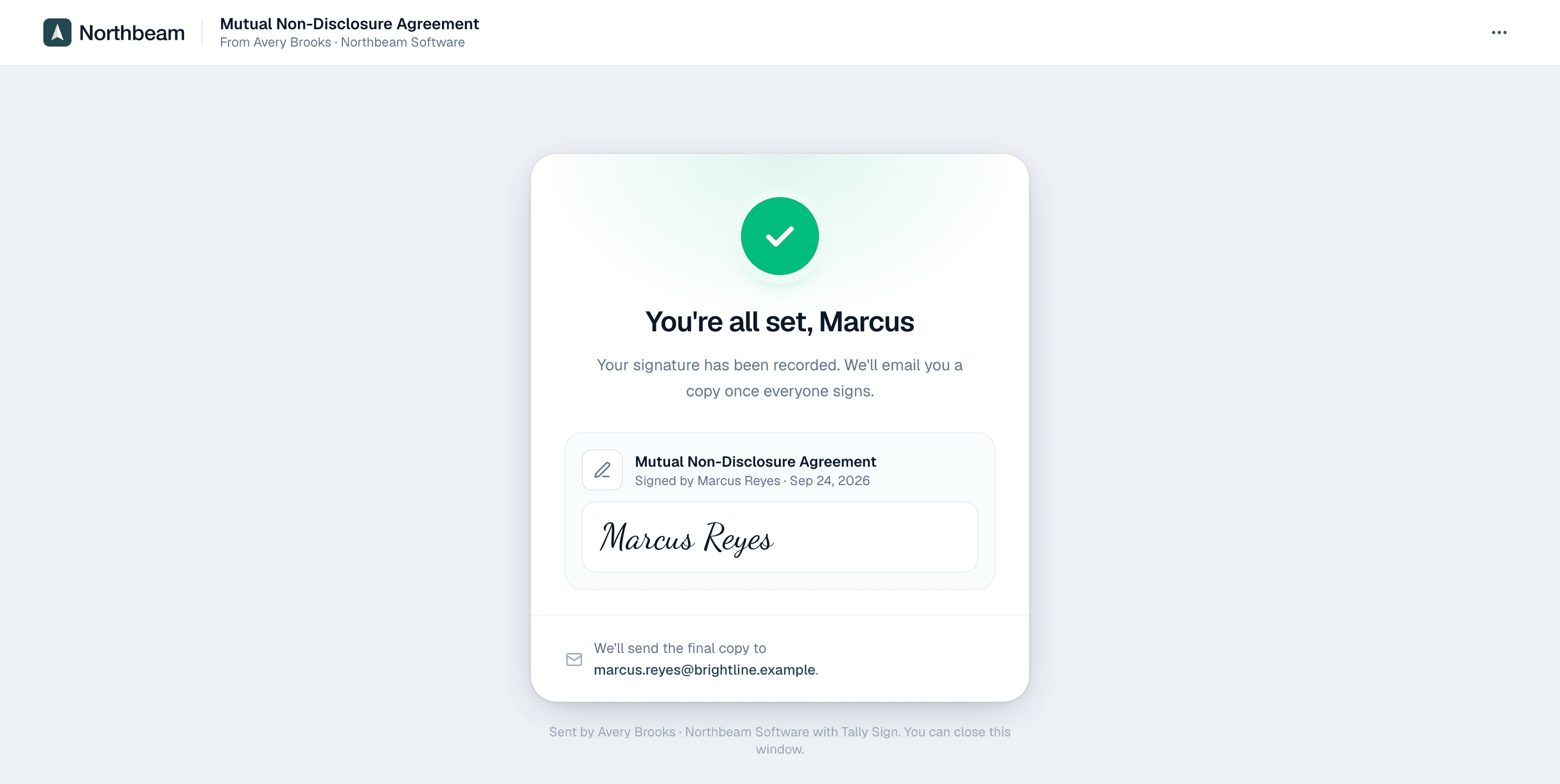
When every required field is done, the button changes to Finish. After finishing, the signer sees a confirmation and gets the signed PDF by email once everyone has signed.
Download before signing
A signer can keep a copy before signing: the ⋯ menu at the top right has Download PDF next to Print. It's the document as you sent it, with its exhibits, every field blank and no signatures, named “… - for review”. What they've typed so far isn't in it: their entries count only when they finish.

Each download shows in Activity on the document page as *Downloaded by … before signing*. It isn't on the certificate, since it isn't part of signing. If you set an access code, downloading needs it too.
Signers who use a keyboard or screen reader
The signing page aims for WCAG 2.2 AA. Every step works with the keyboard alone: the access code, the consent box, Tab from field to field, adopting a typed signature and Finish. Fields are labelled, required ones say so, and errors are announced. The link to the accessibility statement is at the bottom of every signing page.
If a signer can't sign the way the document is shown, they'll contact you. Offer another format or a paper copy, give them more time with Extend, or sign with them in person. Documents uploaded as PDFs show as page images, so a document built in Tally Sign reads better with a screen reader.
In their language
The signing page opens in the Signer language you chose when sending: English, Spanish, French, German or Portuguese (Brazil). Buttons, fields, dialogs, Questions & changes and the confirmation page are all in that language. The document itself stays as you wrote it.
- To switch, the signer chooses the language button next to Questions & changes at the top of the page. On a phone, the languages are in the ⋯ menu.
- They pick a language. The page changes right away.

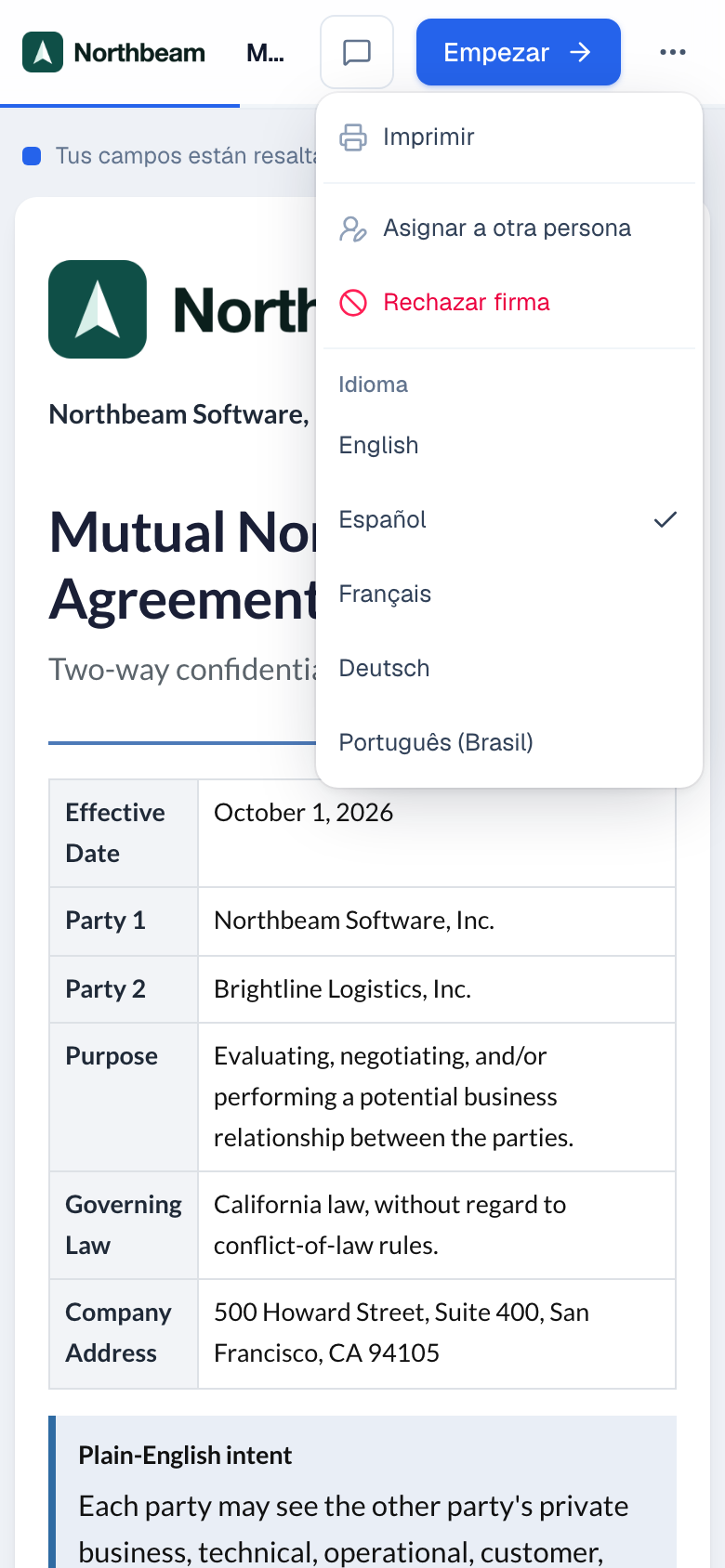
The choice is remembered for their link: coming back, and the emails they get afterwards (such as the completed copy), use it too. The Certificate of Completion lists the language each signer's page was in.
In other languages, the consent dialog is translated. The full Electronic Records and Signature Disclosure and the Privacy Policy it links to are in English, and the dialog says so: if a translation differs, the English version governs.
Signing on a phone or tablet
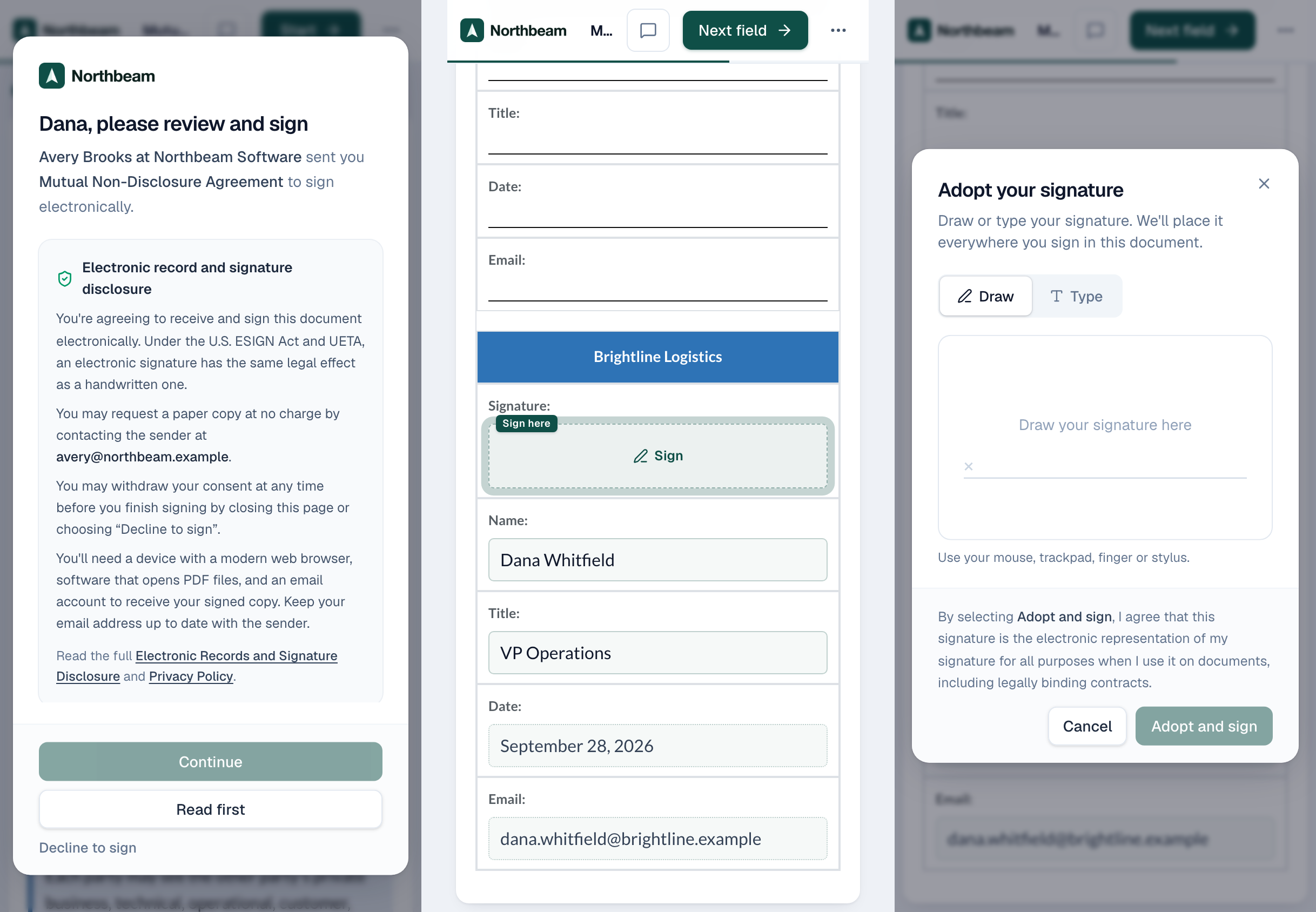
The same link works on a phone or tablet, in the browser. There's no app to install. The page fits the screen, and the steps are the same as on a computer.
- The signer opens the link in the signing email and ticks the consent box, then Continue.
- Start jumps to the first field. Next field moves on from there.
- To sign or initial, they draw with a finger or stylus, or choose Type, then Adopt and sign. Pictures in a table open large when they tap them, and videos play.
- When every required field is done, they choose Finish.
Sign in person. To have someone sign on your own phone or tablet, open the document from Documents and choose Sign in person on their card. The Certificate of Completion records that it was signed in person and who handed over the device. Changed your mind before handing it over? Choose Back to the document at the bottom of the Hand this device to page; nothing is signed.
In the Salesforce mobile app, your team can send and follow documents from records activated for phones, with the Send with Tally Sign action. Customers still sign in their own browser. See Where Tally Sign works in Salesforce.
On the website: No CRM needed·Pricing