
Add Tally Sign to Salesforce
After connecting: assign permission sets and seats, put the Tally Sign component on the record pages you send from, add the Send with Tally Sign action and check it all from Tally Sign.
6 sections · 4 screenshots · 4 clips
The Tally Sign package is small on purpose. It adds the Tally Sign component, Envelope records for reporting, Flow actions and the Send with Tally Sign action. Salesforce doesn't let a package change your pages and layouts, so you add the component and the action yourself, on each object you send from. Install and connect first: see Install and connect Salesforce. The step-by-step below covers the whole setup with a clip of each step; the walkthrough after it plays this part for a quote and a custom object.
Where will you send from?
Assign the Tally Sign User permission set in Salesforce, then give seats to the reps who send.
Step by step · 8 steps
Set up Tally Sign in Salesforce
Where: Tally Sign → Settings → Salesforce
1. Say where you send from
In Tally Sign, choose Settings at the bottom left, then Salesforce under Integrations.
- Under Where will you send from?, check every place your team sends documents from.
- Under Where does your org sign in?, choose Production, Sandbox or Custom domain.
More detail: Say where you send from
Check Salesforce
In Settings → Salesforce, the Setup card lists what's in place, in order: where you send from, the package, the link to Tally Sign, then record pages, the action and permission sets. Choose Check Salesforce to read your org; choose Check again after each change.
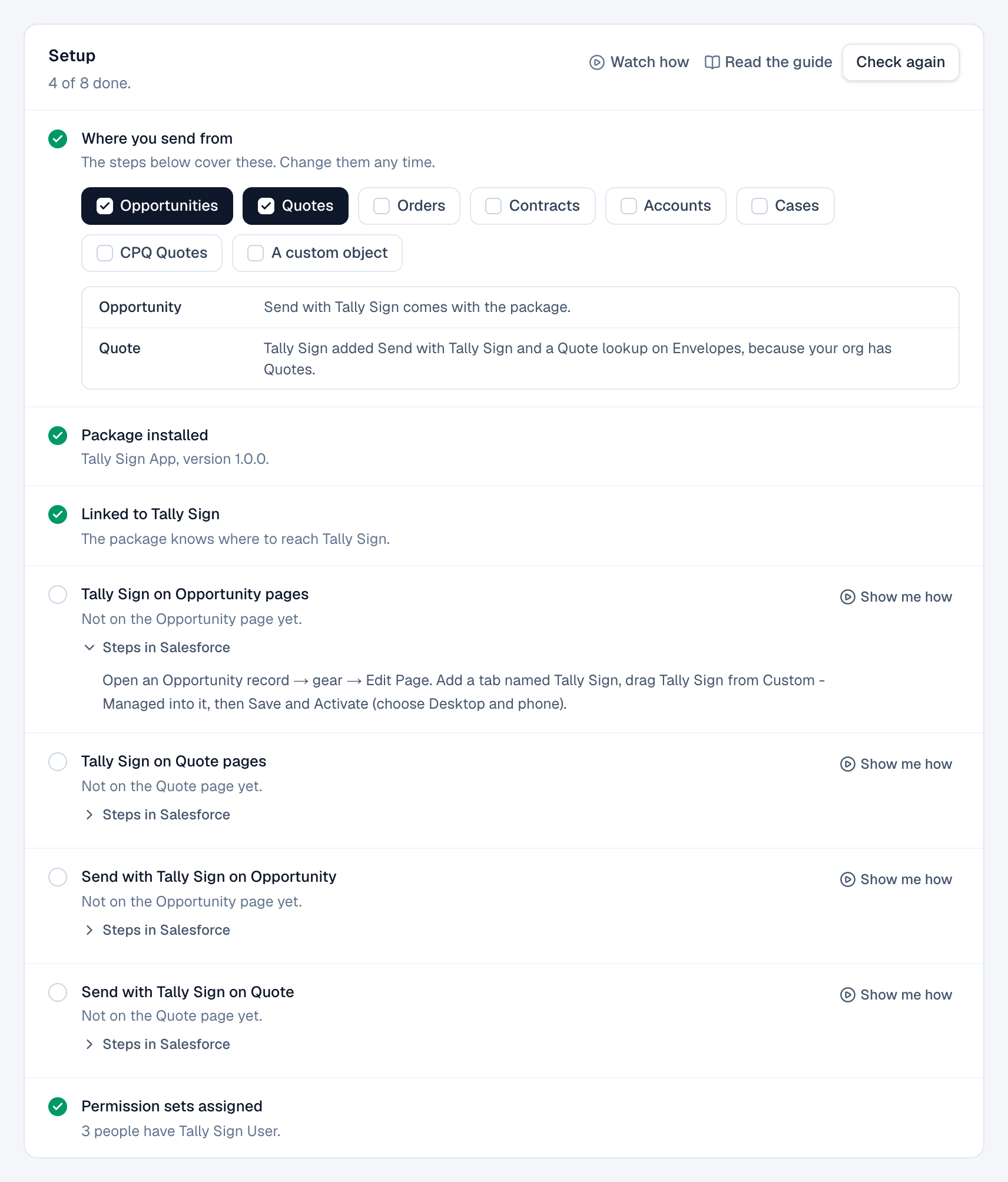
When you've said where you send from, the checklist has two rows for each of those objects, for example Tally Sign on Quote pages and Send with Tally Sign on Quote. Rows that aren't done say where things stand in one line, with Show me how, which opens the walkthrough at that step, and Steps in Salesforce, which lists what to do there. Watch how at the top of the card plays the whole setup.
- Package installed shows the version. When the package isn't installed, or shows Package update available, the row has Install in Salesforce (or Update in Salesforce) and Copy link.
- Linked to Tally Sign is done once you've connected. If not, choose Link now. Installing the package again (after uninstalling it) starts it without the link: Tally Sign links it again within the hour, and emails your admins if it can't.
- Tally Sign on … pages (or Component on record pages) is only done when a page with the component is activated. A page that's only saved shows nothing to reps. It also says whether the page is active on phones.
- Component on phones checks that the page is also active on phones.
- Send with Tally Sign on … (or Send with Tally Sign action) looks for the action on your page layouts and on pages that use Dynamic Actions. If Tally Sign hasn't added the action to an object yet, choose Add it.
- Send action on CPQ quotes appears when Salesforce CPQ is installed.
- Permission sets assigned is only done when reps have Tally Sign User, not just the user Tally Sign connects as, and everyone with a seat can open Tally Sign in Salesforce.
- Salesforce edition appears only when your edition isn't supported.
If a row says it couldn't tell, for example because the org has many record pages, check that item in Salesforce yourself.
Assign permission sets
| Permission set | Give it to |
|---|---|
| Tally Sign User | Reps. Read access to envelopes, the component and the Flow actions. |
| Tally Sign Admin | Admins. Full access to envelopes. The user Tally Sign connects as gets it when you connect. |
- In Salesforce, choose the gear icon, then Setup. Search for Permission Sets in Quick Find, open it and choose Tally Sign User.
- Choose Manage Assignments, then Add Assignment, and pick the reps who send. Adding it to a permission set group they already have works too.
- Do the same with Tally Sign Admin for admins.
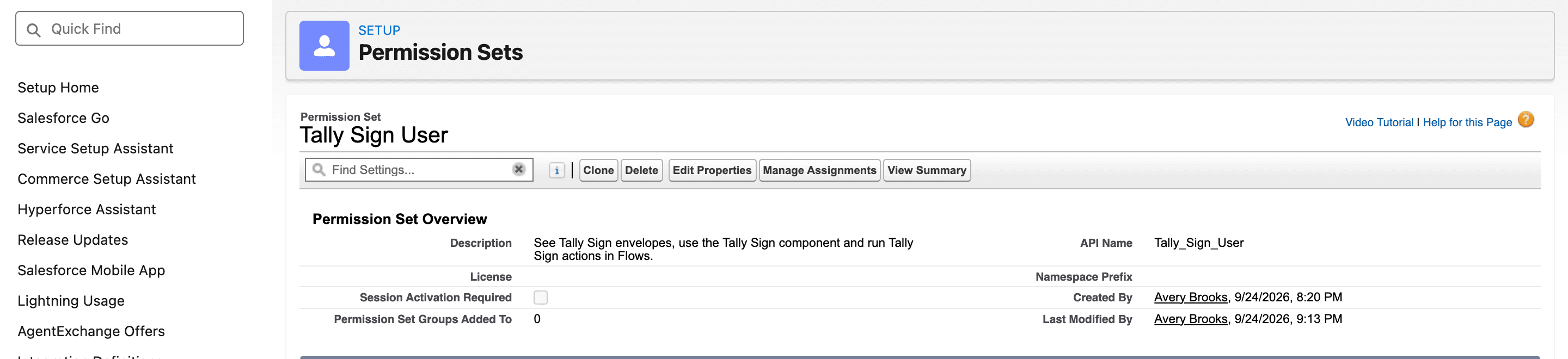
Permission sets decide what people can open in Salesforce. Who can send is decided by seats in Tally Sign: in Settings → Seats, turn on the switch next to each rep under Salesforce users, or turn on Assign seats automatically to people who try to send so a rep gets a seat the first time they send, while seats last. See Seats.
Tally Sign follows each rep's Salesforce access. When someone with a seat fills or sends a document, it's filled with what they can see: fields hidden by their profile or permission sets, and related records they can't open, are left empty. Envelopes follow their sharing too, in Salesforce and in the Tally Sign web app. Reps see their own, managers see their team's, and Tally Sign Admin sees all.
Two exceptions. Automation rules fill documents with what the user Tally Sign connects as can see, since no one is sending by hand. Tally Sign owners and admins, and teammates who use Tally Sign on the web without a Salesforce seat, see all of the company's documents in the web app.
Someone without either permission set sees You don't have access to Tally Sign yet where the component should be. Assign them Tally Sign User.
Add the component to record pages
Do this on each object you send from: Quote, Opportunity, Order, Contract, Account, Case, the CPQ Quote or your custom object.
- Open a record of that object in Salesforce, for example a Quote or a Service Agreement.
- Choose the gear icon, then Edit Page. Lightning App Builder opens.
- Select the Tabs component on the page, choose Add Tab, then select the new tab. Set Tab Label to Custom, type Tally Sign under Custom Tab Label and choose Done.
- Select the new Tally Sign tab on the page, then drag Tally Sign from Custom - Managed in the components list into it. Leave View set to
record. - Choose Save. When Salesforce asks, choose Activate.
- On Org Default, choose Assign as Org Default, choose Desktop and phone and save. To use the page in some apps, record types or profiles only, use App Default or App, Record Type, and Profile instead, and choose Desktop and phone there too.
The Envelope record page in the package already has the component.
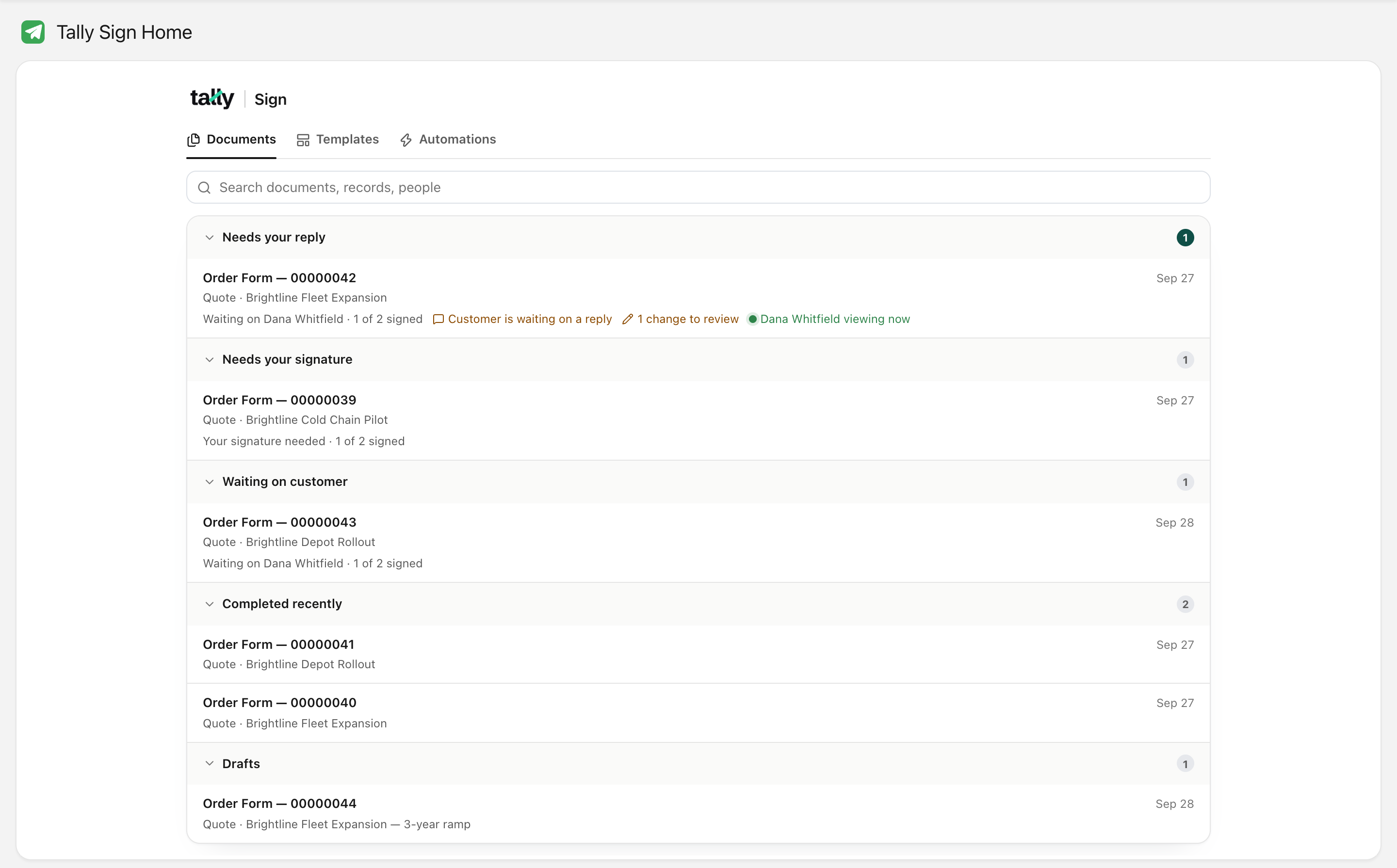
For a list of everything you've sent, add the component with View set to inbox to a home page, an app page or the utility bar. The Tally Sign app's Tally Sign Home tab already has it.
It opens on Documents: Needs your reply, Needs your signature (your company's signature is next), Waiting on customer (with who it's waiting on), Completed recently and Drafts, five of each until you choose Show all. Search by document, record, person or sender. Choose a document to open it right there, with the same actions as on the record, and Open the record from its top bar. Admins can switch between Mine and Everyone, and filter everyone's documents by sender.
Add the Send with Tally Sign action
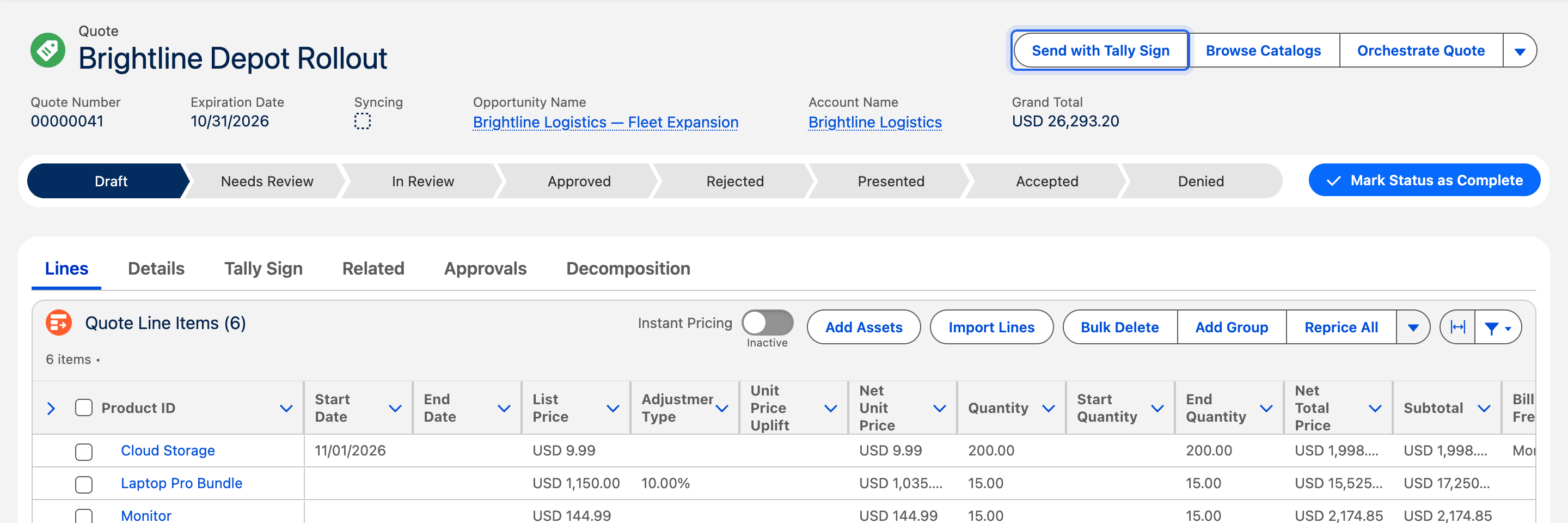
The package includes Send with Tally Sign for Opportunity, Contract and Account. Tally Sign adds it to Quote and Order when your org has them, and to cases, CPQ quotes and custom objects you send from (see What Tally Sign adds to your org). Add it to the page layouts reps use:
- In Salesforce, choose the gear icon, then Setup. Open Object Manager, then the object, for example Opportunity, then Page Layouts, and open the layout your reps use.
- Choose Mobile & Lightning Actions in the palette.
- Drag Send with Tally Sign into Salesforce Mobile and Lightning Experience Actions. If that section says its actions are predefined by Salesforce, choose override the predefined actions first.
- Save. Repeat for each object and layout you send from.
Salesforce CPQ quotes
The package can't include an action for CPQ quotes, because that would make every install require CPQ. When Tally Sign finds Salesforce CPQ, Check Salesforce shows Send action on CPQ quotes:
- In Tally Sign, open Settings → Salesforce and choose Check Salesforce.
- Under Send action on CPQ quotes, choose Create the CPQ Quote action. Tally Sign creates Send with Tally Sign on the CPQ Quote object in your org.
- In Salesforce, choose the gear icon, then Setup. Open Object Manager → Quote (SBQQ__Quote__c) → Page Layouts and open the layout your reps use.
- In Mobile & Lightning Actions, drag Send with Tally Sign into Salesforce Mobile and Lightning Experience Actions and save.
- Choose Check again in Tally Sign. The row is done once the action is on the layout.
To show envelopes on CPQ quotes, add the Tally Sign component to the CPQ Quote record page the same way as on other objects. Connecting also adds a CPQ Order Form starter template that fills from CPQ quote lines. To list envelopes on CPQ quotes in reports and related lists, see Envelopes on CPQ quotes.
Where Tally Sign works in Salesforce
- Desktop: record pages, the Send with Tally Sign action, app and home pages, the utility bar and the Tally Sign app.
- Salesforce mobile app: record pages activated for phones, the Send with Tally Sign action, the Tally Sign app with Tally Sign Home and Envelope records. Home pages and the utility bar don't show custom components on phones.
- Editing a document on a phone: some phones don't let Tally Sign keep you signed in inside Salesforce. If the editor says the browser blocked it, choose Open in Tally Sign from the document's menu, or edit on a computer.
- Experience Cloud sites (partner and customer portals) aren't supported. The component isn't offered in Experience Builder, and partner and community users can't hold a seat.
On the website: Any object·Pricing